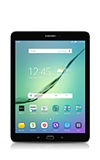
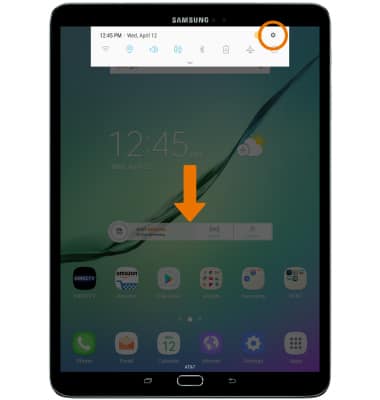
- VIEW DATA USAGE: Swipe down from the Notification bar, then select the Settings icon.
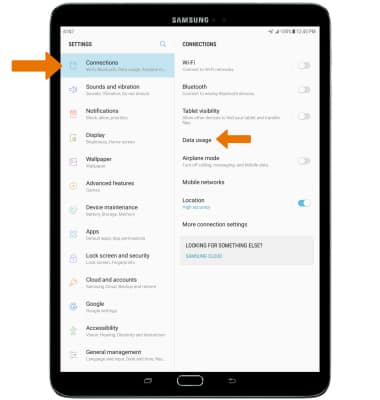
- Selection Connections, then select Data usage.
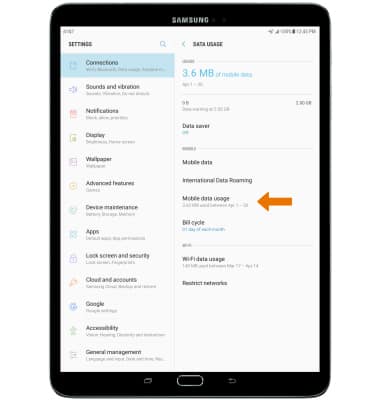
- Select Mobile data usage.
- CHANGE DISPLAYED BILLING CYCLE: Select the Data usage cycle drop-down. Select the desired billing cycle.
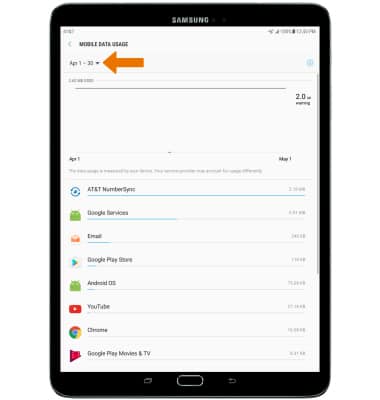
- SET BILLING CYCLE: Select the Settings icon.
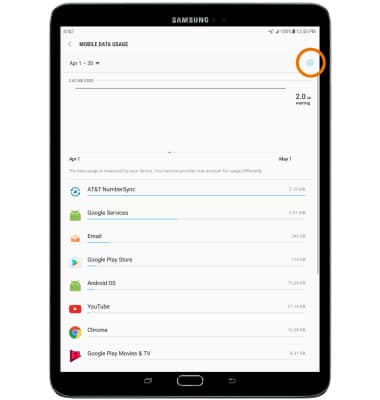
- Select Start billing cycle on. Select the desired date, then select SET.
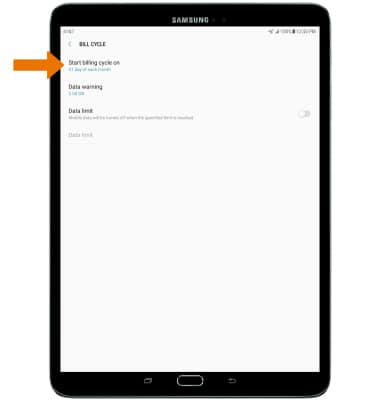
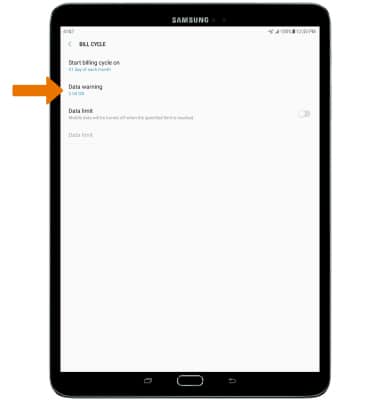
- SET MONTHLY DATA LIMIT: From the Mobile Data Usage page, select the Settings icon.
Note: When the mobile data limit is active and has been reached, the mobile data block will remain in effect until mobile data is manually re-enabled on the device, the limit threshold is changed to a higher value, or a new data usage cycle begins. If you set data usage limits on your device, they do not communicate with AT&T systems. You will still receive AT&T system generated notifications as you approach your data limits.
- Select Data limit. Enter the desired limit and select SET.
Note: The Data limit switch must be turned on to set a data limit.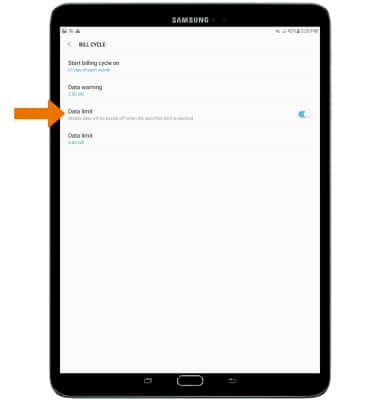
- SET MONTHLY DATA WARNING: Select Data warning. Enter the desired limit in which you wish to be warned, then select SET.
- VIEW DATA USAGE BY APP: From the Mobile data usage menu, scroll to view data usage broken down by application.
Note: To restrict apps from using data while running in the background, select Settings > Connections > Data usage > Data saver > Data saver switch. Your myAT&T account is also another way to manage your wireless usage.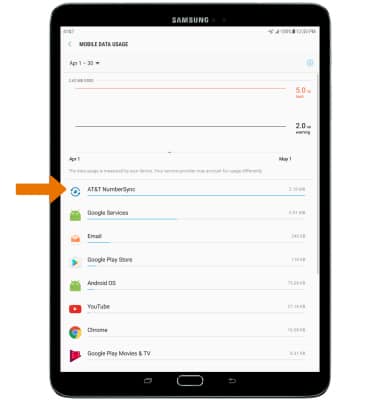
View & Manage Data
Samsung Galaxy Tab S2 9.7 (T817A/T818A)
View & Manage Data
Access Usage Manager to view data usage, see which apps are using the most data, and set data limits.
INSTRUCTIONS & INFO