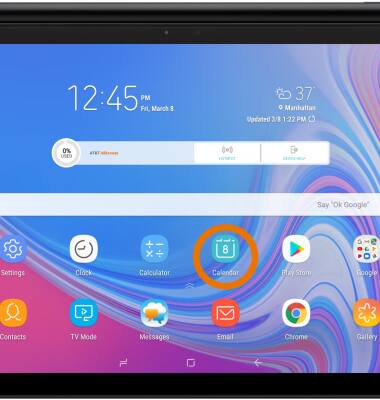
- ACCESS CALENDAR: From the home screen, select the Calendar app.
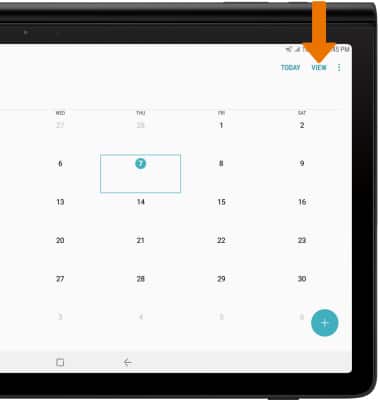
- CHANGE CALENDAR VIEW: Select VIEW.
- Select the desired calendar view.
Note: For this demonstration, Month was selected.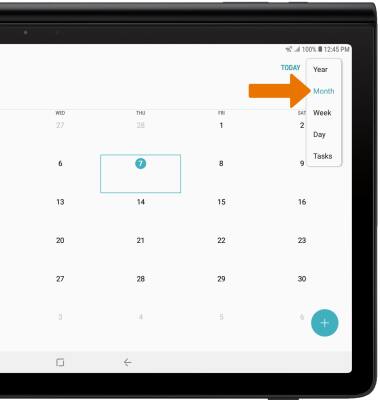
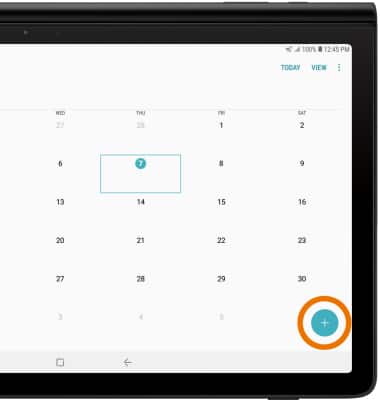
- CREATE AN EVENT: Select the Add icon.
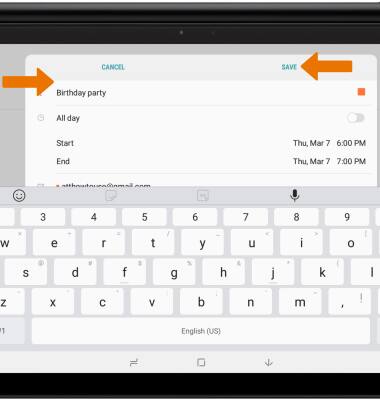
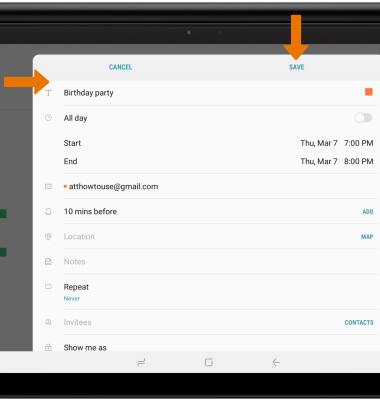
- Enter Event details and Preferences as desired, then select SAVE.
- EDIT AN EVENT: Select the desired date.
Note: You can only edit events that you created.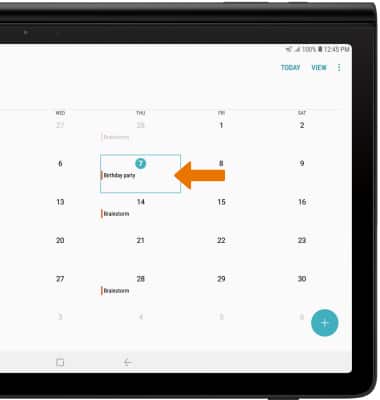
- Select the desired event.
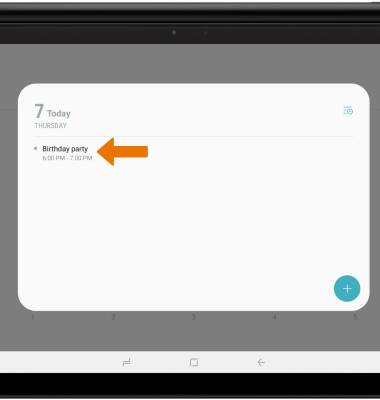
- Edit event as desired, then select SAVE.
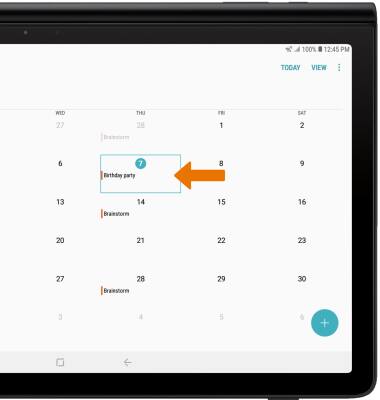
- DELETE AN EVENT: Select the desired date.
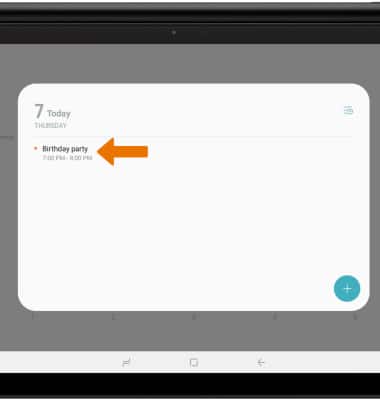
- Select the desired event.
- Select DELETE.
Note: You will be prompted to select DELETE again to confirm.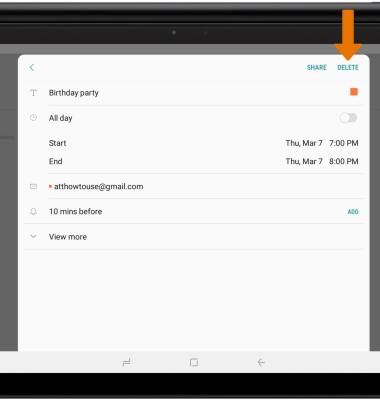
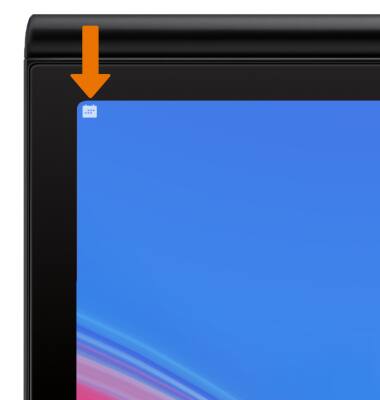
- At the time of the event, an Event icon will be displayed in the Notification bar.
Calendar
Samsung Galaxy View2 (SM-T927A)
Calendar
Access the calendar and manage events.
INSTRUCTIONS & INFO