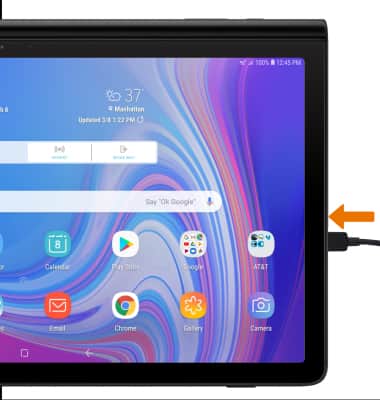
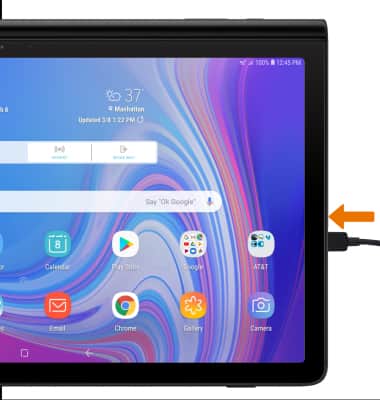
- TRANSFER MEDIA TO/FROM A PC: With the device powered on, insert the USB-C end of the USB-C cable into the port on the right side of the device.
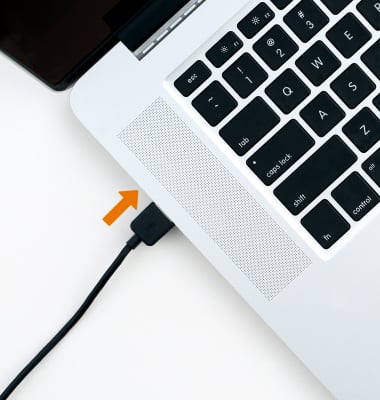
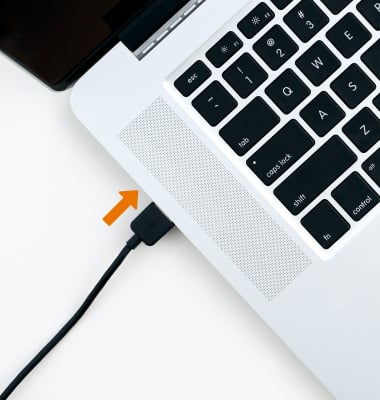
- Insert the USB end of the USB-C cable into an open port on the computer.
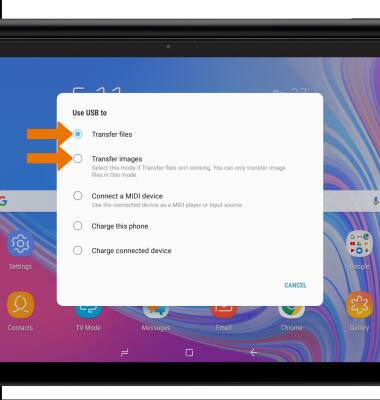
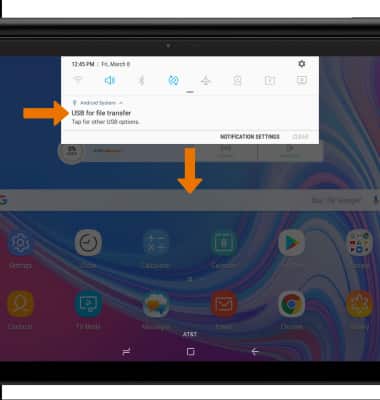
- To place the device into the correct USB mode, swipe down from the Notification bar then select the Android System drop down menu > USB for file transfer.
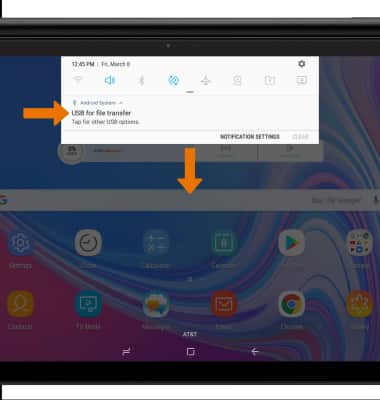
- Select Transfer files or Transfer images.
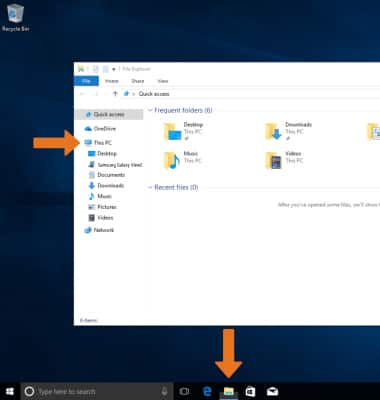
- From your PC, click the File Explorer icon then click This PC.
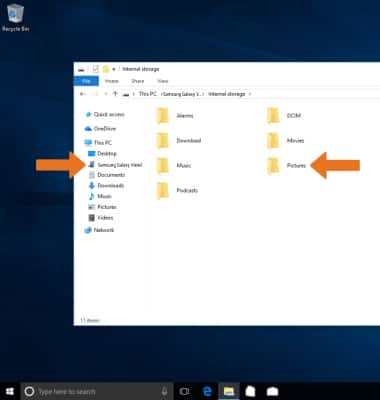
- Click the device name, then navigate to the desired folder.
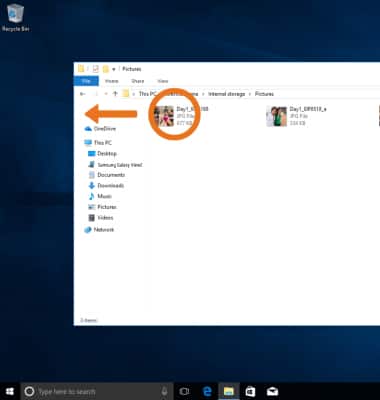
- Drag and drop files to/from the device drive to transfer.
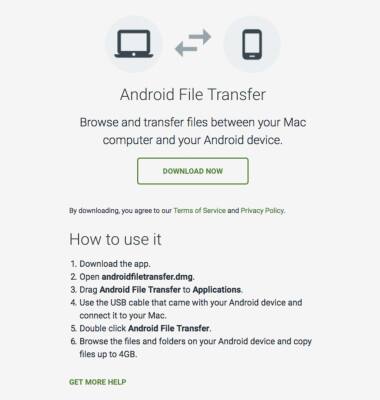
- TRANSFER MEDIA TO/FROM A MAC: You need the Android File Transfer App to facilitate communication between the device and a Mac computer. Download and install the Android File Transfer app.
- With the device powered on, insert the USB-C end of the USB-C cable into the port on the right side of the device.
- Insert the USB end of the USB-C cable into an open port on the computer.
- To place the device into the correct USB mode, swipe down from the Notification bar then select the Android System drop down menu > USB for file transfer.
- Select Transfer files or Transfer images.
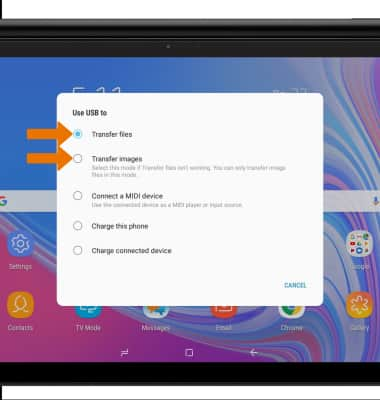
- Once the device is connected to the computer, the Android File Transfer app will open automatically. Select the desired folder to transfer files to/from.
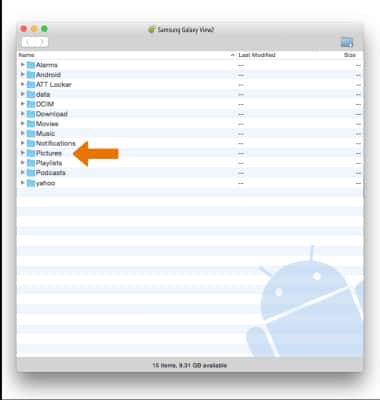
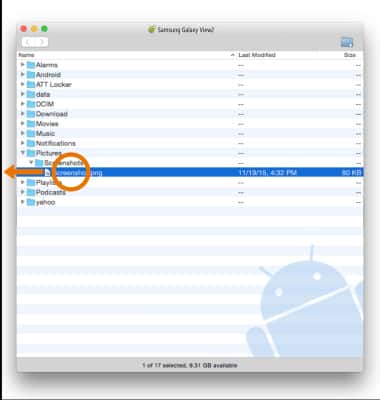
- Drag and drop the desired files to/from the device to transfer.
Backup & Restore with a Computer
Samsung Galaxy View2 (SM-T927A)
Backup & Restore with a Computer
Backup and restore your device with a computer.
INSTRUCTIONS & INFO