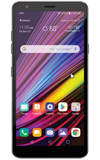

• Set a security lock
• Change lock type
• Change lock screen timeout
• Set Lockdown mode
• Lock and unlock device
Set a security lock
1. Swipe down from the Notification bar, then select the  Settings icon.
2. Select Lock screen & security.
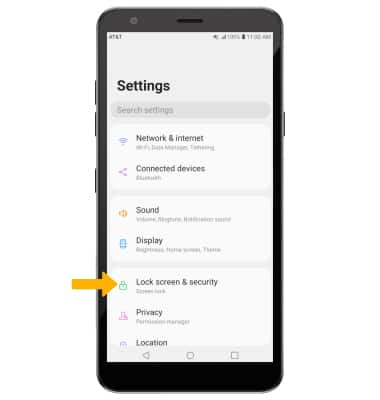
Settings icon. 2. Select Lock screen & security.
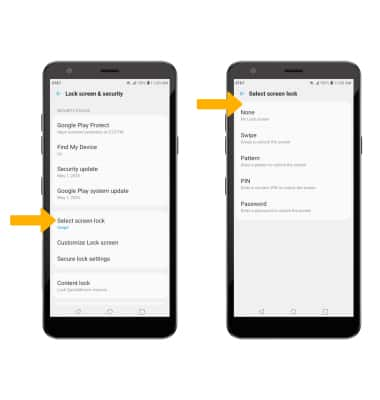
3. Select Select screen lock, then select the desired screen lock type and follow the prompts to complete set up.
Note: To set up Fingerprint lock, select the Fingerprints switch then follow the prompts.
Note: To set up Fingerprint lock, select the Fingerprints switch then follow the prompts.
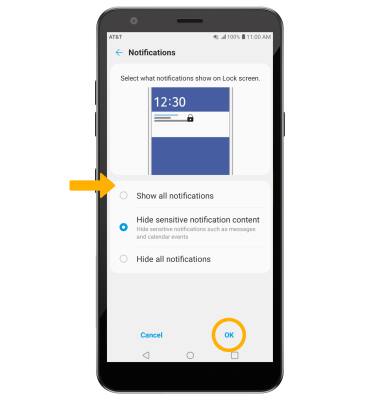
4. Edit Lock screen notification settings as desired, then select OK.
Change lock type
From the Lock screen & security screen, select Select screen lock > enter your current screen lock > select the desired screen lock type and follow prompts to complete set up.Change lock screen timeout
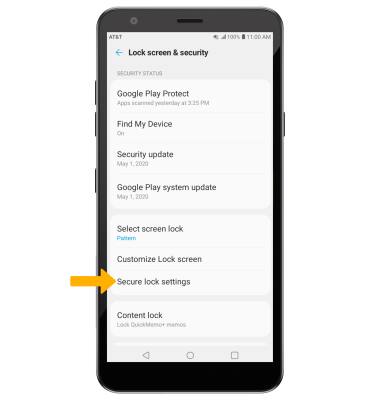
1. From the Lock screen & security screen, select Secure lock settings.
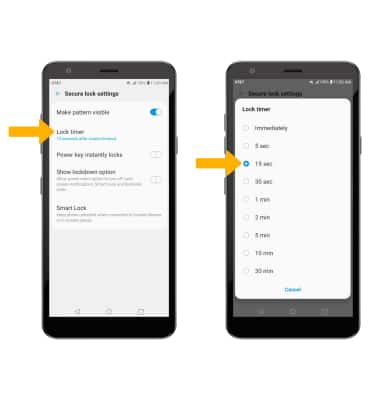
2. Select Lock timer, then select the desired timer duration.
Set Lockdown mode
ENABLE: From the Secure lock settings screen, select the Show lockdown option switch. 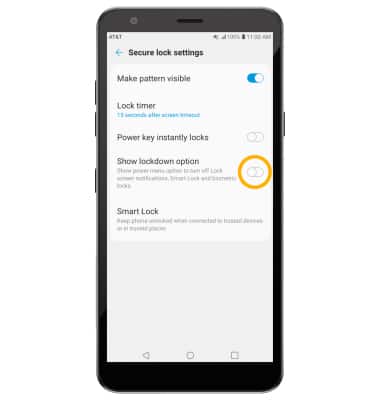
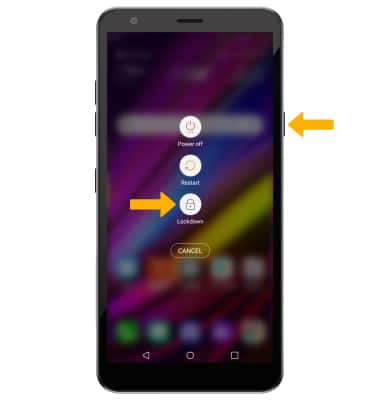
USE: Press and hold the Power/Lock button, then select Lockdown.
Lock and unlock device
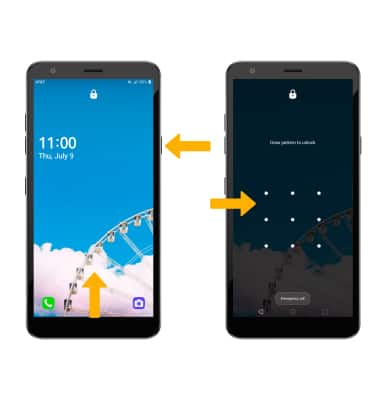
• UNLOCK YOUR DEVICE: Press the Power/Lock button located on the right side of the device then swipe up from the bottom of the lock screen. Enter your current screen lock to unlock.
• LOCK DEVICE: Press the Power/Lock button located on the right side of the device.