
In this tutorial, you will learn how to:
• Access email inbox
• Compose an email
• Refresh the inbox/view an email
• Access email options
When a new Gmail message is received, the  Gmail icon will be displayed in the Notification bar.
Access email inbox
From the home screen, select the Google folder, then select the  Gmail app. If you have multiple email accounts on the device, select the Account icon, then select the desired account.
Note: To view all emails in one inbox, select the  Menu icon > All inboxes.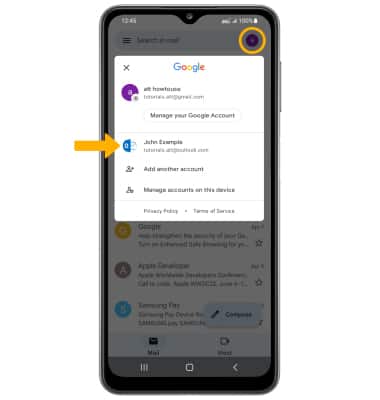
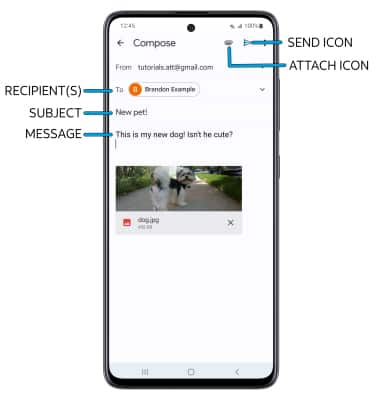
Compose an email
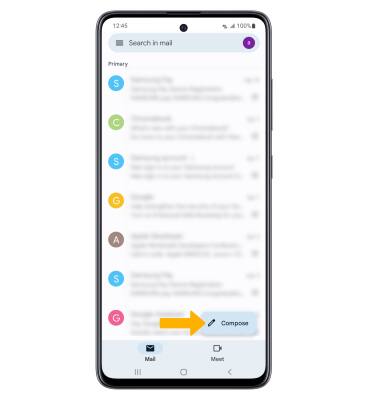
Note: You can also select the Drop-down icon in the sender field to change the sending inbox.
Refresh the inbox/view an email
Swipe down from the center of the screen to refresh the inbox. Select the desired email you would like to view.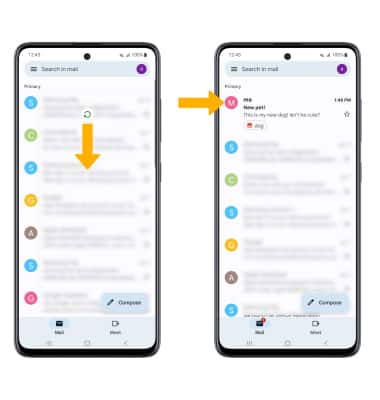
Access email options
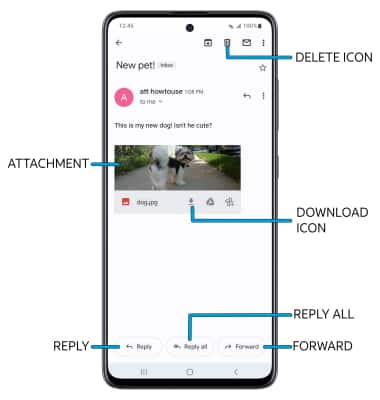
Select Reply, Reply all, or Forward to respond to an email. Select an attachment to view. Select the  Download icon to download an attachment. Select the
  Delete icon to delete an email.
Note: To view saved attachments, from the home screen, select the  Gallery app > Albums tab > Downloads.