In this tutorial, you will learn how to:
• Access the keyboard
• Access symbols and numbers
• Copy and paste text
• Access keyboard settings
Access the keyboard
Select a Text entry field.
Note: The on-screen keyboard is only available when the device is in Tablet mode. When the device is in Desktop mode, you can only use the attached physical keyboard.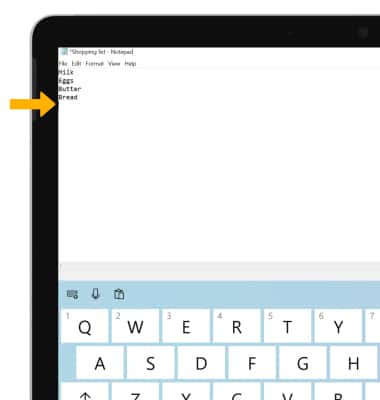
Access symbols and numbers
Select the desied option:
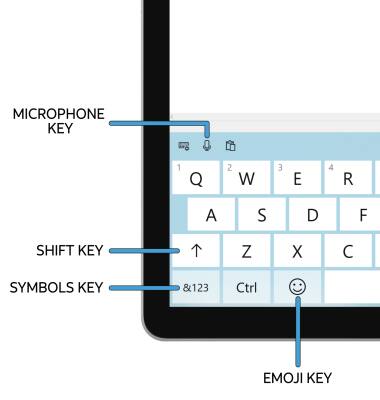
• SPEECH-TO-TEXT: Select the Microphone key.
• CAPITALIZE TEXT: Select the Shift key to capitalize the next letter. Double-tap the Shift key to enable or disable caps lock.
• SYMBOLS: Select the Symbols key.
• EMOJIS: Select the Emoji key.
Note: To use Speech-to-text you must enable Online speech recognition. From the home screen, select the  Start icon >
  Settings icon > Ease of Access > Speech tab > Turn on Speech Recognition switch then follow the prompts.
Copy and paste text
1. Select and hold the desired text, then select Select All.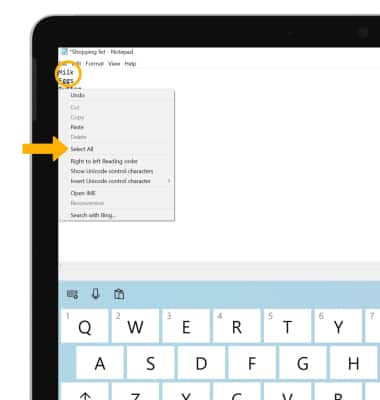
2. Select and hold the selected text, then select Copy.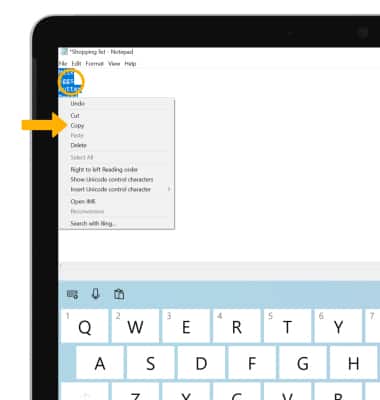
3. Select and hold the desired text field to place the cursor, then select Paste.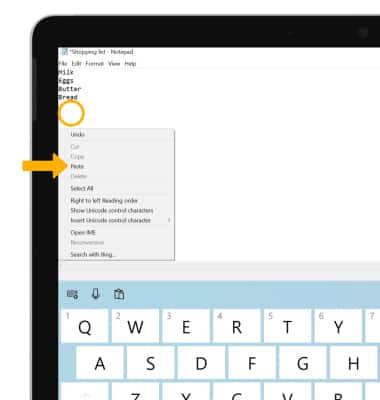
Access keyboard settings
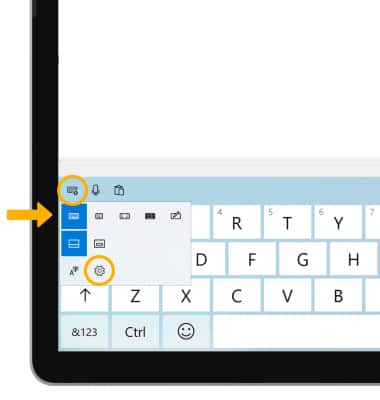
Select the Keyboard settings key, then select the desired option. Select the Settings icon for additional keyboard settings.
Note: Alternately, Select the Start icon > Settings icon > Devices > Typing tab > edit keyboard settings as desired.
Note: Alternately, Select the
Start icon > Settings icon > Devices > Typing tab > edit keyboard settings as desired.