
 Camera app. You can also swipe up from the
  Camera icon on the lock screen.
In this tutorial, you will learn how to:
• Access camera modes
• Customize photo & video settings
• Crop a photo
• Access camera filters
• Turn shutter sound on or off
Access camera modes
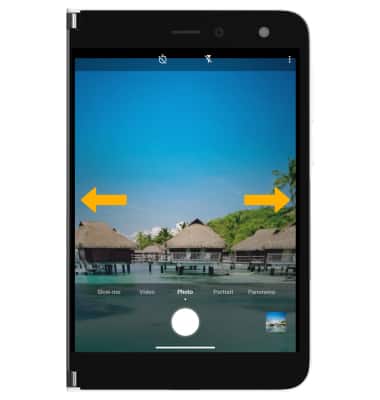
From the Camera app, swipe left or right to access Slow-mo, Portrait, or Panorama.
Note: Slow motion allows you to record videos at a high frame rate which can be played in slow motion. Portrait allows you to highlight the subject of a photo by blurring the background. Panorama allows you to create wider photos by stitching together multiple photos.
Customize photo and video settings
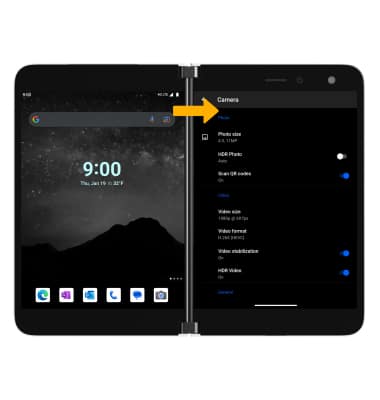
From the Camera app, select the  Menu icon then edit settings as desired.
Crop a photo
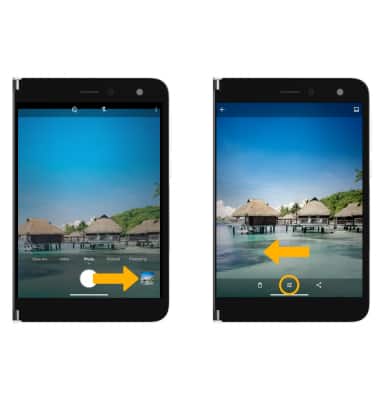
1. From the Camera app, select the Gallery icon. Swipe left to the desired photo, then select the Edit icon.
Note: Alternately, from the home screen, select the  Photos app then navigate to and select the desired photo.
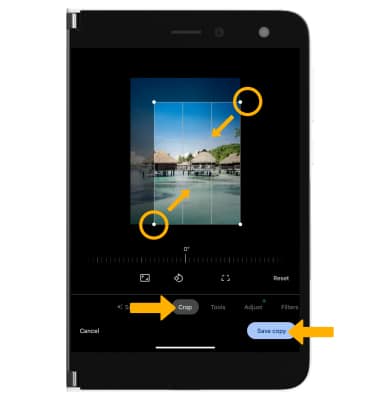
2. Select Crop. Select and drag the crop corners to crop as desired, then select Save copy.
Access camera filters
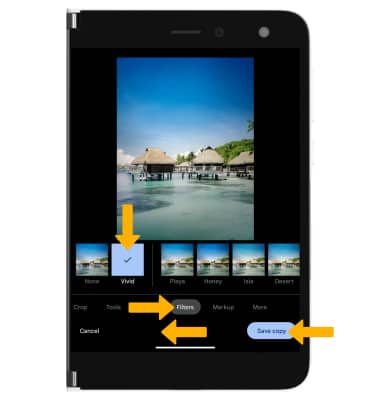
From the Edit screen, swipe left to Filters. Select the desired filter, then select Save copy.
Turn shutter sound on or off
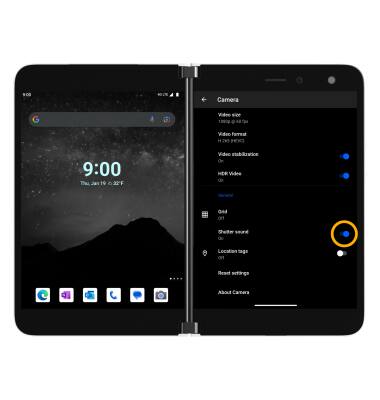
From the Camera settings screen, scroll to and select the Shutter sound switch.