
• Record a video
• Switch between the front and rear cameras
• Focus the camera
• Zoom in and out
• Pause, stop and save a video
• Capture a still image while in video mode
This tutorial requires you open the Camera app. To access the camera from the home screen, select the
 Camera app.
 Record a video
From the Camera screen, swipe left to access Video mode then select the Record icon.
Note: Alternately, you can start or stop a video recording by pressing one of the Volume buttons.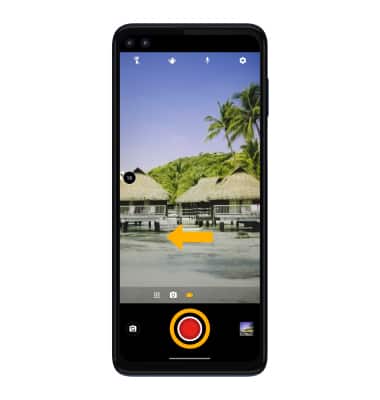
Switch between front and rear cameras
Select the Switch camera icon.
Note: When using the front-facing camera, select the  Standard angle icon for standard mode or select the
  Ultra-wide angle icon to better capture a group. You cannot switch the camera while you are recording a video.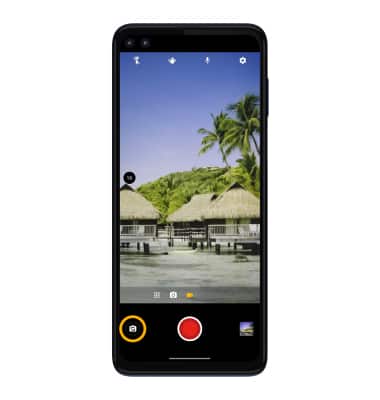
Focus the camera
Select the screen in the desired location to focus the camera. A circle will appear when the area is selected.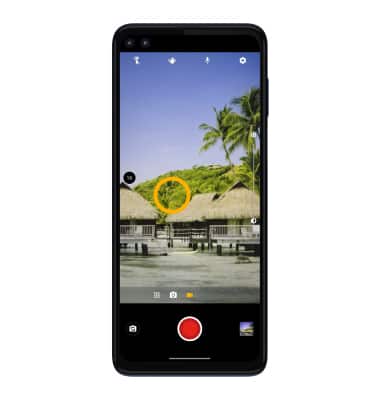
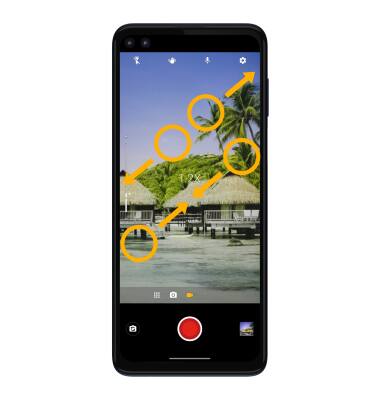
Zoom in and out
Note: Zoom out all the way to 0.5X to capture Ultra-wide angle photos and videos.
Pause, stop and save a video
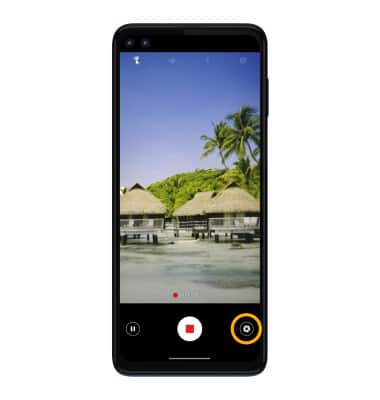
To pause a recording, select the Pause icon. To stop recording, select the Stop icon.
Note: To resume a recording, select the  Play icon. Alternately, you can start or stop a video recording by pressing one of the Volume buttons. Videos are automatically saved when recording ends.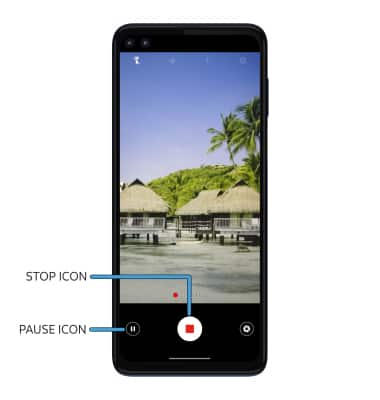
Capture a still image while in video mode
While recording, select the Capture icon.