
In this tutorial, you will learn about:
• Access camera settings
• Change the picture size
• Set the storage location
Access camera settings
From the home screen, click the  Start icon then click the
  Camera app. Click the
  Settings icon.
Change the picture size
1. From the camera settings screen, click the Photo quality drop-down icon. 
2. Click the desired option. 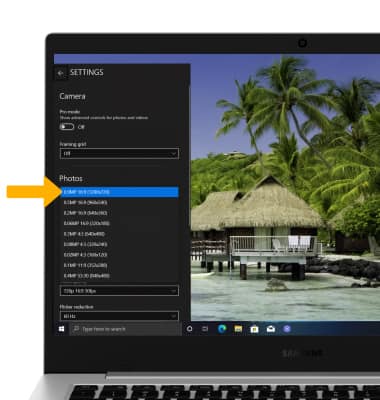
Set storage location
1. From the home screen, click the Start icon then click the Settings icon.
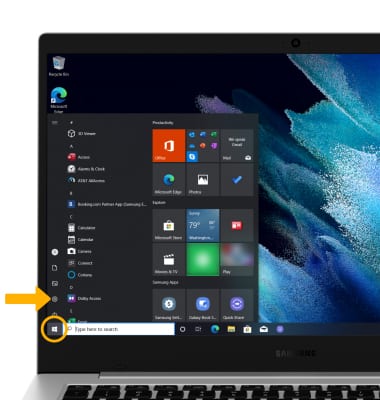
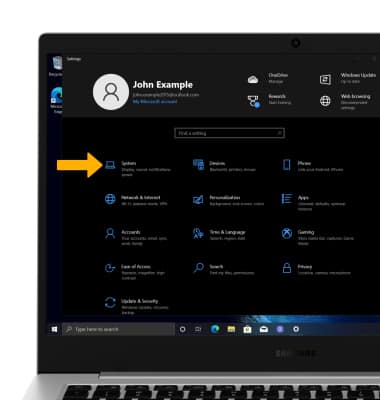
2. Click System.
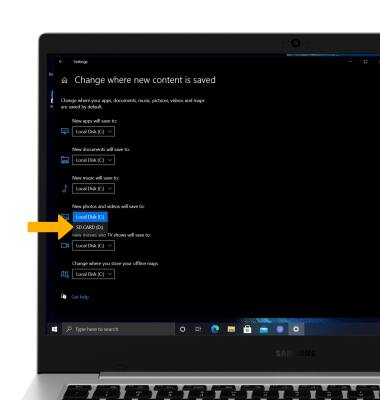
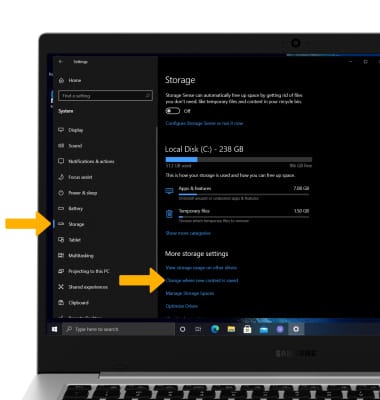
3. Click the Storage tab, then click Change where new content is saved.
3. Click the Storage tab, then click Change where new content is saved.
4. Click the New photos and videos will save to drop-down icon.
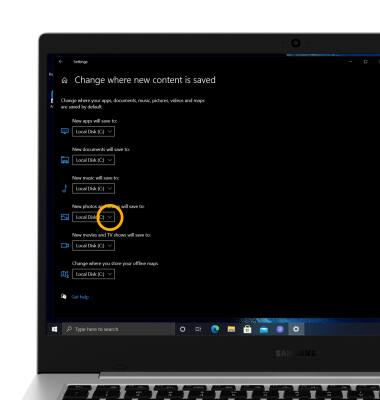
5. Click the desired save location.
Note: SD card is only available as a storage option if an SD card is installed.