
In this tutorial, you will learn how to:
• Access email inbox
• Compose an email
• Add an attachment
• Refresh the inbox/view an email
• Access email options
When a new email is received, a  notification will appear on the
  Email app in the taskbar.
Access email inbox
From the home screen, click the Email app in the taskbar. If you have multiple email accounts on the device, click the  Menu icon then click the desired account.
Email app in the taskbar. If you have multiple email accounts on the device, click the Menu icon then click the desired account. 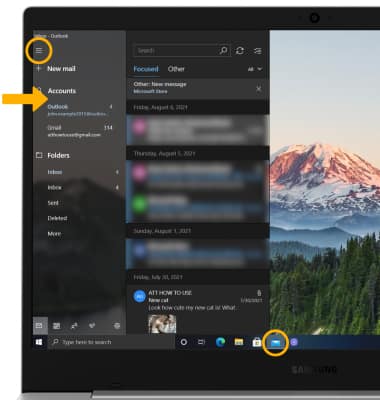
Compose an email
1. From the desired inbox, click New mail.
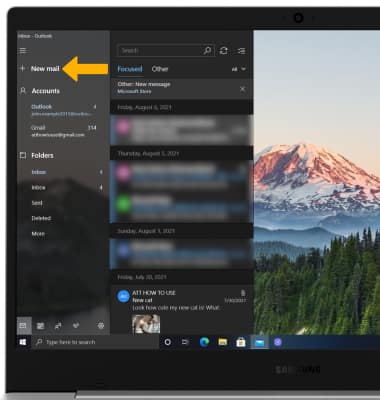
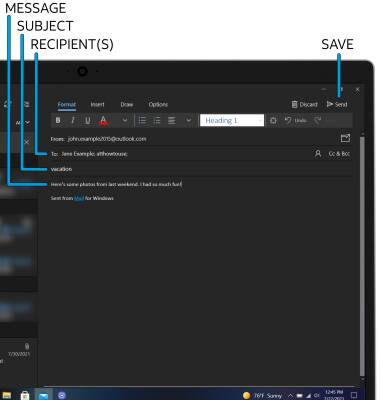
2. Enter the recipient(s) email address, then enter the desired subject and message. When finished, click Send.
Add an attachment
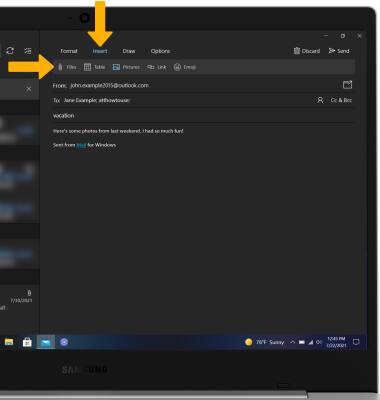
1. From the Email Composition screen, click the Insert tab then click the desired attachment type.
Note: For this tutorial, Pictures was selected.
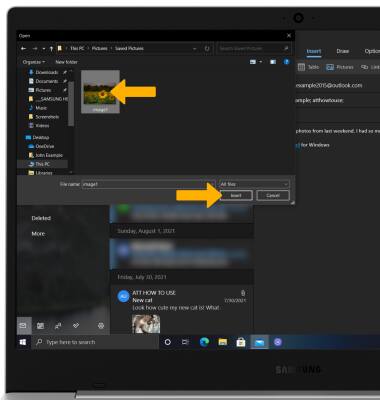
2. Navigate to and click the desired attachment then click Insert.
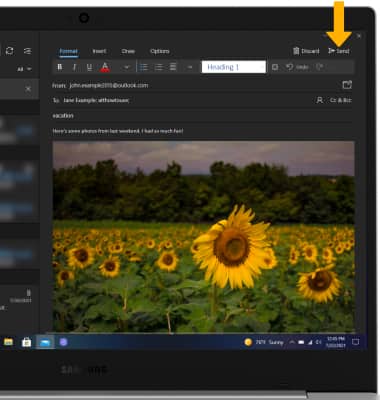
3. When finished, click Send.
Note: For this tutorial, Pictures was selected.
2. Navigate to and click the desired attachment then click Insert.
3. When finished, click Send.
Refresh the inbox/view an email
To refresh the inbox, click the Refresh icon. Click the desired email to view an email.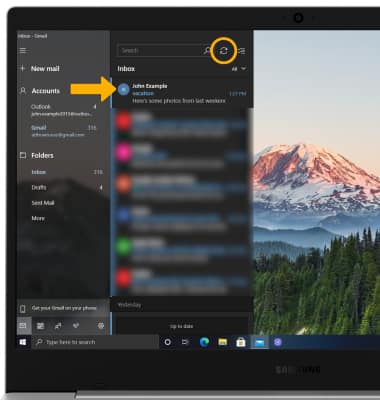
Email options
RESPOND: Click Reply, Reply all, or Forward to respond to an email. 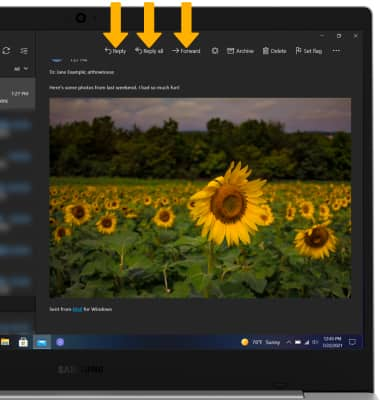
DELETE: Click Delete to delete an email.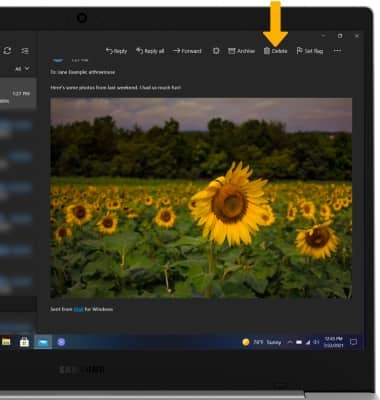
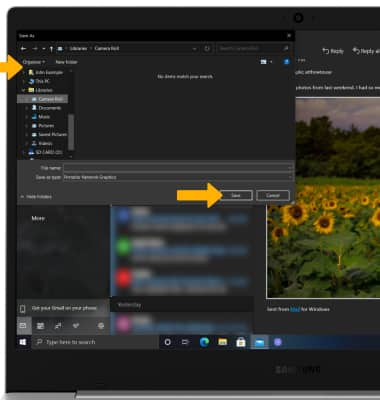
SAVE AN ATTACHMENT: Click the desired attachment, then click Save Picture.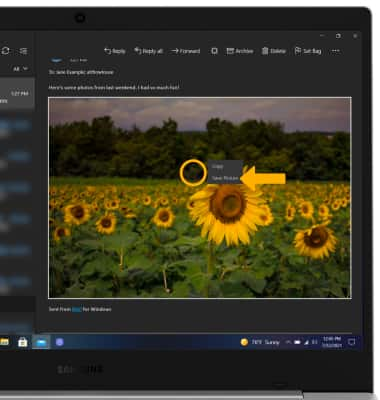
Navigate to the desired save location, then click Save.