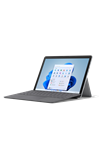

• Adjust screen brightness
• Change screen timeout
• Lock or unlock screen rotation
Adjust screen brightness
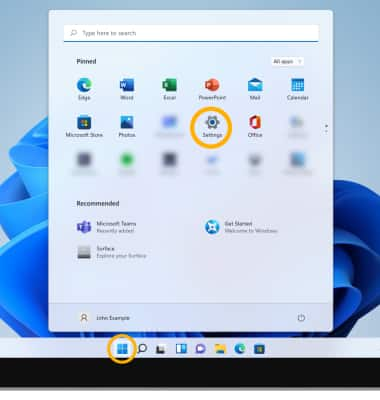
1. From the Home screen, select the Start icon then select Settings.
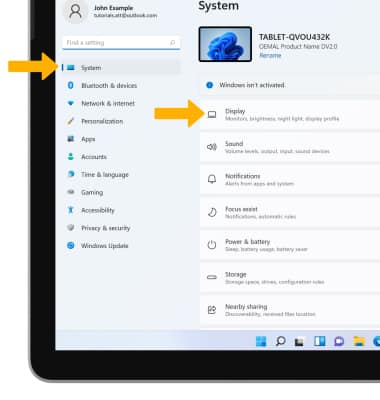
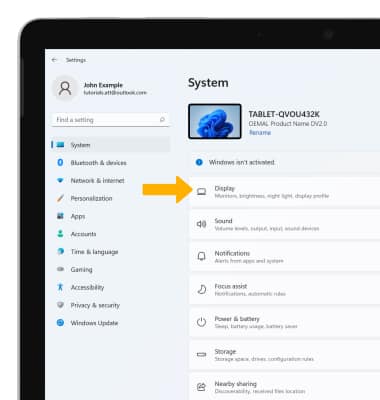
2. Select the System tab, then select Display.
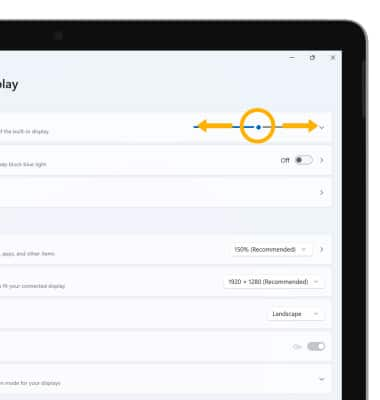
3. Select and drag the Brightness slider to adjust the brightness settings as desired.
Note: Select the Drop-down arrow next to the Brightness slider then select the Change brightness automatically when lighting changes checkbox to automatically adjust brightness. To adjust screen brighness using the keyboard, press the Screen Brightness keys until you obtain the desired screen brightness. To quickly adjust the brightness, select the Quick settings panel in the taskbar then select and drag the Brightness slider to adjust the brightness settings as desired.
Change screen timeout
1. From the Windows Settings screen, select the System tab then select Power & battery.
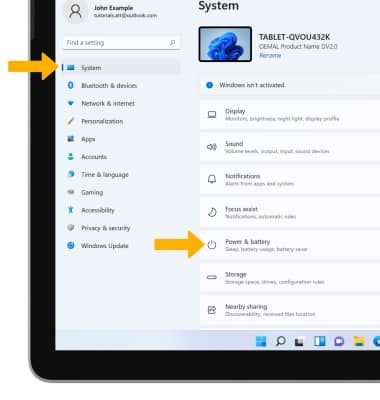
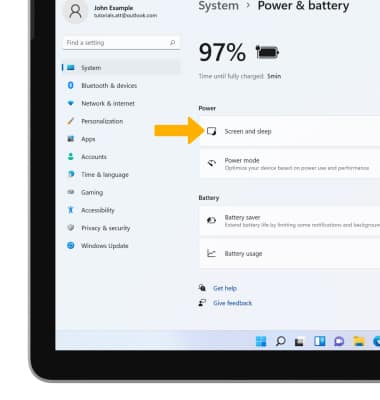
2. Select Screen and sleep.
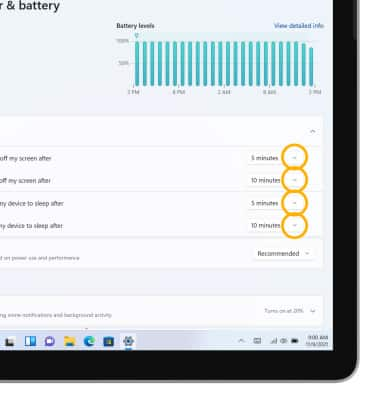
3. Select the drop-down icon next to the desired Screen or Sleep setting.
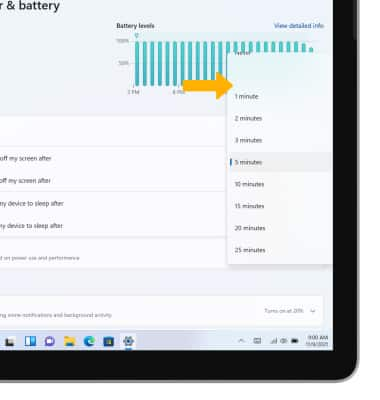
4. Select the desired timeout option.
2. Select Screen and sleep.
3. Select the drop-down icon next to the desired Screen or Sleep setting.
4. Select the desired timeout option.
Lock or unlock screen rotation
1. From the System Settings screen, select Display.
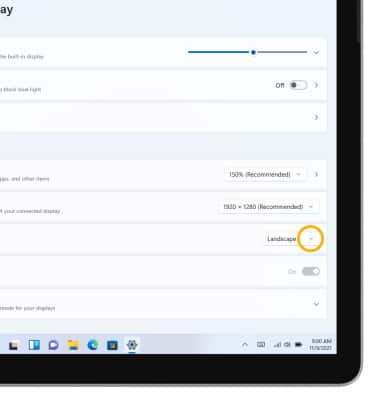
2. Select the drop-down icon next to Display orientation.
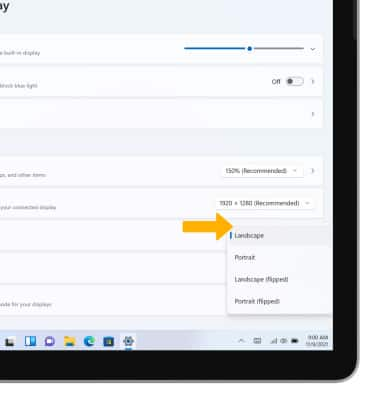
3. Select the desired orientation option.
2. Select the drop-down icon next to Display orientation.
3. Select the desired orientation option.