
• Set the date and time
• Change the time zone
• Set an alarm
• Turn an alarm on or off
• Delete an alarm
Set the date and time
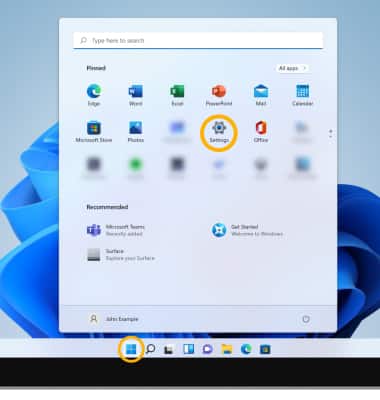
1. From the home screen, select the Start icon then select Settings.
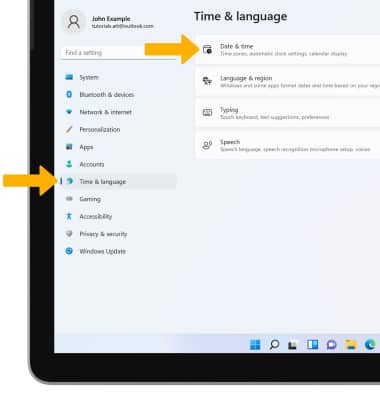
2. Select the Time & language tab, then select Date & time.
3. Select the Set time automatically switch to disable.
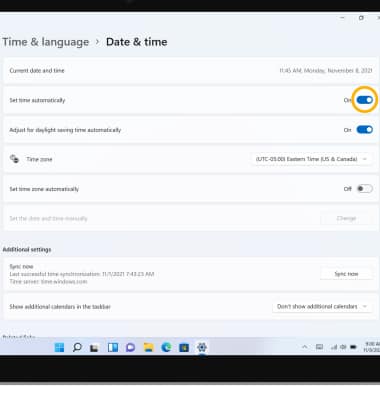
2. Select the Time & language tab, then select Date & time.
3. Select the Set time automatically switch to disable.
4. To set the date and time, select Change.
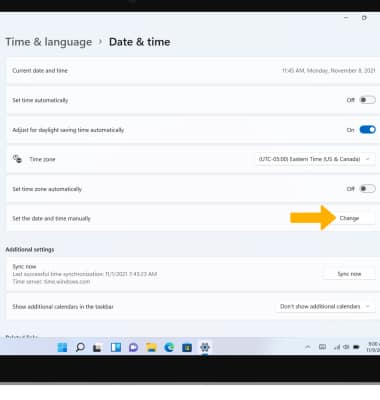
5. Select the desired Date and Time, then select Change.
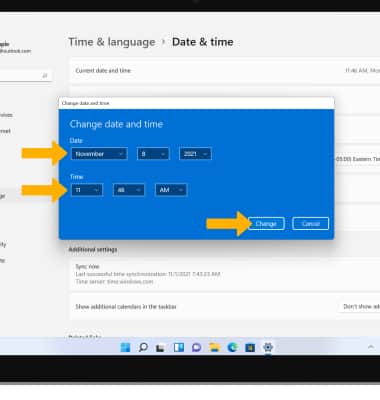
5. Select the desired Date and Time, then select Change.
Change the time zone
1. From the Date & time screen, select the Time zone drop-down icon.
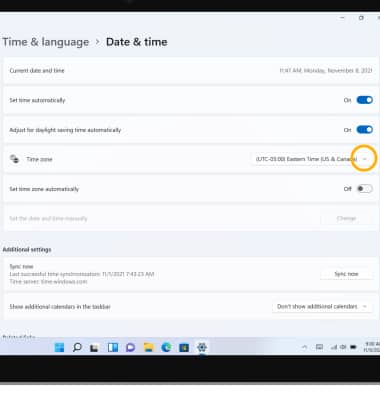
2. Select the desired time zone.
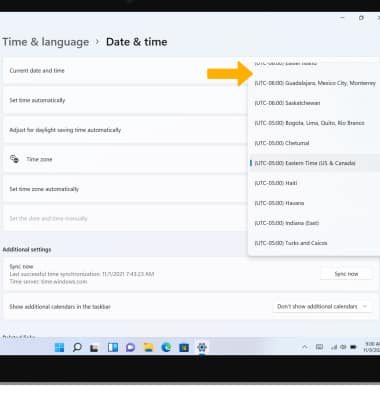
2. Select the desired time zone.
Set an alarm
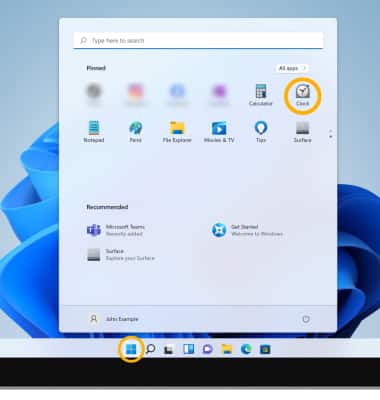
1. From the home screen, select the Start icon then select scroll to and select the Clock app.
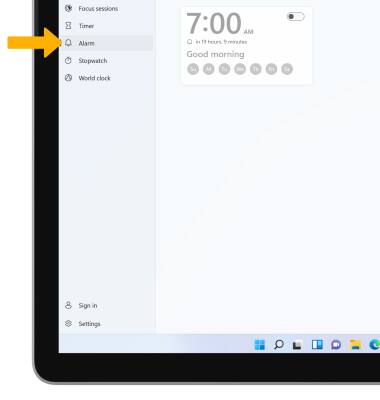
2. Select the Alarm tab, then select Add icon.
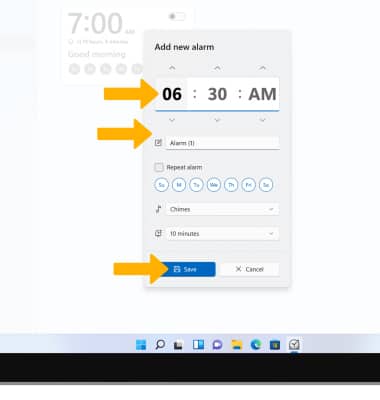
3. Set desired alarm time and settings, then select Save when finished.
2. Select the Alarm tab, then select
Add icon. 3. Set desired alarm time and settings, then select Save when finished.
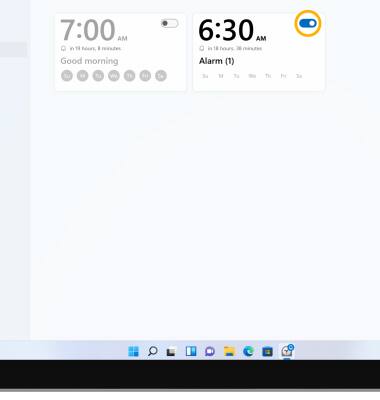
Turn the alarm on or off
Select the switch next to the desired alarm to turn on or off.
Delete an alarm
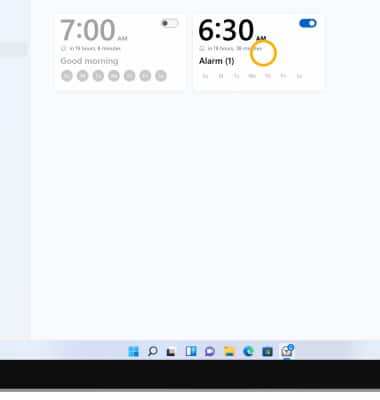
1. From the Alarms & Clock screen, select the desired Alarm.
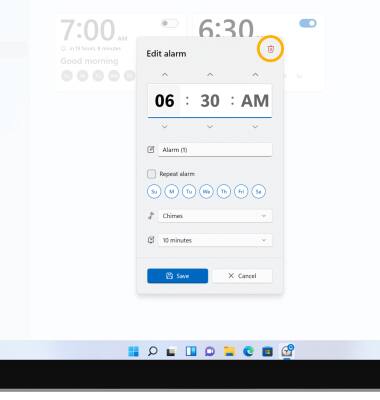
2. Select the Delete icon.