Setting up your child's tablet for the first time
Setting up your child's tablet for the first time
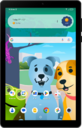
From the first-time setup screen, tap Start.
Choose your Wi-Fi network.
Enter your Wi-Fi network's password, then tap Connect.
Tap Don't copy.
Tap A child.
Tap Got it.
Tap Sign in with your child's Google account.
Your child must have a supervised Google account. You can tap Create a new Google Account for your child, or use the Family Link app on your personal device to set one up for them.
Enter your child's account address and tap Next.
Enter your child's account password and tap Next.
Select your parent account.
This account will need to provide approval when managing your child's device settings or installing new apps.
Enter your account password and tap Next.
Tap I agree.
Tap Next.
Review the information with your child and have them tap I agree.
Select your Kids Space preference.
For this tutorial, we're setting up the device without Google Kids Space. If you choose to set up Google Kids Space, your steps may vary. You can still set Parental Controls from the Family Link app without using Kids Space.
Confirm the apps you would like to allow on your child's device, then scroll to and tap Next.
Tap Skip.
Tap More.
Tap Accept.
Tap Skip.
Enter a pin for your child's tablet and tap Next.
Re-enter your PIN and tap Confirm.
Tap Skip.
AT&T amiGO™ is a free service that offers location services, parental controls, communication, monitoring, and more for all your family members' compatible devices. You can set up the amiGO™ app at any time, but steps may vary.
Tap Continue.
Tap I agree.
Tap Leave & get reminder.
Pass the device to your child and have them tap Next.
After this step, follow the remaining steps to finish setting up any child apps you opted into. Stick around to help your child with any questions they might have.
You've completed the steps!
