Taking Pictures and Changing Camera Modes
Taking Pictures and Changing Camera Modes
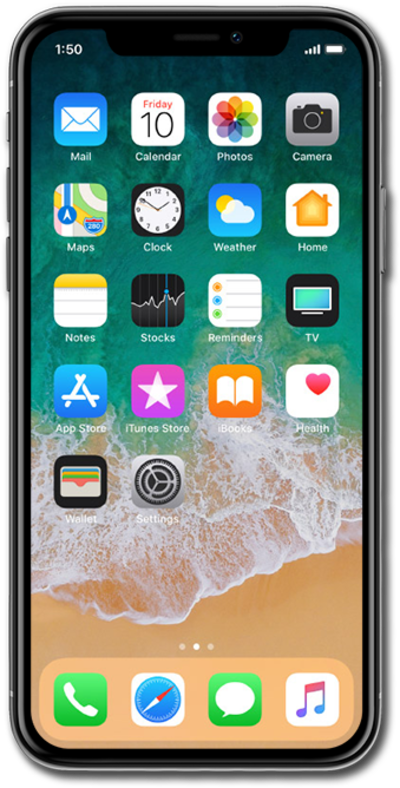
From the Home screen, tap Camera.
To take a photo on your device, press the Shutter icon.
In order to take a video, swipe to Video and tap the Record icon to start recording.
Tap the Stop icon to stop recording.
To access TIME-LAPSE, swipe to TIME-LAPSE and tap the Record icon to start recording.
You may want to plug in iPhone before recording a time-lapse video in order to assist with battery usage
Tap the Stop icon to stop recording.
In order to switch the camera views, tap the Switch Camera icon on your device.
This will apply to all but the Pano and Slow-Mo options of your device's camera. Swiping to either Pano or Slow-Mo will set your device's view to the rear device view, and you will need to swipe to a different camera mode and tap the Switch Camera icon again to return to the front device view.
Swipe to Photo.
In order to take a live photo, tap the LIVE icon to turn on Live mode.
Tap the Shutter icon to take a photo.
Tap the Photos icon.
Hard press and hold the photo to view a short video captured when the photo was taken.
Live Photos capture audio as well as video, so any sound will be heard in your Live Photo when it's played back.
Tap the Back icon to return to the Camera.
You've completed the steps!
