Connect to AT&T Network
Connect to AT&T Network
-
When your mobile hotspot is powered on, it automatically searches for and connects to the AT&T mobile broadband network.
-
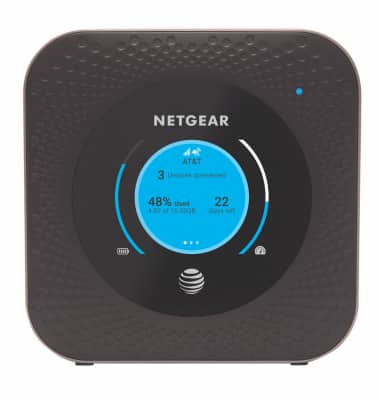
Confirm the device is showing 2 or more bars of network signal.
Note: If signal is less than 2 bars, move the device to another location.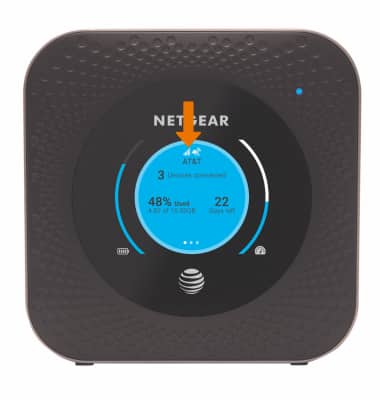
-
Confirm the device is connected to the AT&T data network.
Note: When connected to the AT&T data network the display will show one of the following network icons: 4G LTE or 4G. To learn more about the AT&T network, visit www.att.com/network.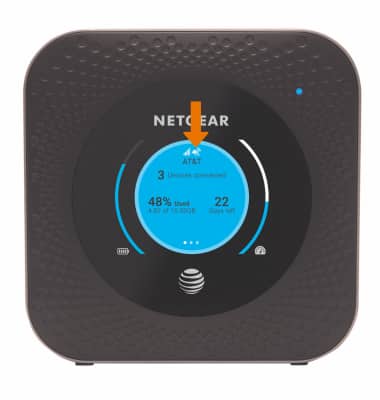
-
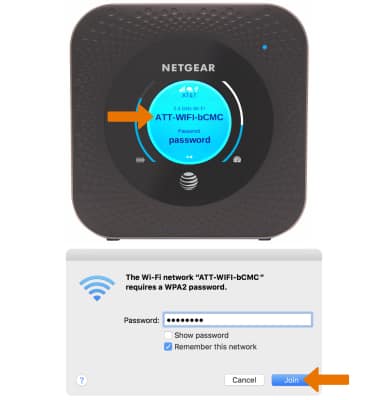
Connect your computer or other device to the hotspot Wi-Fi network.
Note: The hotspot Wi-Fi network name is displayed on the second mobile hotspot home screen. Press the Power button to cycle through home screens. For more information on how to connect your device to a Wi-Fi network, see your device's tutorial on AT&T Device Support.