Send & Receive Email
Send & Receive Email
-
When a new email is received, the New Email or New Gmail icon will display in the Notification bar.
Note: In order to send and receive email, you must have already set up an email account.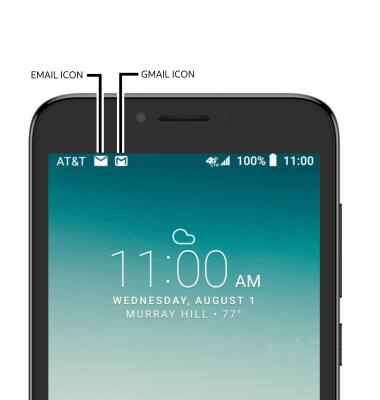
-
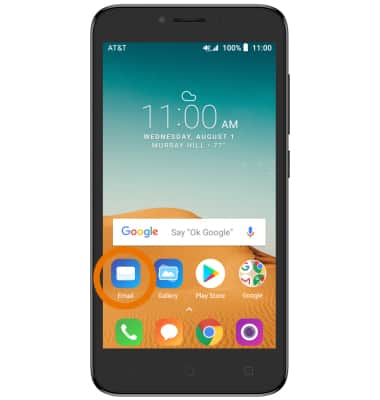
ACCESS & VIEW RECEIVED EMAILS: Select the Email app from the home screen.
-
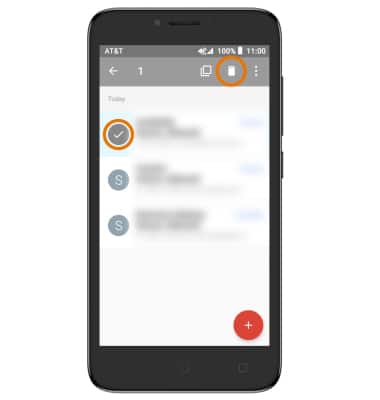
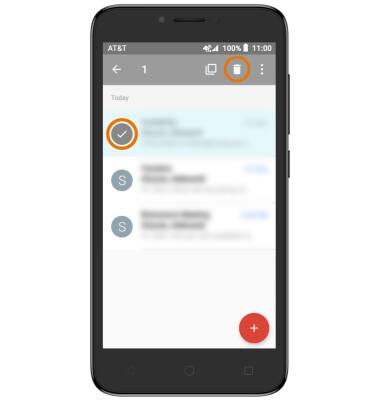
Select and hold the desired email(s), then select the Delete icon.
-
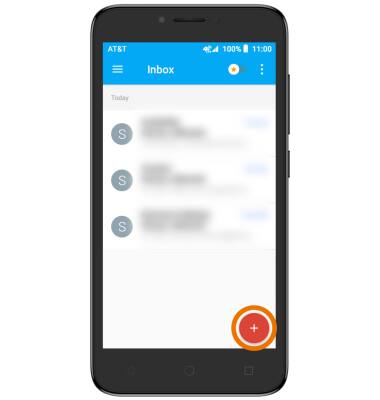
COMPOSE AN EMAIL: Select the Compose icon from the inbox.
-
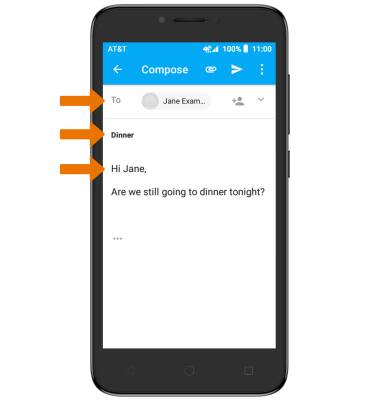
Enter the recipient's email address or select the Contacts icon to add from contacts, then enter the desired subject and message.
-
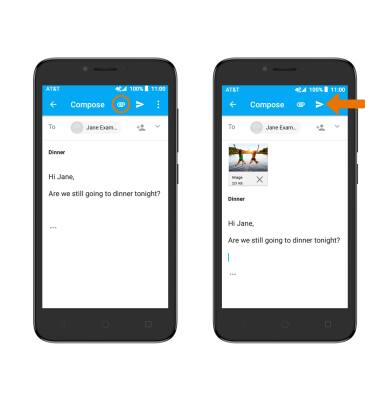
ADD AN ATTACHMENT: Select Attach icon and follow the on-screen prompts. When finished, select the Send icon.
-
REFRESH THE INBOX: Swipe down and release from the center of the screen.
Note: When in "Easy" mode, you can't see the last time the inbox was updated.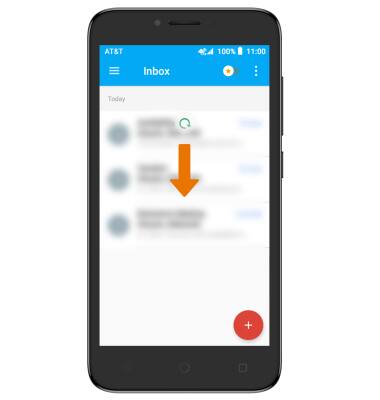
-
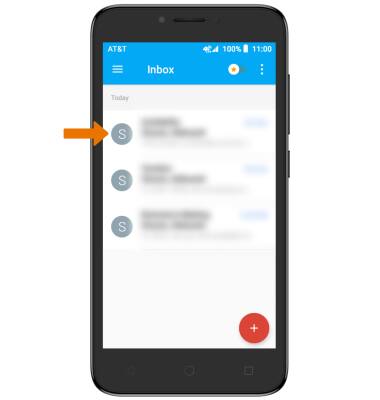
VIEW AN EMAIL: Select the desired email.
-
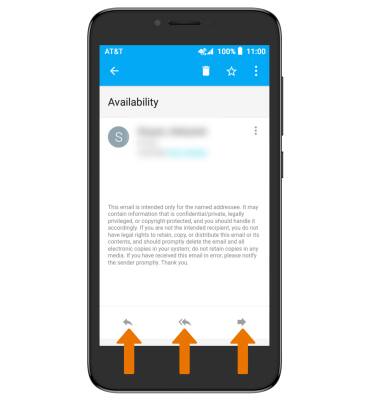
REPLY, REPLY ALL OR FORWARD AN EMAIL: Select the desired option.
-
VIEW & SAVE AN ATTACHMENT: Select the Attachment. To view an attachment, select the Download icon.
Note: To view the saved attachment, from the home screen select the Gallery icon then select Downloads.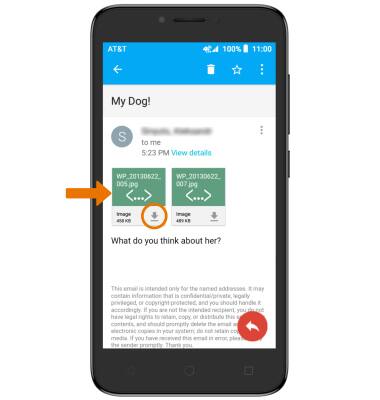
-
DELETE AN EMAIL: Select and hold the desired email(s), then select the DELETE icon.
-
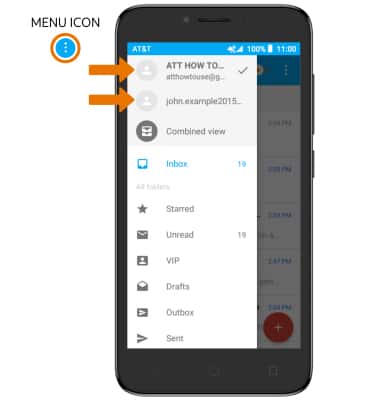
CHANGE INBOXES: When multiple emails accounts are configured, select the Menu icon then select the desired email address.
Note: To add a new email account, select the Menu icon > Settings > Add account > follow the prompts.