Optimize Battery Life
Optimize Battery Life
For charging and use times, see the Specifications tutorial. In this tutorial, you will learn how to:
• Adjust Wi-Fi standby time• Adjust Wi-Fi range• Change screen brightness• Change screen timeout
Use the original charger and battery to maintain optimal battery performance over the life of your device. The battery comes partially charged. Battery life and charge cycles vary by use and settings. This device supports wireless charging.
Adjust Wi-Fi standby time
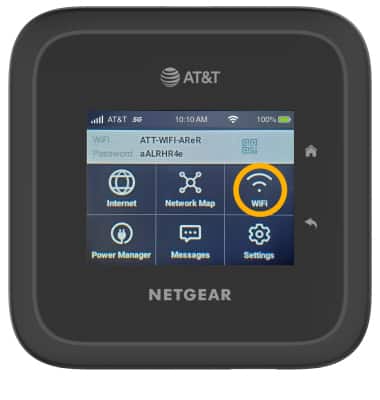
1. From the device home screen, select WiFi.
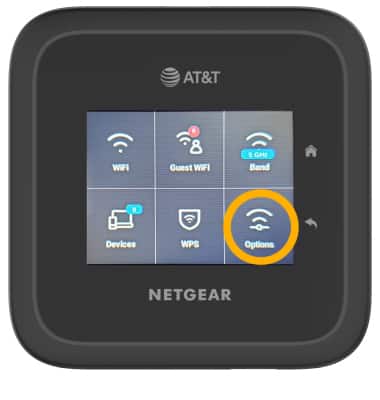
2. Select Options.
3. Select WiFi Standby.
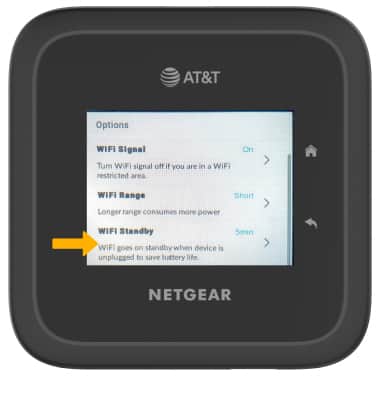
4. Select the desired WiFi standby time.
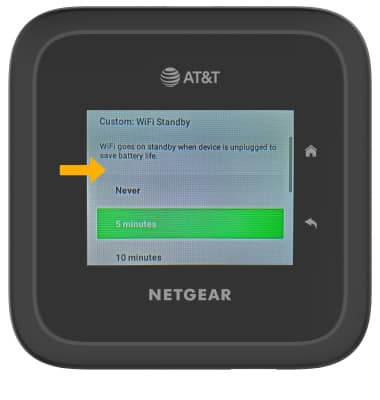
Adjust wi-fi range
1. From the WiFi Options screen, select WiFi Range.
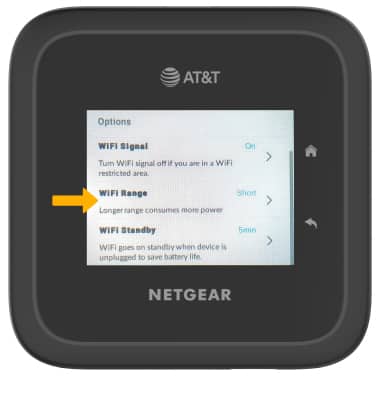
2. Select the desired WiFi range option.
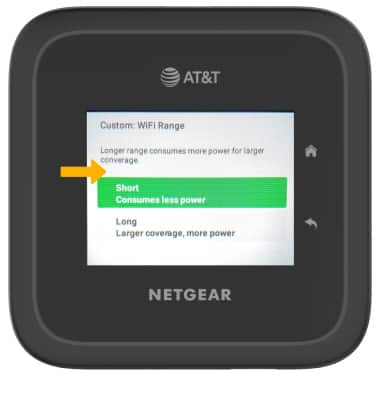
Change screen brightness
1. From the device home screen, select Settings.
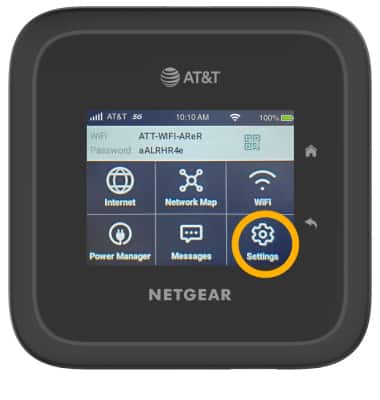
2. Select Screen.
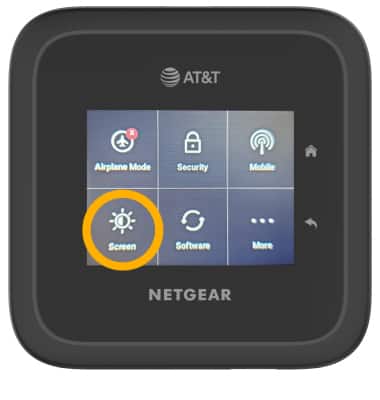
3. Select Screen Brightness.
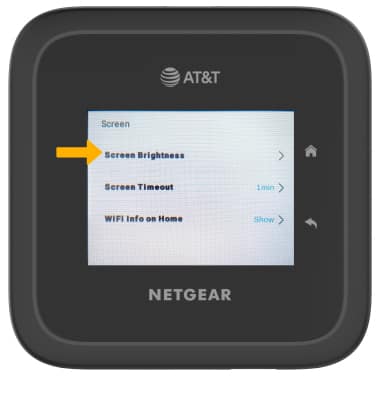
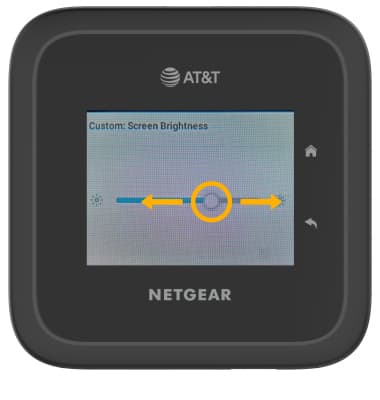
4. Select and drag the Brightness slider left to lower the screen brightness manually.
Change screen timeout
1. From the Screen menu, select Screen Timeout.
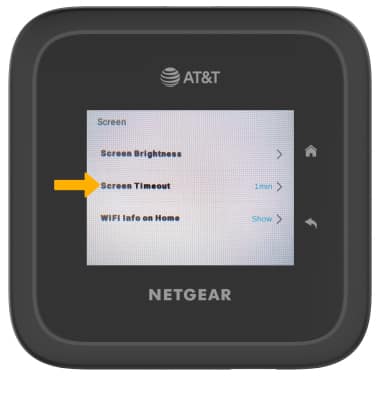
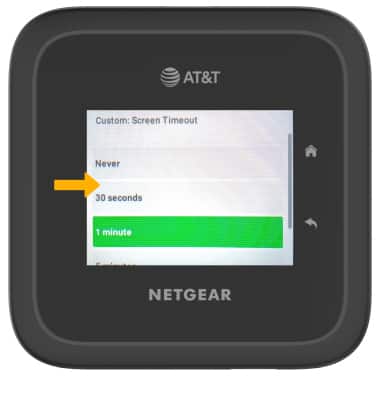
2. Select the desired option.
Note: Select OK to confirm.
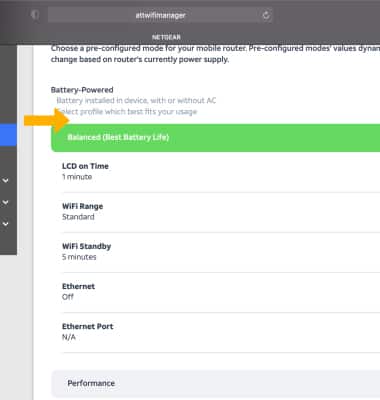
Power Manager
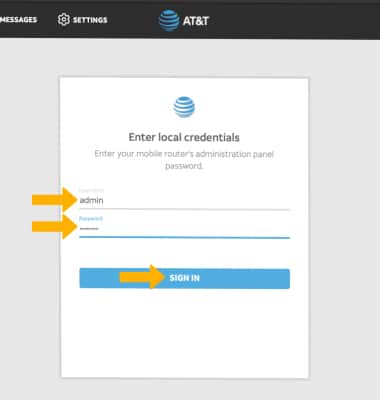
1. From your connected device's web browser, go to http://attwifimanager. Enter your Username and Password, then click SIGN IN.
Note: Ensure that your device is connected to the Netgear Nighthawk's Wi-Fi network. For more information, please see the Connect Devices to Wi-Fi or Connect PC or Mac to Wi-Fi tutorials.
2. Click Settings, then click General. Click Power Manager.
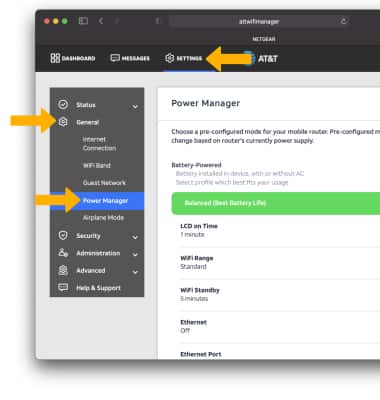
3. Scroll to and click the desired profile.