Content Filtering
Content Filtering
In this tutorial, you will learn how to:
• Enable content filtering• Block a website• Edit a blocked website• Remove a blocked website
• Add an unrestricted device
• Remove an unrestricted device
Enable content filtering
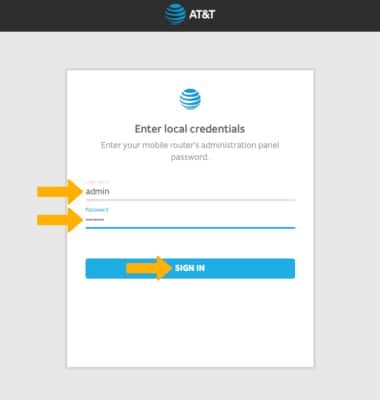
1. From your device's web browser, go to http://attwifimanager. Enter your Username and Password, then click SIGN IN.
Note: Ensure that your device is connected to the Netgear Nighthawk's Wi-Fi network. For more information, please see the Connect Devices to Wi-Fi or Connect PC or Mac to Wi-Fi tutorials.
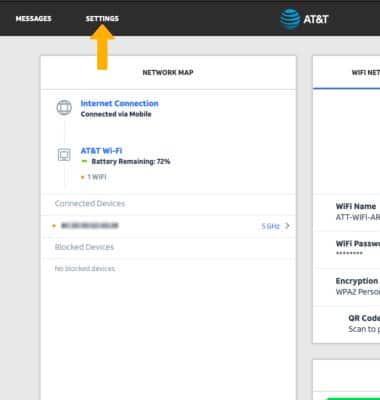
2. Click SETTINGS at the top of the page.
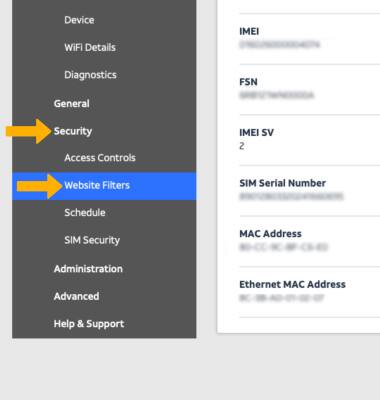
3. Click Security, then click Website Filters.
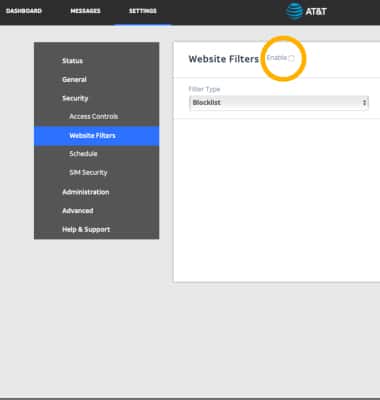
4. Click the Enable checkbox.
Block a website
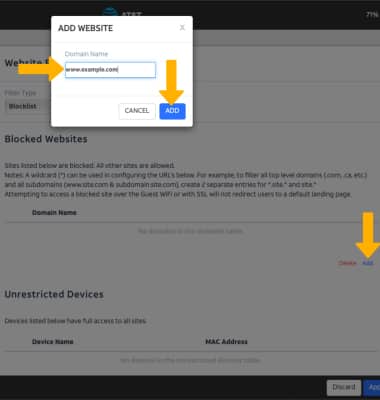
Click Add under Blocked Websites. Enter the desired Domain Name, then click ADD.
Edit a blocked website
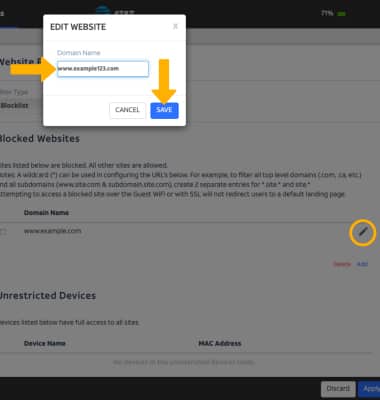
Click the Edit icon next to the desired website. Edit the Domain Name as desired, then click SAVE.
Remove a blocked website
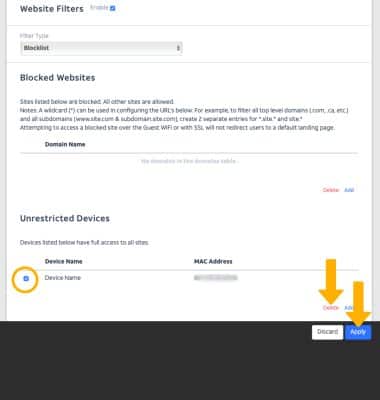
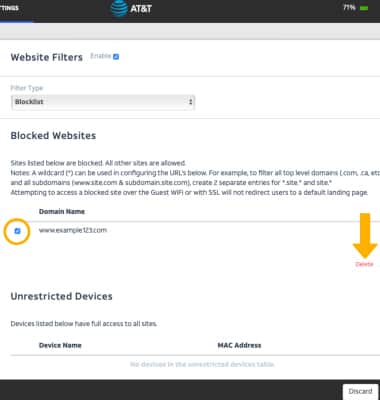
Click the checkbox next to the desired website, then click Delete.
Add an unrestricted device
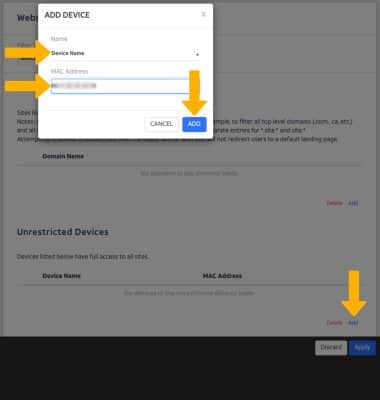
Click Add under Unrestricted Devices. Enter the device's Name and MAC Address, then click ADD.
Note: To add a device that is currently connected to the network, click the Add icon beside the Name entry field then click the desired device.
Remove an unrestriced device
Click the checkbox next to the desired device, then click Delete. Click Apply when finished.