Connect Devices to Wi-Fi
Connect Devices to Wi-Fi
In this tutorial, you will learn how to:
• Connect a smartphone to Wi-Fi
• Connect a tablet to Wi-Fi
When a device is connected to the Mobile Hotspot, the

Wi-Fi connected icon will display in the Notification bar.
Connect a smartphone to Wi-Fi
1. Swipe down from the Notification bar, then select and hold the

Wi-Fi icon.
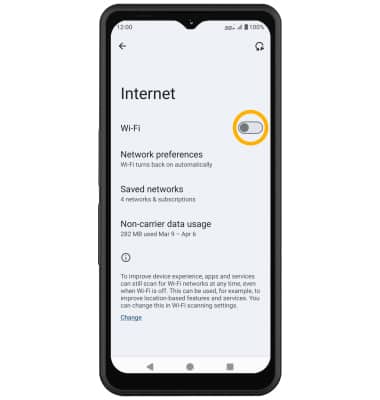
2. Select the Wi-Fi switch to turn Wi-Fi to enable Wi-Fi services.
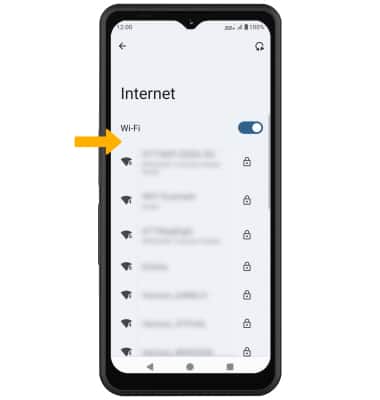
3. Select the Sonim MegaConnect's Wi-Fi network.
Note: The Wi-Fi name and password are displayed on the device. Select Wi-Fi info.
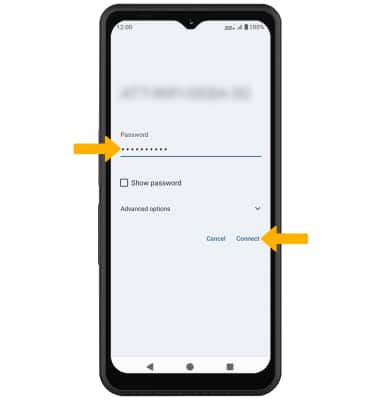
4. Enter the network Password, then select Connect.
Connect a tablet to Wi-Fi
1. Navigate to and select the

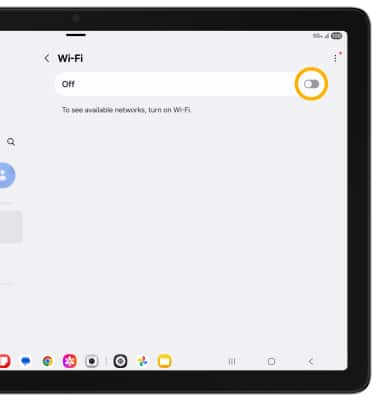
Settings app, then select Connections. Select Wi-Fi, then select the Wi-Fi switch to enable Wi-Fi.
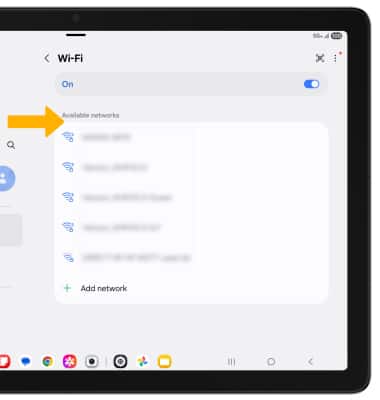
2. Select the Sonim MegaConnect's Wi-Fi network.
Note: The Wi-Fi name and password are displayed on the device. Select Wi-Fi info.
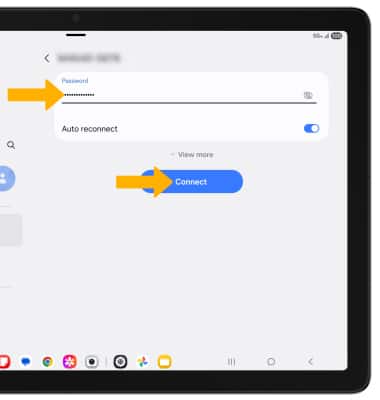
3. Enter the network Password, then select Connect.