Contacts
Contacts
In this tutorial, you will learn how to:
• Access contacts
• Add a contact
• Edit or delete a contact
Access contacts
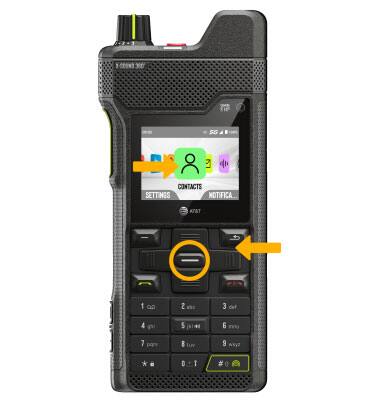
From the home screen, press the navigation keys to highlight the Contacts app then press the Select button.
Add a contact
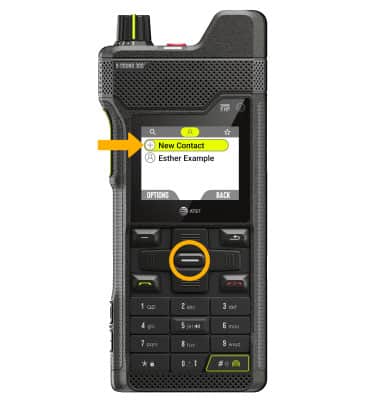
1. From the contacts list, ensure New Contact is highlighted then press the Select button.
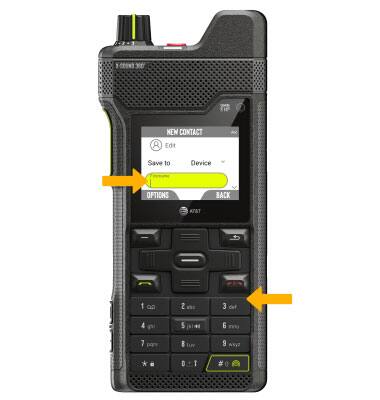
2. Use the keypad to enter the desired contact information in the corresponding fields.
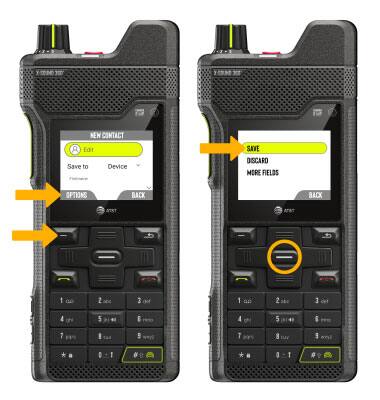
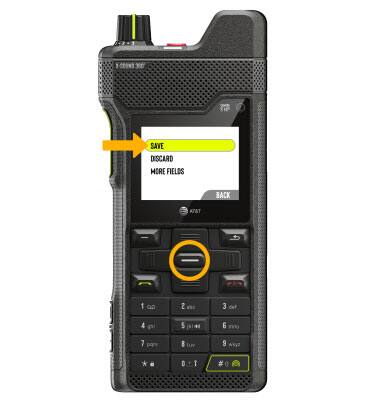
3. When finished, press the Left option button to select OPTIONS. Ensure SAVE is highlighted, then press the Select button.
Edit or delete a contact
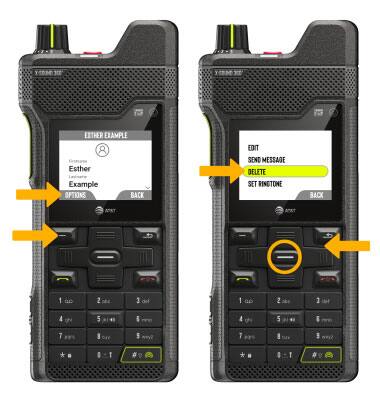
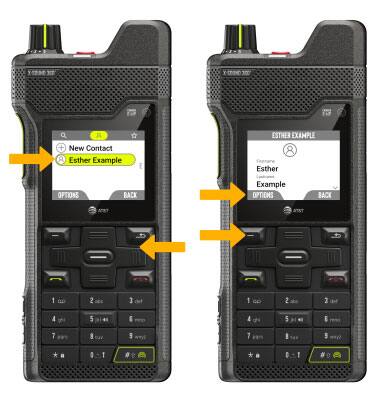
EDIT CONTACT: 1. Press the up or down navigation keys to highlight the desired contact, then press the Select button to select. Press the Left option button to select OPTIONS..
2. Use the navigation keys to highlight EDIT, then press the Select button. Edit the contact as desired, then press the Left option button to select OPTIONS.
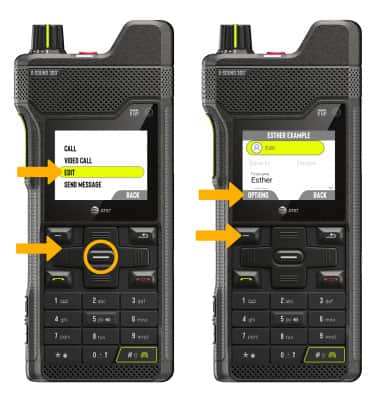
3. Ensure SAVE is highlighted, then press the Select button.
DELETE CONTACT: From the desired contact, press the Left option button to select OPTIONS. Press the down navigation key to highlight Delete, then press the Select button to select.