Sending an email with an attachment
Galaxy S8
Sending an email with an attachment
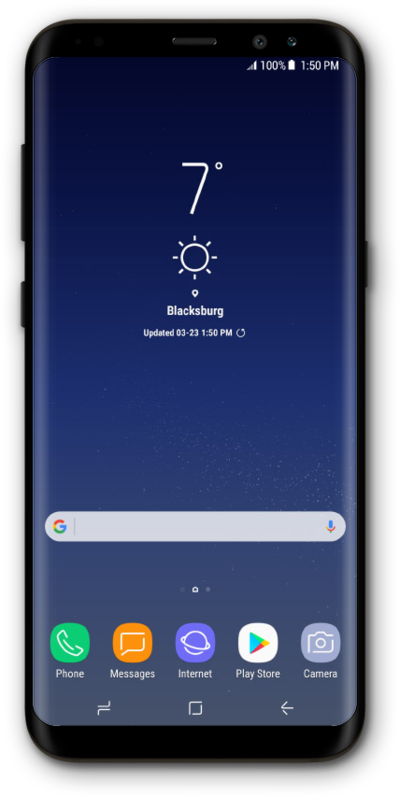
You can send emails from your device from any email account that has already been added to your Gmail app.
1.
From the Home screen, swipe up to view your apps.
2.
Tap the Google folder.
3.
Tap Gmail.
4.
Tap GOT IT.
5.
Tap TAKE ME TO GMAIL.
6.
Tap the Compose icon.
7.
Enter a contact's name.
8.
Select the contact.
9.
Tap the Done key.
10.
Enter a subject.
11.
Tap the Next key.
12.
Compose your message.
13.
Tap the Attachment icon.
For this tutorial, we're selecting an image file. You can choose other types of attachments to send with an email, but steps may vary slightly based on what type of file you choose.
14.
Tap Attach file.
15.
Select a photo.
You can select more than one image by repeating this steps 8-10.
16.
Tap the Send icon.
17.
You've completed the steps!
