
In this tutorial, you will learn how to:
• Switch between front and rear cameras
• Focus the camera
• Zoom in and out/ Ultra Wide
• Take a photo
• Portrait Mode w/ Adjustable Blur
• Beauty Mode w/ Adjustable Blur
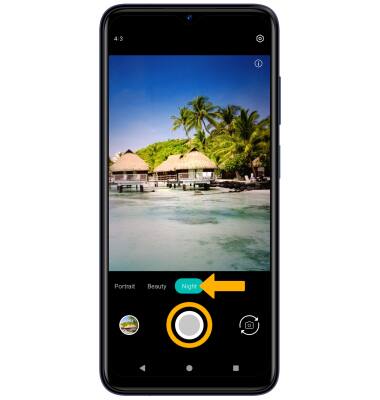
• Use Night mode
This tutorial requires you open the Camera app. To access the camera from the home screen, select the  Camera app. Alternatively, from the lock screen, quickly press the Power/Lock button twice.
Switch between front and rear cameras
Select the Switch camera icon.
Note: You cannot switch the camera while you are recording a video.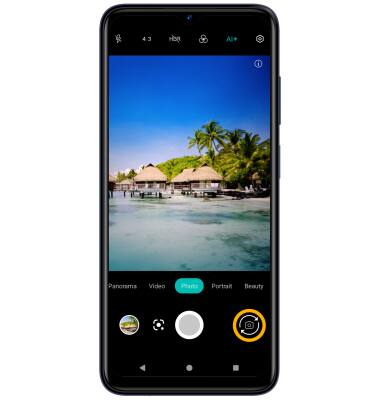
Focus the camera
Select the desired area of the photo you wish to focus on. A circle will appear when the area is selected.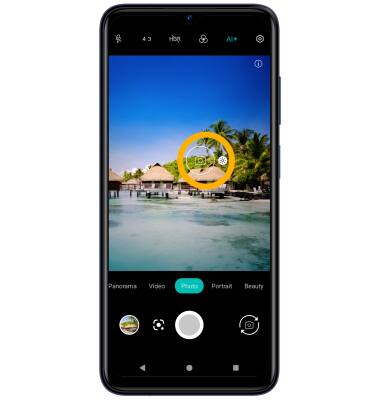
Zoom in and out/ Ultra Wide
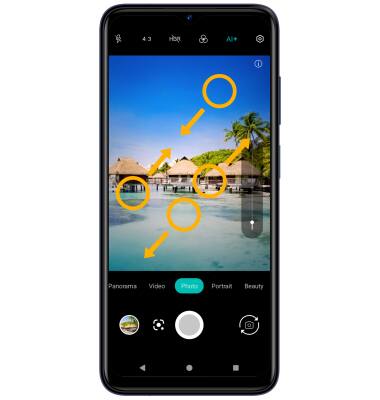
Take a photo
Select the Capture icon.
Note: Alternately, you can take a picture by pressing one of the Volume buttons.
Portrait Mode w/ Adjustable Blur
Portrait allows you to highlight the subject of a photo by blurring the background. To access Portrait mode, swipe left to Portrait. Select and drag the Blur Level slider as desired.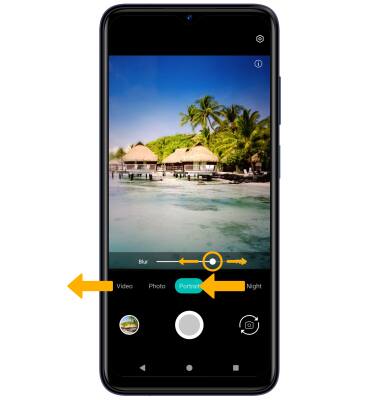
Beauty Mode w/ Adjustable Blur
Beauty mode brightens facial features, minimizes imperfections, and smooths over fine lines or glares to instantly look your best. To access Beauty mode, swipe left to Beauty. Select and drag the Beauty slider as desired, then select the Capture icon.
Use Night mode
From the Camera screen, swipe left to Night. Select the Capture icon.