In this tutorial, you will learn how to:
• Create Tasks
• View Tasks
• Complete Tasks
• Approve or Reject Tasks
Create Tasks
1. From the  AT&T amiGO app, select the
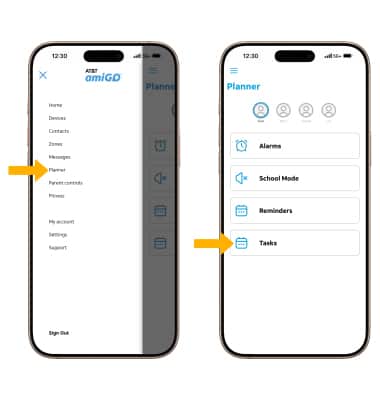
  Menu icon. Select Planner, then select Tasks.
2. Select Add New Task, then enter the Task details including the Name, Repeating details, and Reward details. When finished, select Create Task.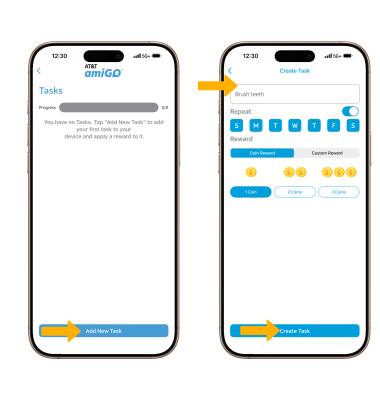
View Tasks
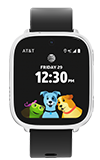
When a task is created on the Parent or Guardian paired device, a task will be created on the AT&T amiGO™ Jr. Watch 2. To view tasks, from the watch face, swipe left three times to and select the Tasks app. The Tasks list will be displayed.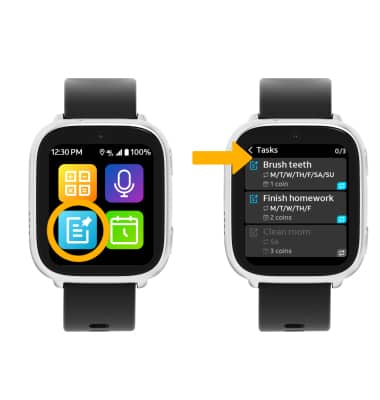
Complete Tasks
To complete a task, from the Tasks app, select the desired task then select Complete.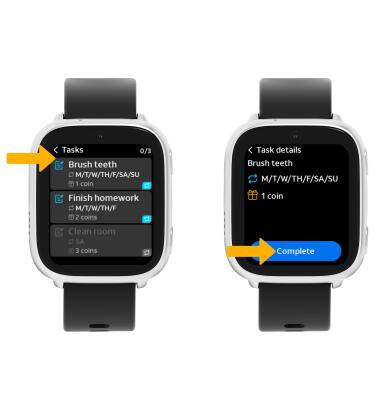
Approve or Reject Tasks
When a task is marked as complete on the AT&T amiGO™ Jr. Watch 2, a notification will be displayed on the paired Parent or Guardian app for approval. From the Tasks screen in the AT&T amiGO app, select the Approve icon or Reject icon as desired.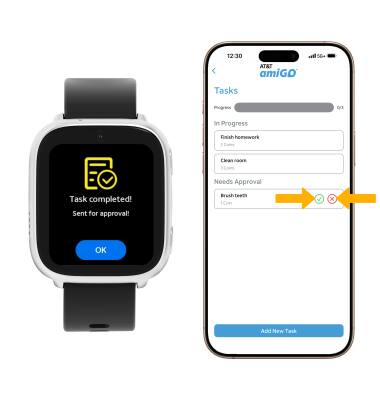
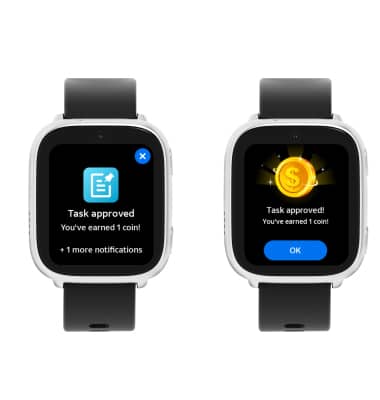
The AT&T amiGO™ Jr. Watch 2 will receive notifications that a task was completed and reward was received (if enabled).