In this tutorial, you will learn how to:
• Configure a firewall
• Open a VPN
• Enable MAC filtering
Configure a firewall
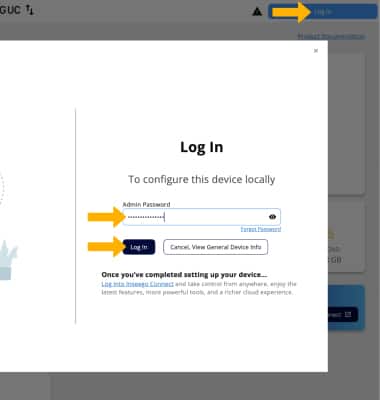
1. From your connected device's web browser, go to http://inseego.local or https://192.168.1.1. Click Log In. Enter your password, then click Log In.
Note: Ensure that your device is connected to the Inseego Wavemaker FX4200's Wi-Fi network. You will be prompted to change the admin password. For more information, please see the Connect Devices to Wi-Fi or Connect PC or Mac to Wi-Fi tutorials. You may be prompted to change the admin password.
2. Click Security, then click the Firewall tab.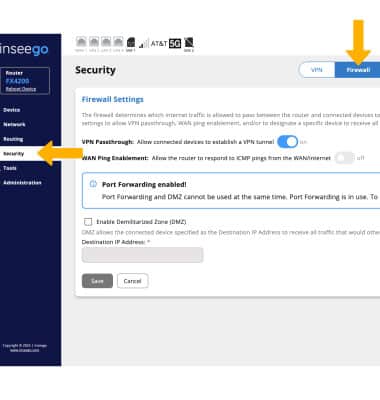
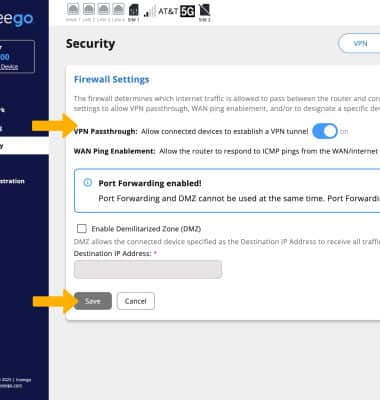
3. Edit firewall settings as desired, then click Save.
Open a VPN
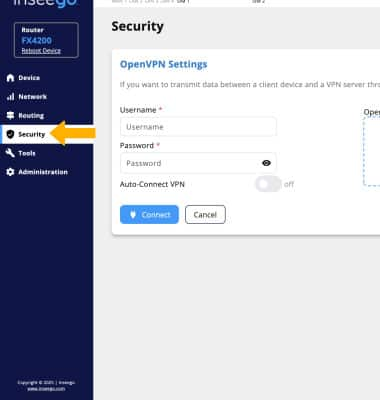
If you would like to transmit data between a client device and a VPN server through private and secure internet access, you can create encrypted tunnels using OpenVPN or IPsec VPN. From the admin website, click Security on the left side of the screen. Follow the the prompts to configure and connect an OpenVPN tunnel.
Enable MAC filtering
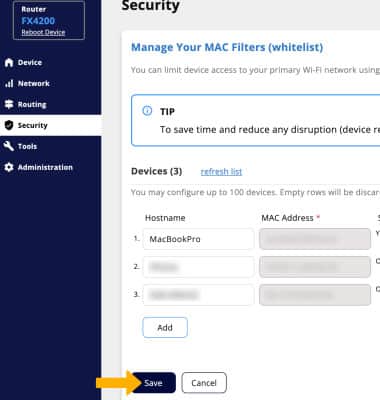
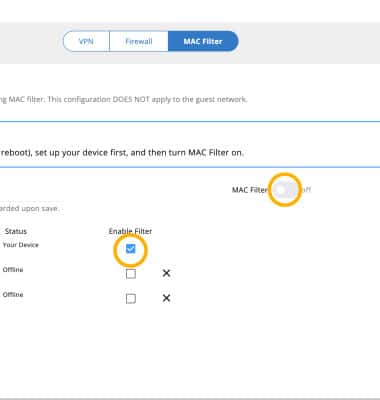
1. When a MAC filter is enabled, only select devices will be able to access the FX4200 network through DHCP. By default, MAC filter is turned disabled. From the Security screen, click the MAC Filter tab.
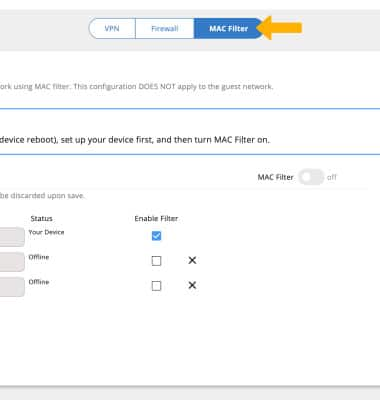
2. To enable MAC filter, you must first select a device that is allowed through the MAC filter. Click the Enable Filter checkbox next to the desired device, then click on the MAC filter switch to enable.
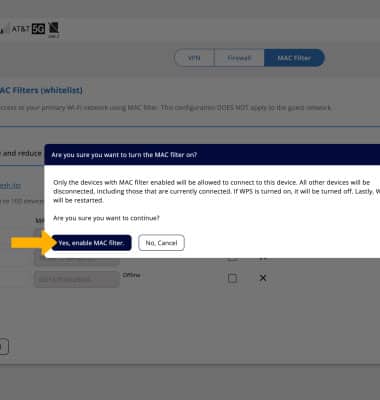
3. Click Yes, enable MAC filter.
4. Click Save when finished.