In this tutorial, you will learn how to:
• Restrict internet access for application
• Add or remove a device
Restrict internet access for application
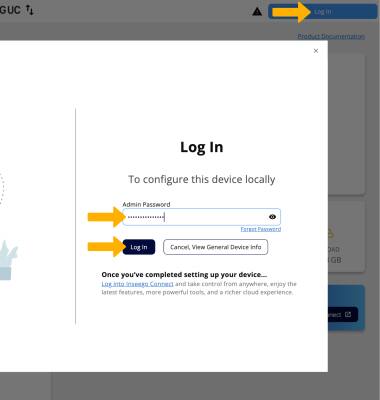
1. To restrict internet access for a specific application, from your connected device's web browser, go to http://inseego.local or https://192.168.1.1. Click Log In. Enter your password, then click Log In.
Note: Ensure that your device is connected to the Inseego Wavemaker FX4200 Wi-Fi network. For more information, please see the Connect Devices to Wi-Fi or Connect PC or Mac to Wi-Fi tutorials. If you haven’t logged into the Web admin page before, the default password will be displayed on the bottom of the device. You may be prompted to change the admin password.
2. Click Routing on the left side of the screen.
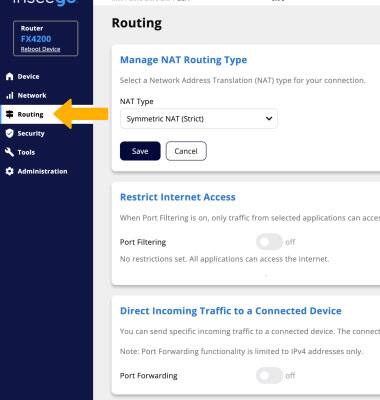
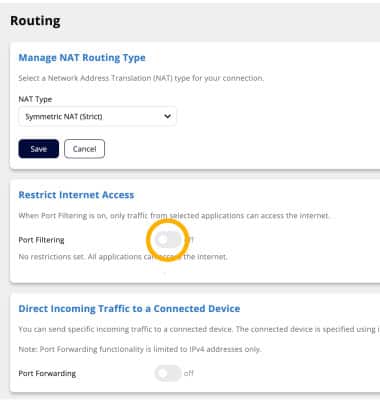
3. Click Port filtering switch to enable. When Port Filtering is on, only traffic from selected applications can access the internet.
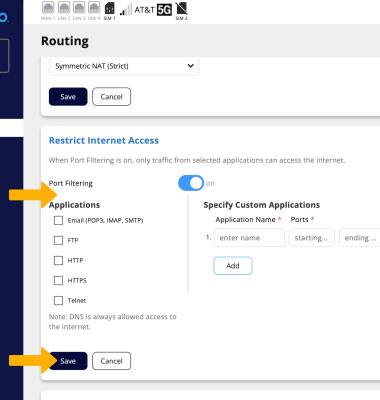
4. Only traffic from applications you select can access the internet. Edit the Application settings as desired, then click Save.
Add or remove a device
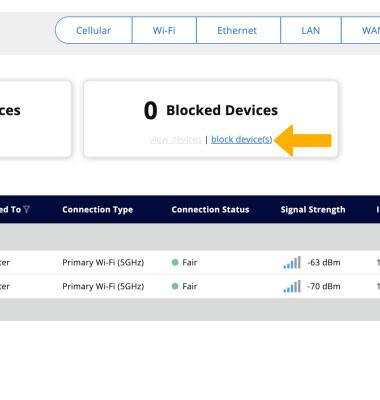
1. From the Devices screen, click block device(s) under Blocked Devices.
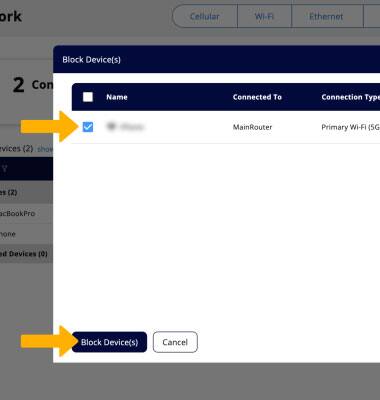
2. Click the checkbox next to the device you wish to block, then click Block Device(s).
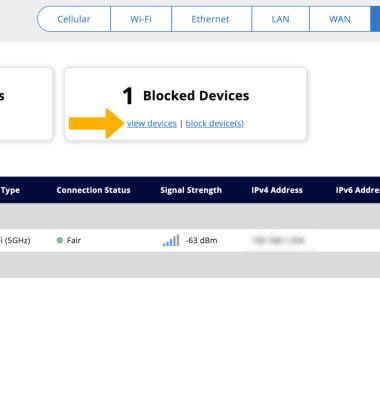
3. To remove a device, click views devices under Blocked Devices.
4. Click unblock next to the device you wish to unblock.
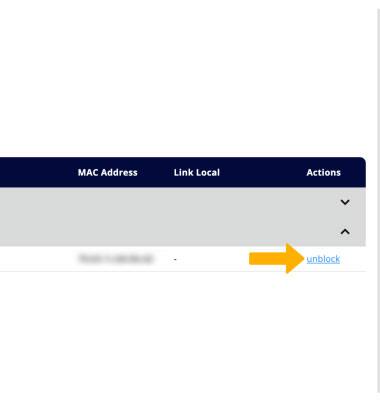
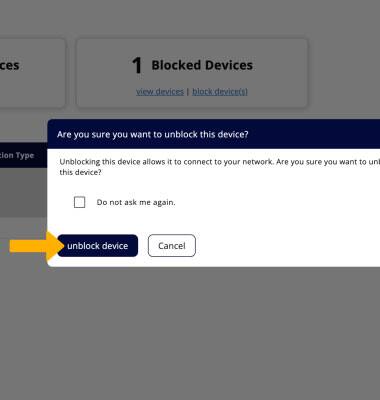
5. Click unblock device to confirm.