Secure My Device
RED Hydrogen One (H1A1000)
Secure My Device
Lock or unlock your display, set a screen security lock type (pin, password, pattern, or fingerprint), get your PUK code, or request your device be unlocked from the AT&T network.
Fingerprint Security Lock
Lock or unlock your display, set a screen security lock type (pin, password, pattern, or fingerprint)

Fingerprint Security Lock
1:59
INSTRUCTIONS & INFO
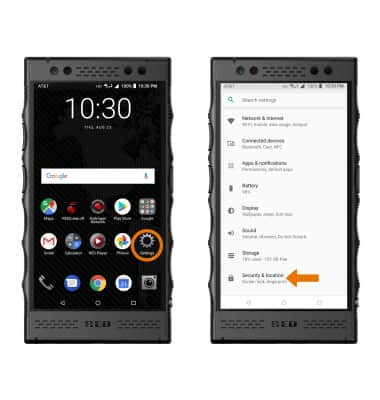
- SET A SECURITY LOCK: From the home screen, select the Settings app then select Security & Location.
- Select Fingerprint.
Note: Read the Unlock with fingerprint prompt, then select NEXT.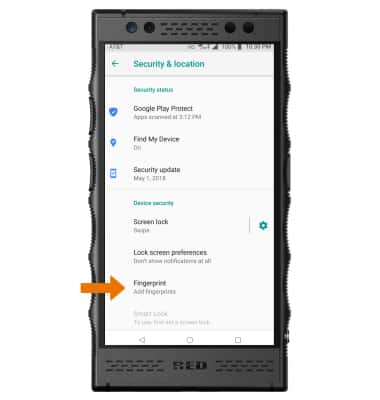
- Select the desired backup screen lock method.
Note: For this demonstration "Fingerprint + Pattern" was selected. If you forget your Pattern lock and did not set up a Fingerprint backup, you will have to reset your device. See the Reset Device tutorial for alternate reset instructions.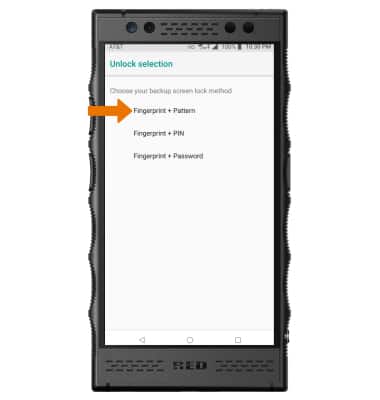
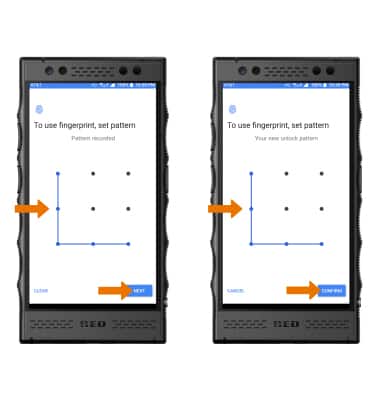
- Draw your pattern, then select NEXT. Draw it again, then select CONFIRM.
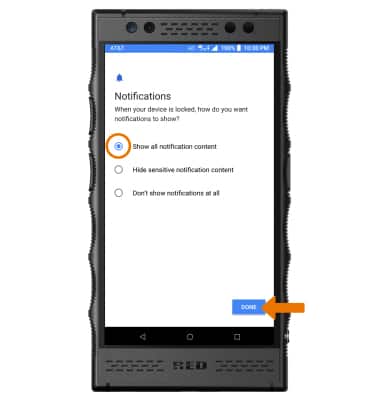
- Select desired display option for notifications, then select DONE.
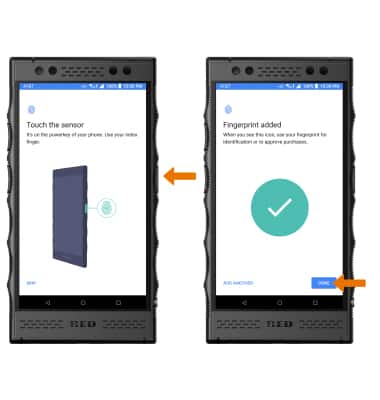
- To begin recording your fingerprint, place your finger on the fingerprint scanner on the right side of the device then follow the prompts. When you are finished recording your fingerprint, select DONE.
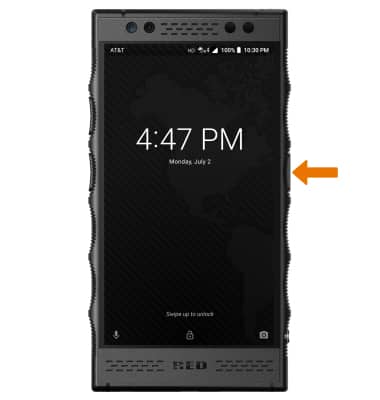
- LOG IN USING THE SECURITY LOCK: From the lock screen, place your finger on the fingerprint scanner on the right side of the device.
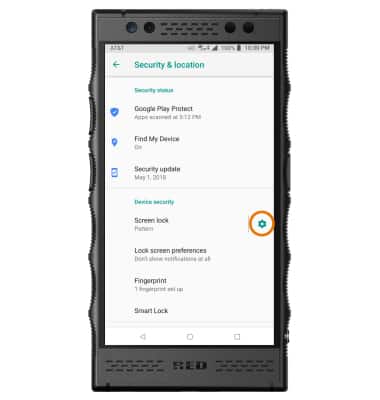
- CHANGE LOCK SCREEN TIMEOUT: From the Security & location screen, select the Settings icon next to Screen lock.
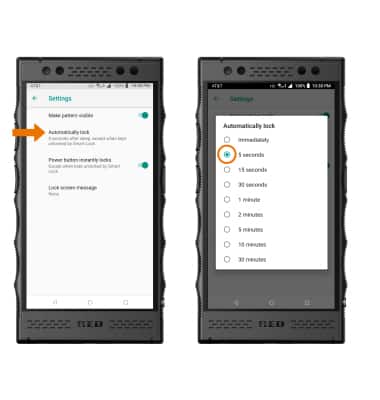
- Select Automatically lock, then select the desired timeout duration.
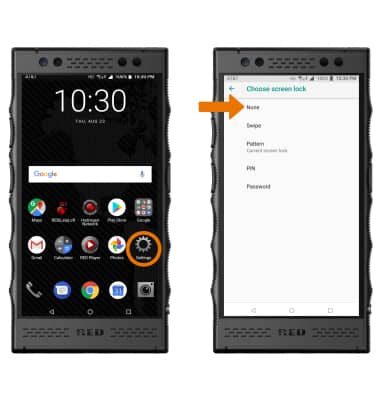
- CHANGE LOCK TYPE: From the home screen, select the Settings app > select Security & location > Screen lock > enter your current pattern lock > select the desired screen lock type and follow prompts to complete set up.
- To learn more about requesting a device unlock for your AT&T mobile device so that it can operate on another compatible wireless network, visit www.att.com/deviceunlock.
Note: If your device is locked and is requesting a "PUK" code, click here for instructions on how to obtain your PUK or PUK2 code to unlock your SIM card.