- Swipe down from the Notification bar, then select the Settings icon.
Note: Requires eligible data plan. Mobile hotspot and tethering are not supported on AT&T Unlimited Data Plan.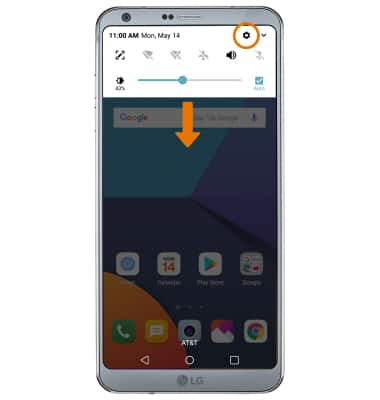
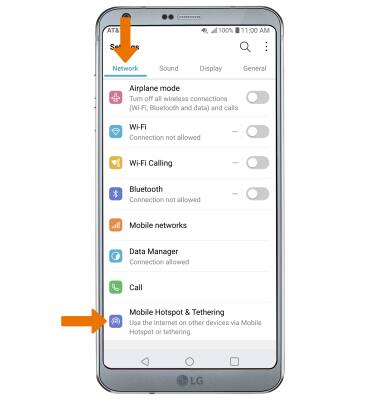
- Select the Network tab, then select Mobile Hotspot & Tethering.
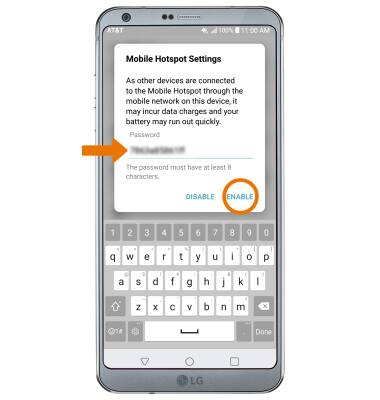
- ACTIVATE MOBILE HOTSPOT: Select the Mobile Hotspot switch.
Note: If Wi-Fi is turned on, you will be prompted to turn it off. Select YES.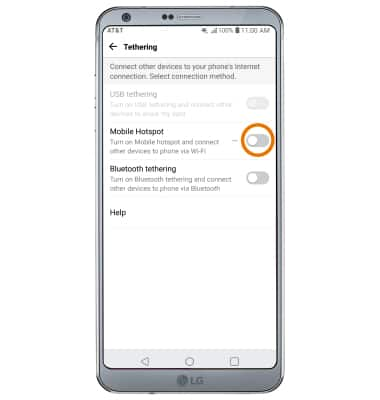
- Update the Mobile Hotspot password if desired, then select ENABLE.
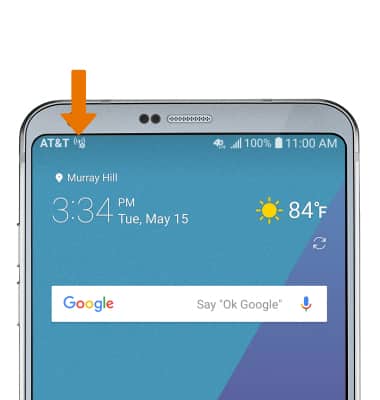
- When Mobile hotspot is on, the Mobile hotspot icon will display in the Notification bar.
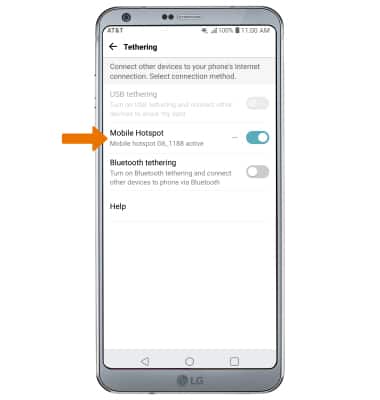
- CONFIGURE MOBILE HOTSPOT: From the Tethering screen, select Mobile Hotspot.
- Select Set up Mobile Hotspot.
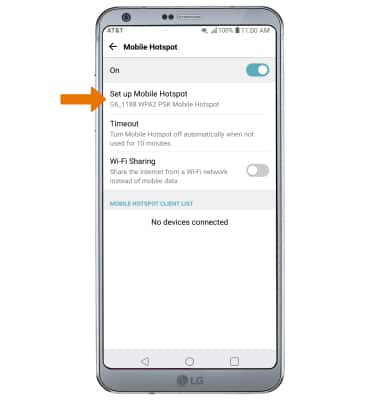
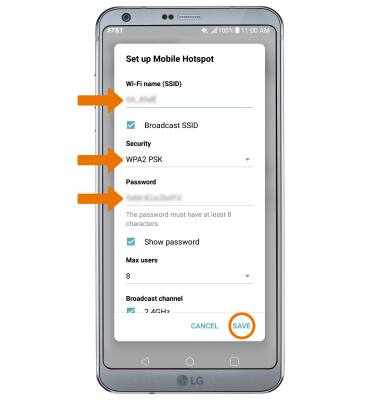
- Edit the Wi-Fi network name, Security settings, and Password then select SAVE.
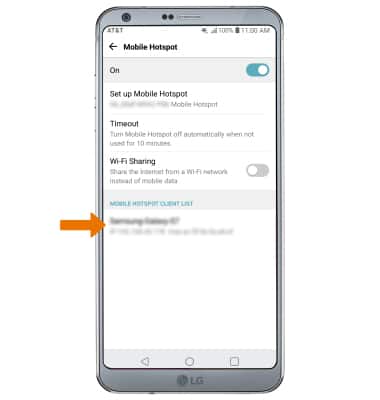
- VIEW CONNECTED DEVICES: Connected devices are listed under MOBILE HOTSPOT CLIENT LIST.
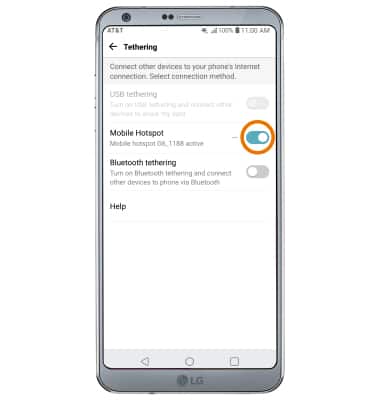
- TURN OFF MOBILE HOTSPOT: From the Tethering screen, select the Mobile Hotspot switch.
Mobile Hotspot
LG G6 (H871 / H871S)
Mobile Hotspot
Set up your device as a personal hotspot and share your data connection with Wi-Fi-capable devices.
Wi-Fi & Mobile Hotspot
Wi-Fi and Mobile Hotspot instructions.
Wi-Fi & Mobile Hotspot
2:56
INSTRUCTIONS & INFO