

Make & Receive a Video Call
- MAKE A VIDEO CALL: A video call can be made through the Dial pad in the Phone app or through the Contacts list in the Contacts app. To make a video call through the Dial pad, enter the desired number then select the Video Call icon.
Note: The Video Call icon displays in green if the person has the capability to receive a Video Call and grey if the person does not have the capability to receive a Video Call.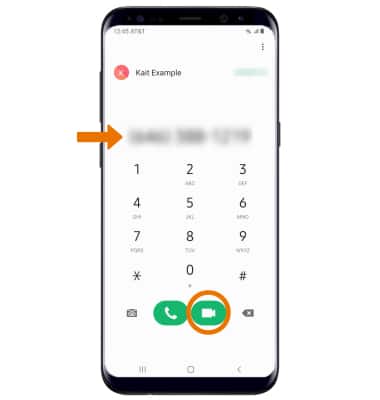
- RESPOND TO AN INCOMING CALL: Select and drag the desired icon.
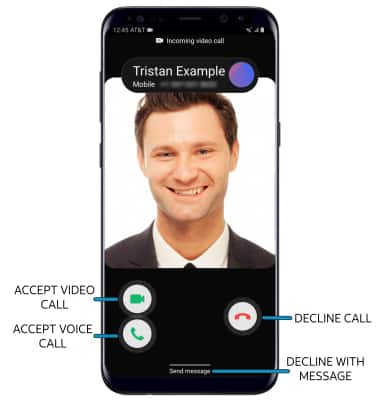
- ACCEPT VIDEO CALL: Select and drag the Video Call icon to the right to accept a video call.
- ACCEPT VOICE CALL: Select and drag the Voice Call icon to the right to accept a voice call.
- DECLINE CALL: Select and drag the Decline icon to the left to decline a call.
- DECLINE WITH MESSAGE: Select and drag SEND MESSAGE up to decline the call with a message.
Video Call Options
- CHANGE CALL TYPE: Switch between a HD Voice and Video call.
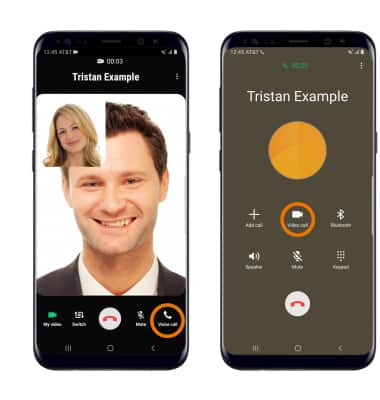
- SWITCH TO A VOICE CALL: While on a video call, select Voice call to switch to a voice call.
- SWITCH TO A VIDEO CALL: From a voice call, select Video call.
Note: When switching from a Voice to Video call, the person you are on the phone with will have the option to accept or reject the change from an HD Voice Call to a Video Call.
- VIDEO CALL OPTIONS: Select the desired option.
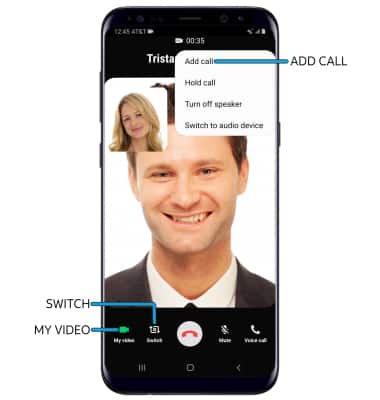
- ENABLE/DISABLE YOUR CAMERA: Select My video to enable or disable your camera.
- SWITCH BETWEEN FRONT & REAR CAMERAS: Select Switch.
- ADD A VIDEO CALL: Select the Menu icon
 , then select Add call.
Note: You can add up to 5 people to the video call. The person talking is shown on screen at the time.
Enable or Disable Video Call
- TURN ON/OFF VIDEO CALLING: From the Phone app, select the Menu icon > Settings > Video Call switch.
Note: Video Call is turned on by default. When Video Call is off, incoming Video Calls will appear as voice calls.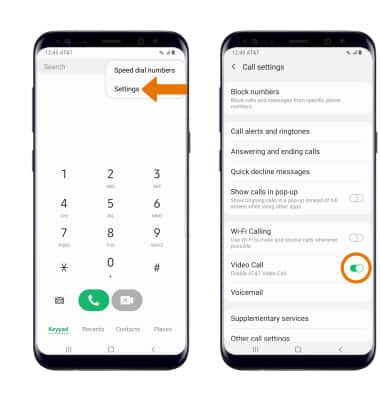
- Certain restrictions, requirements or limitations may apply for this feature/service. For more details, visit https://www.att.com/shop/wireless/features/video-calling.html.