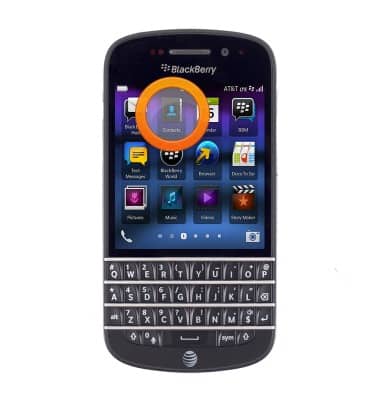
- From the home screen, tap Contacts.
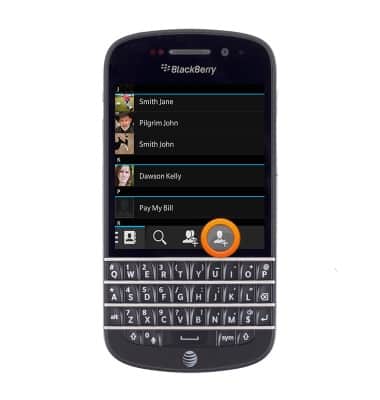
- To create a new contact, tap the Add icon.
- Tap the Contacts stored field.
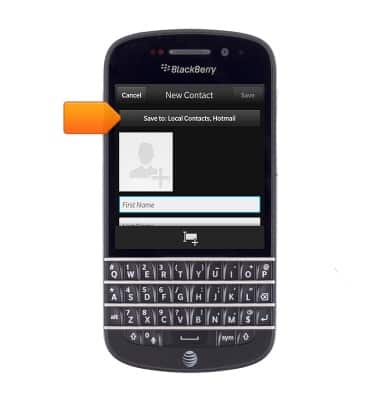
- Select the desired location to save the contact, then tap Done.
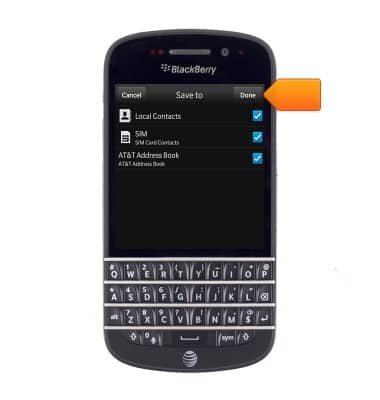
- Enter the desired first name in the First name field.
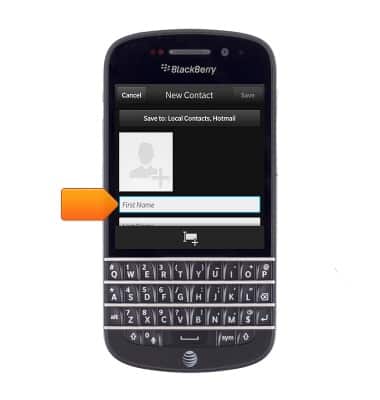
- Tap the Last name field, then enter the desired last name.
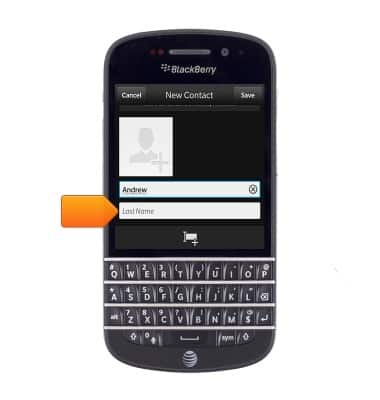
- Tap the Phone Number type field.
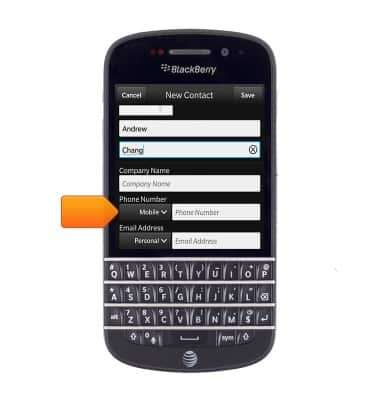
- Tap the desired type.
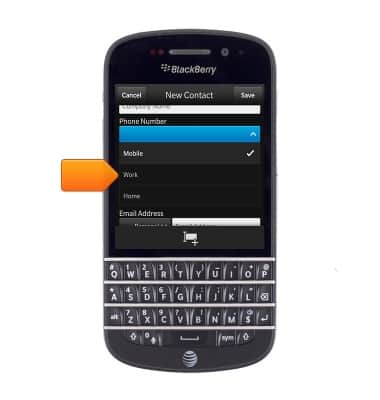
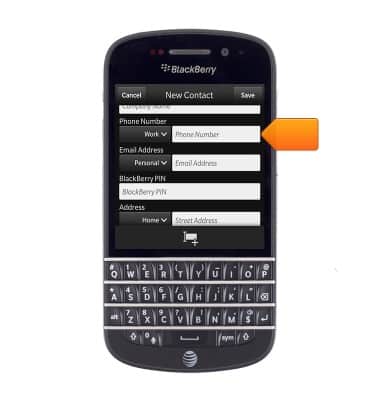
- Tap the Phone Number field, then enter the desired phone number.
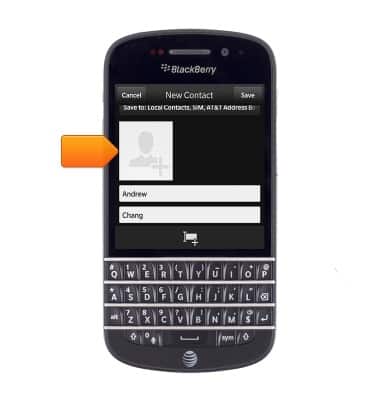
- To add a contact photo, scroll up and tap the Add photo icon.
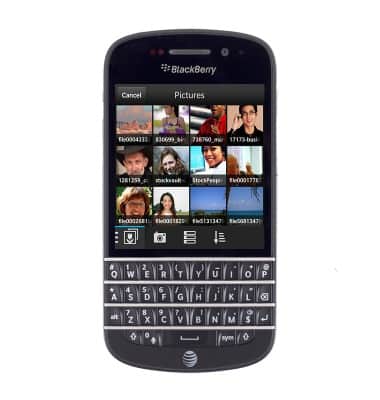
- Tap the desired photo.
- Edit the photo as desired.
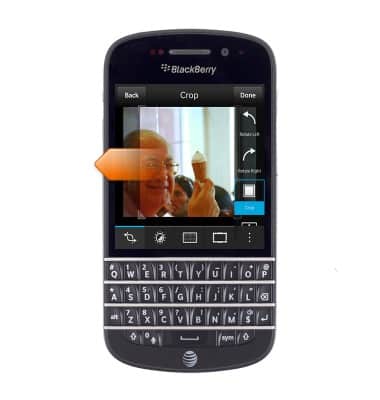
- Tap Done.
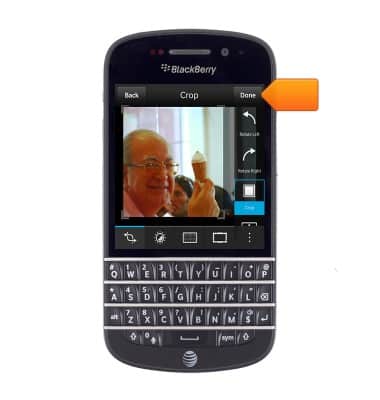
- To add a ringtone, scroll to, then tap Ring Tone and Notifications.
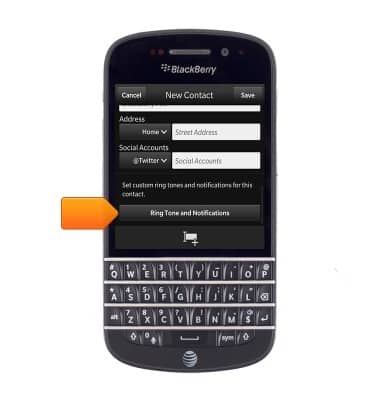
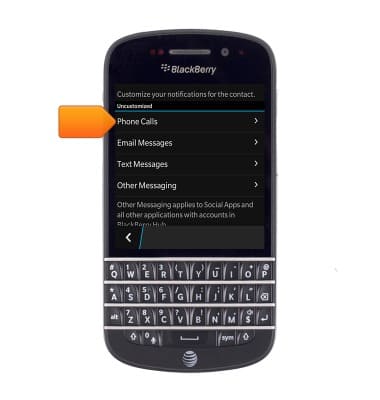
- Tap Phone Calls.
- Tap Tone.
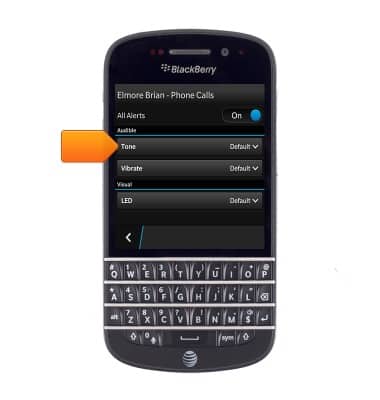
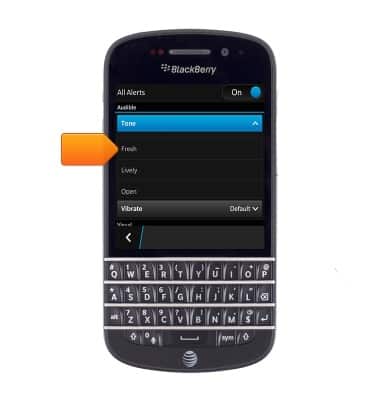
- Scroll to, then tap the desired ringtone.
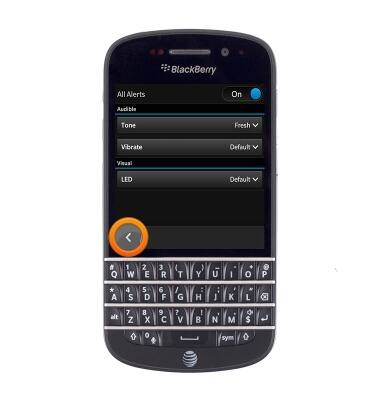
- Tap the Back icon twice to navigate to the New Contact page.
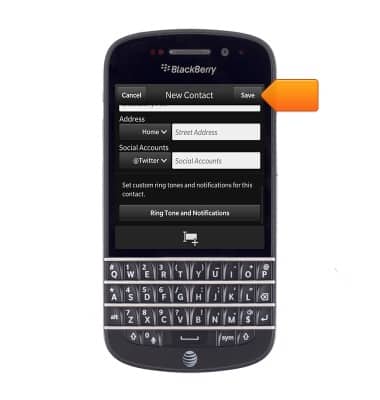
- Tap Save.
- To edit a contact, tap the desired contact.
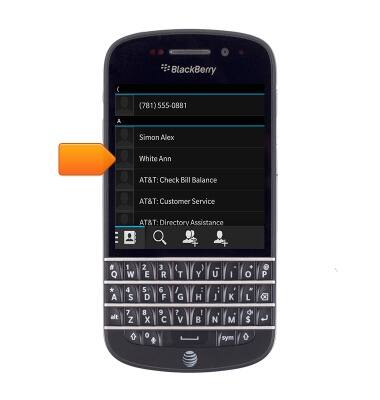
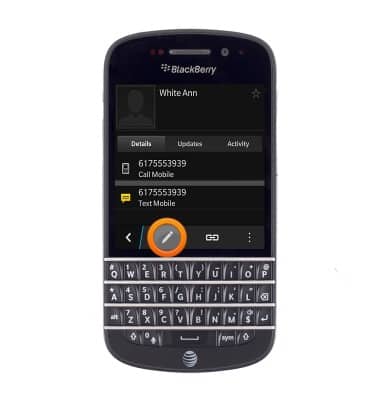
- Tap the Edit icon.
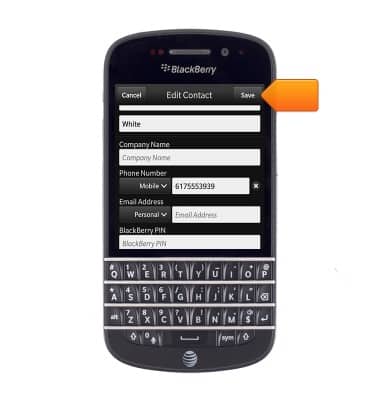
- Make the desired changes, then tap Save.
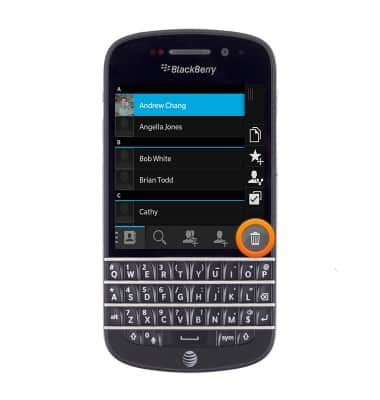
- To delete a contact, touch and hold the desired contact.
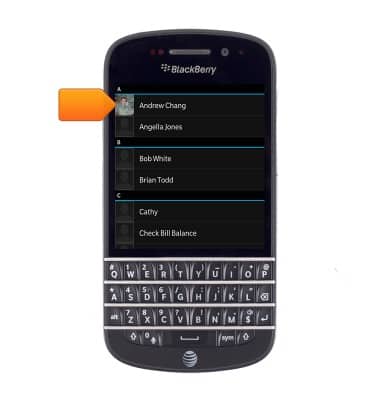
- Tap the Delete icon.
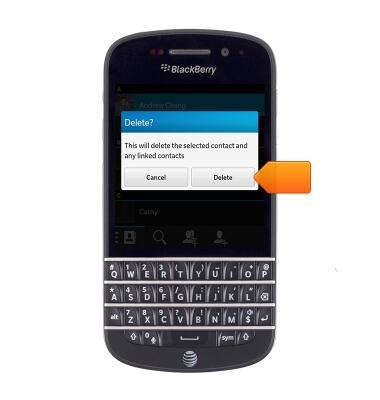
- Tap Delete.
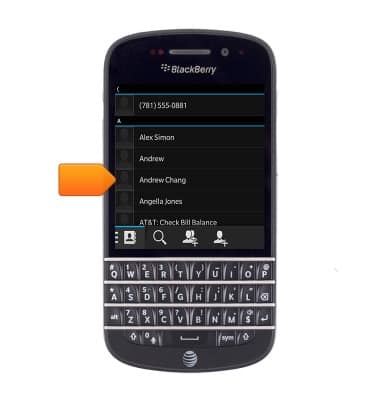
- To link contacts, tap the desired contact.
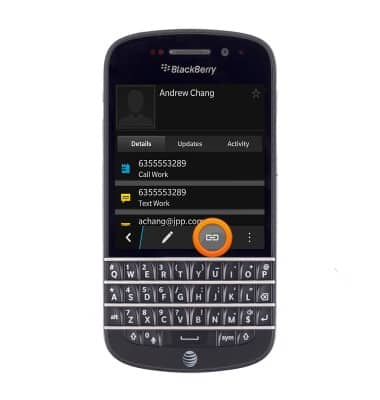
- Tap the Link icon.
- Tap the Add link icon.
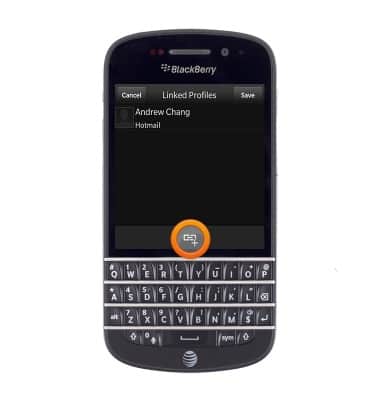
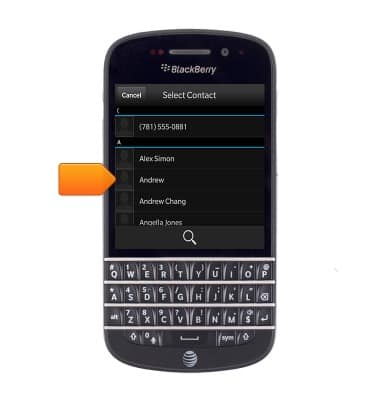
- Tap the desired contact to link.
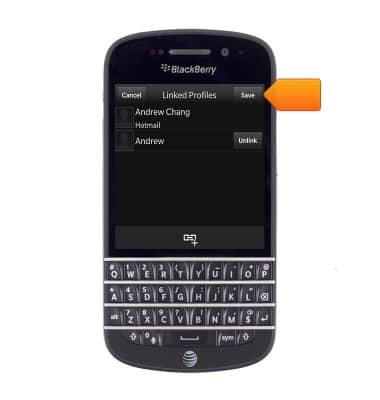
- Tap Save.
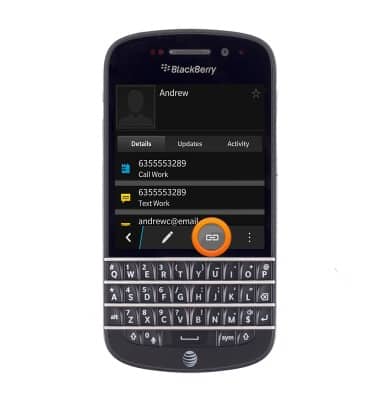
- To separate contacts, tap the desired contact.
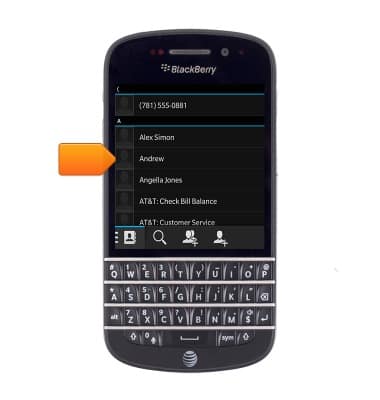
- Tap the Link icon.
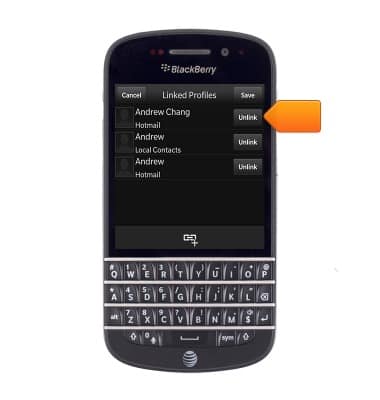
- Tap Unlink next to the desired contact.
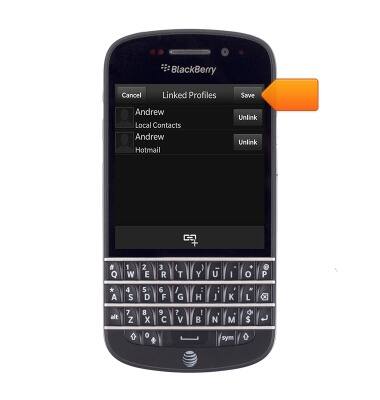
- Tap Save.
Contacts
BlackBerry Q10 (SQN100-1)
Contacts
Add, view, delete, and customize contacts by adding a picture or ringtone.
Contacts
This video explains how to add and edit contacts.

Contacts
1:54
INSTRUCTIONS & INFO