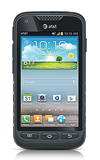
- Before setting up an Exchange email account, you will need your account's server settings. If you don't know this information, please contact your IT team or email provider for assistance.
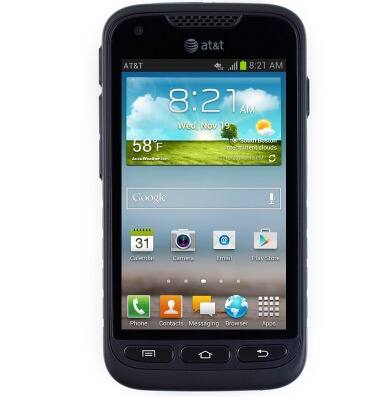
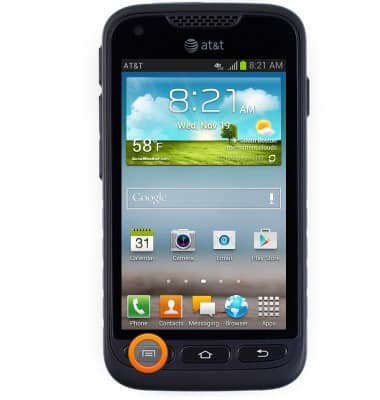
- From the home screen, press the Menu key.
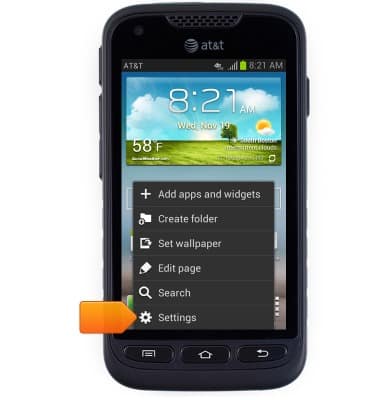
- Tap Settings.
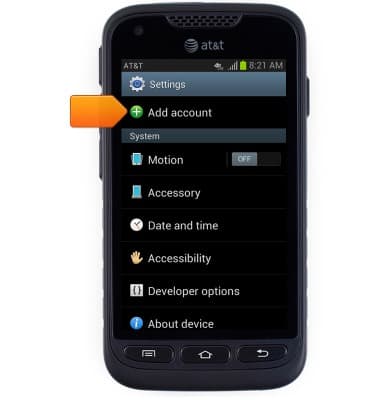
- Scroll to, then tap Add account.
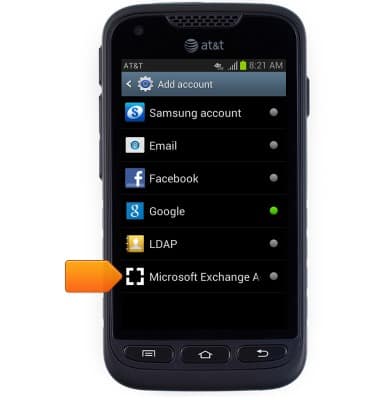
- Tap Microsoft Exchange ActiveSync.
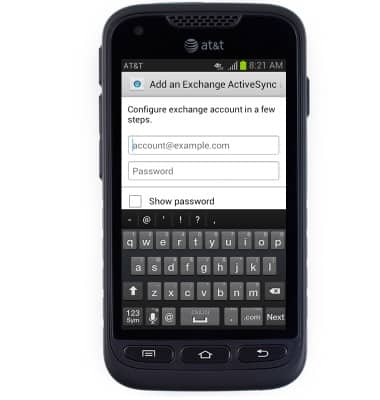
- Enter the corporate email account login information.
- Tap Manual setup to manually adjust incoming and outgoing server settings. Tap Next to skip this process and automatically set up the account.
Note: Consult your IT department for information on setting up your Exchange account server settings. This tutorial selects 'Next'.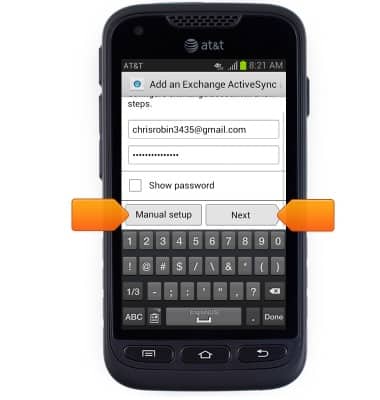
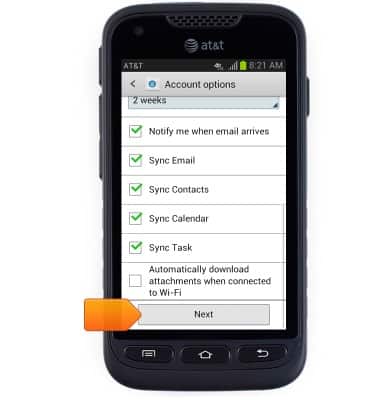
- Edit account settings as desired, then tap Next.
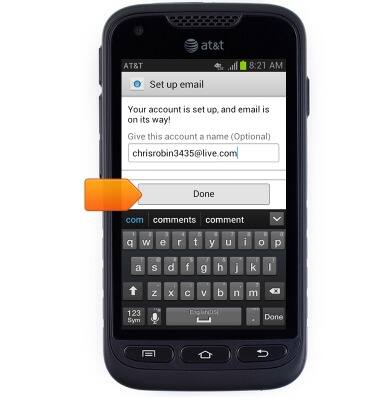
- Tap Done.
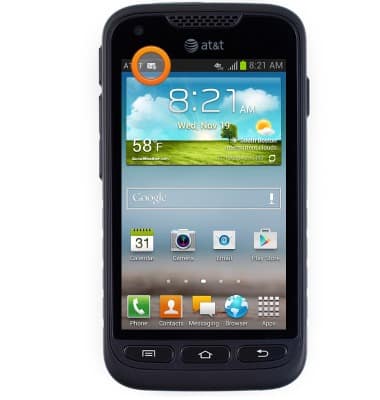
- When new mail is received, a New mail icon will appear in the Notifications bar.
Set up corporate email
Samsung Galaxy Rugby Pro (I547) OS 4.0-4.1
Set up corporate email
Add an Exchange email account so you can read and send email on your device.
INSTRUCTIONS & INFO