- Before setting up an Exchange email account, you will need your account's server settings. If you don't know this information, please contact your IT team or email provider for assistance.
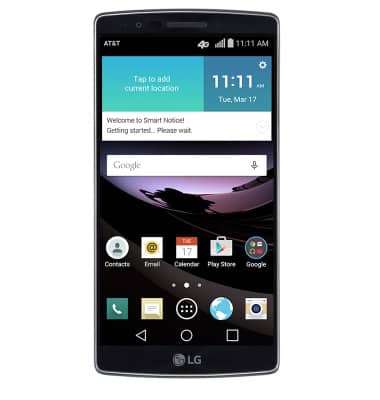
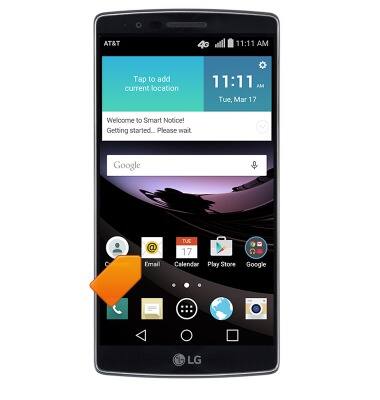
- From the home screen, tap Email.
- Tap Microsoft Exchange.
Note: If another email account has already been added, tap the Menu icon > Settings > Add account.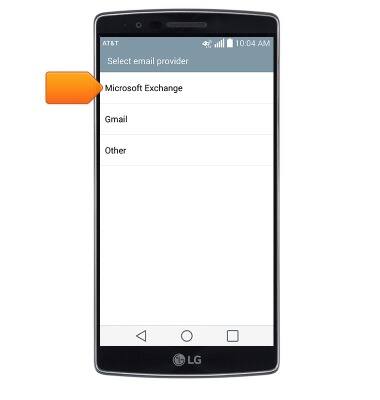
- Enter the corporate email address, then tap the Password field.
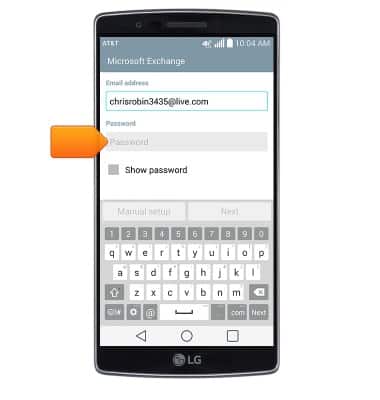
- Enter the required password, then tap Manual setup.
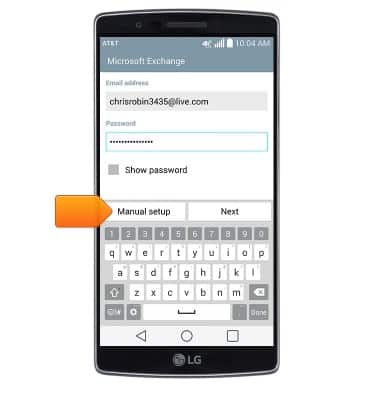
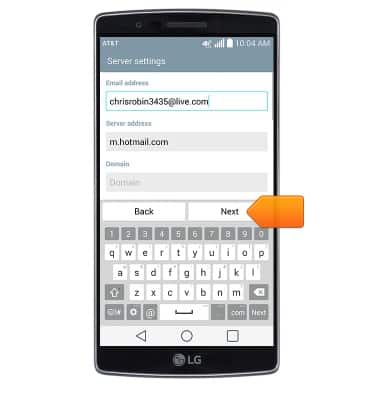
- Adjust the server settings as desired, then tap Next.
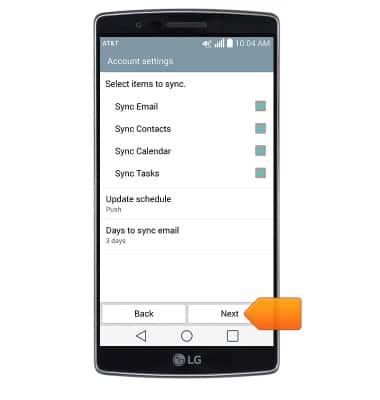
- Adjust syncing settings as desired, then tap Next.
- Adjust account name if desired, then tap Done.
Note: If multiple accounts are configured, tap the Set as default account checkbox.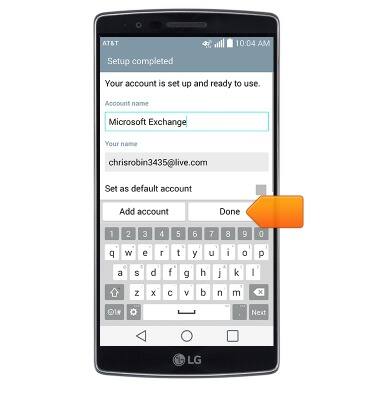
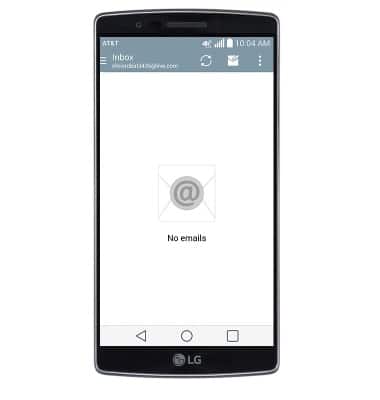
- The corporate email account is now ready for use.
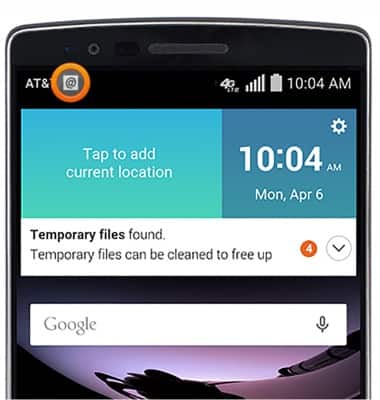
- When a new email is received, the New email icon will appear in the notification bar.
Set up corporate email
LG G Flex 2 (H950)
Set up corporate email
Add your Exchange email account to sync email, contacts, calendar, and notes to your device.
INSTRUCTIONS & INFO