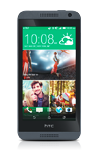
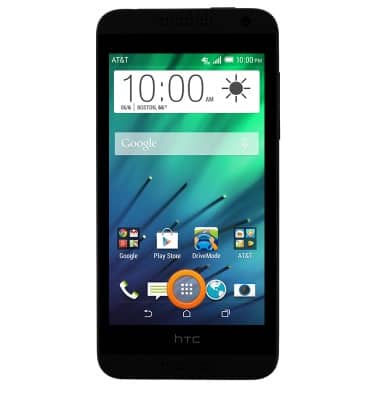
- From the home screen, tap the Apps icon.
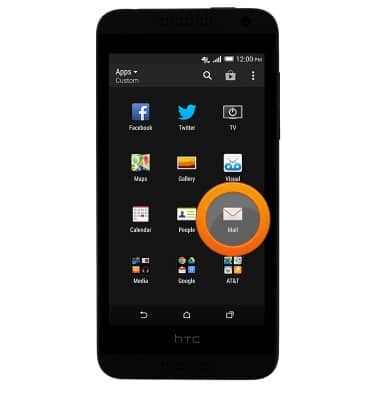
- Tap Mail.
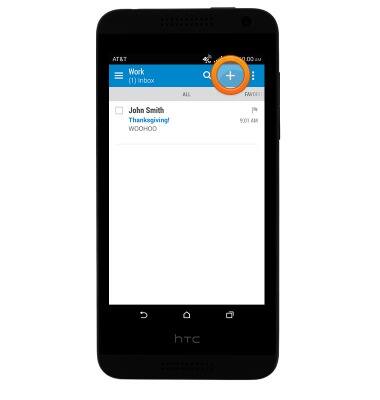
- To compose an email, tap the Compose icon.
- Enter the desired recipient.
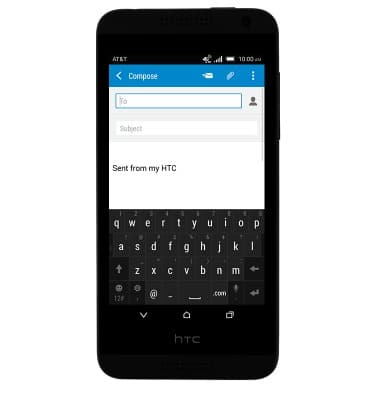
- Tap the Subject field and enter the desired subject.
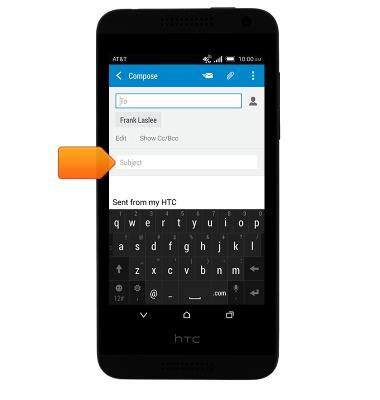
- Tap the Message field and enter the desired message.
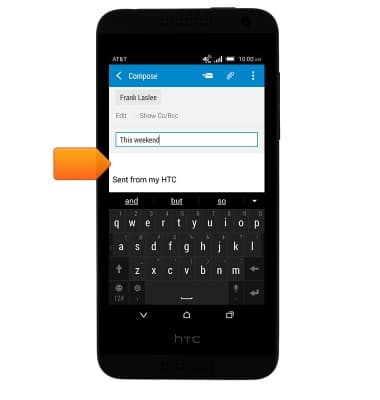
- To add an attachment, tap the Paperclip icon and then follow the on-screen prompts.
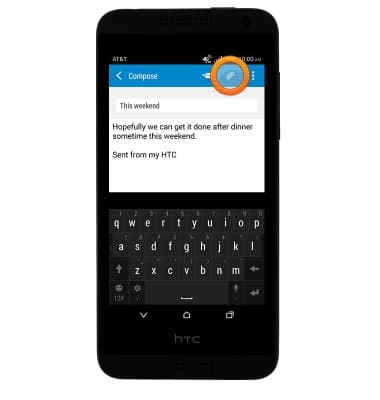
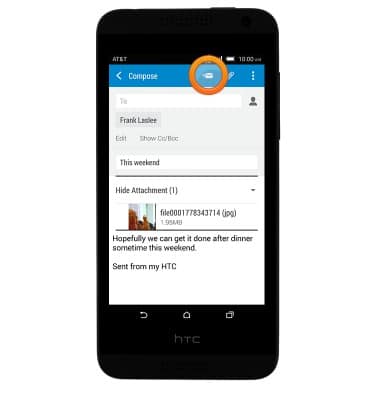
- Tap the Send icon.
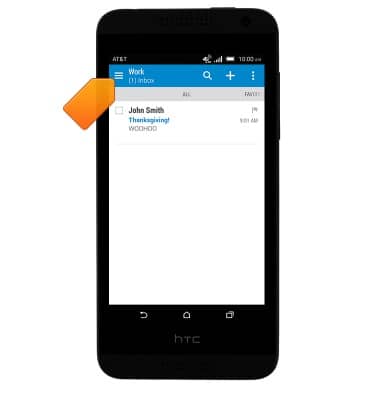
- If multiple email accounts are set up on your device, tap the Menu icon to switch between inboxes.
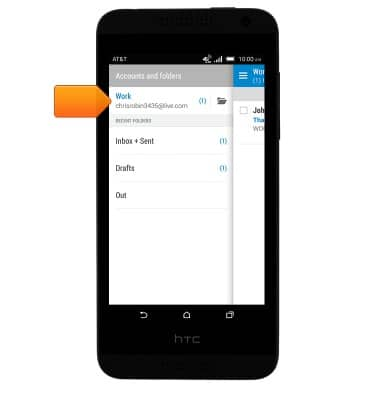
- Tap the desired account.
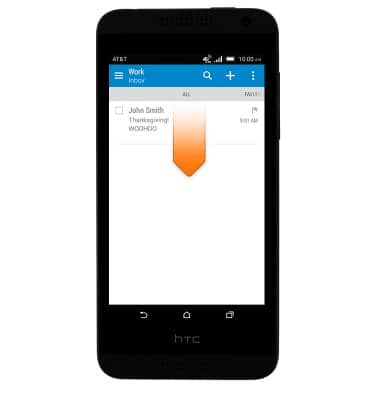
- Drag down to refresh the inbox and check for new mail.
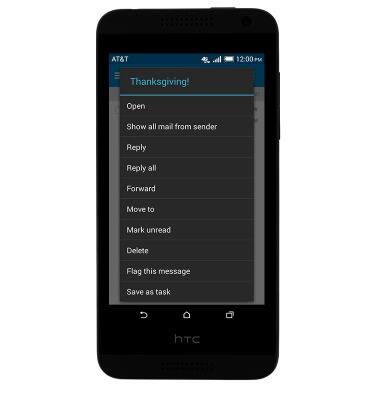
- Tap an email to open it. Touch and hold an email to view options.
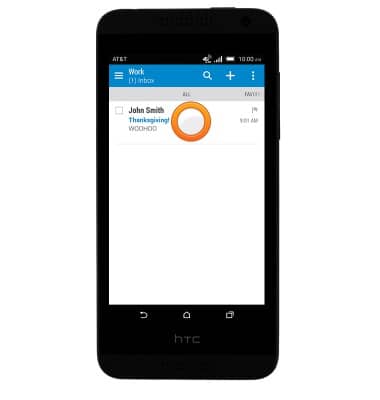
- Tap the desired option.
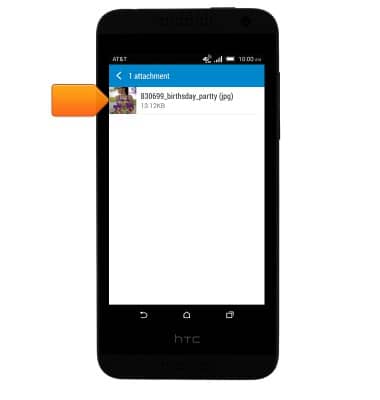
- To view and save an attachment, tap the desired attachment > Tap the desired file to download > Tap the image to view.
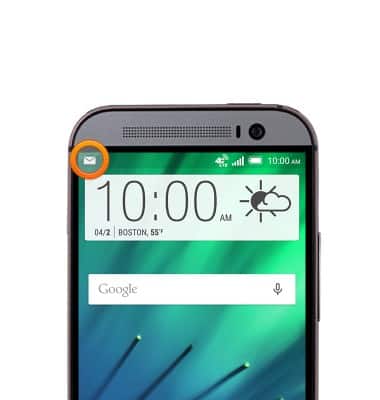
- When a new email is received, the New mail icon will display in the Notifications bar.
Send & receive email
HTC Desire 610 (0P9O110)
Send & receive email
Add and download email attachments, respond to an email and more.
INSTRUCTIONS & INFO