
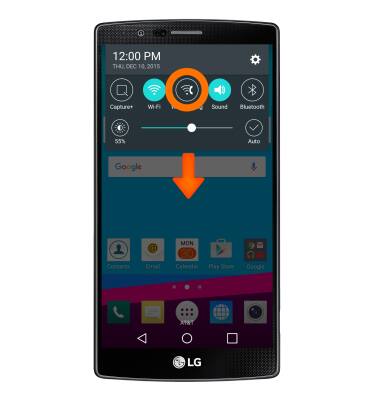
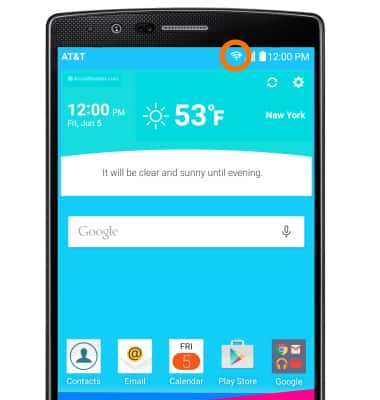
- To turn on or off Wi-Fi Calling, swipe down from the top of the screen and tap the Wi-Fi Calling icon.
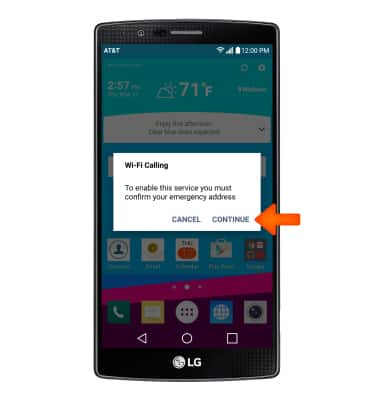
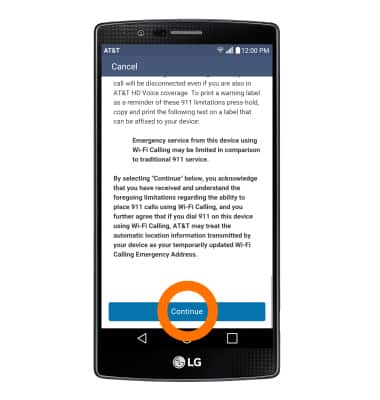
- First-time users will be prompted to verify their emergency address. Tap CONTINUE.
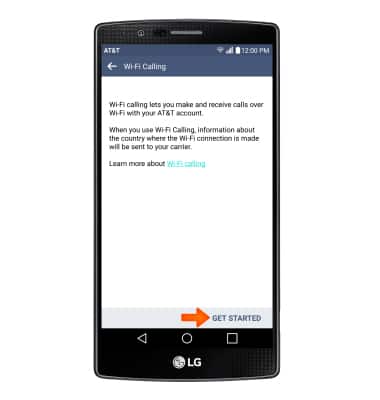
- Tap GET STARTED.
- Tap Continue.
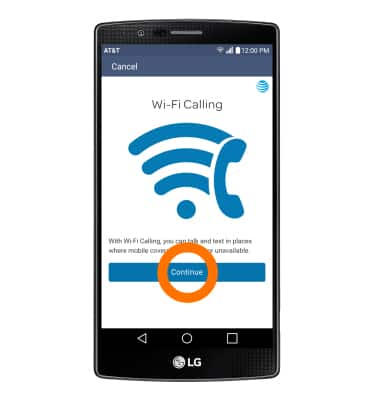
- Tap Continue.
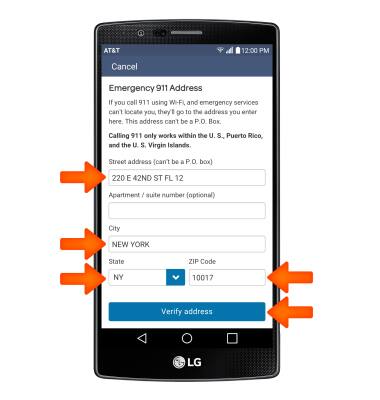
- Read the on-screen prompts, enter your Emergency 911 Address, then tap Verify address.
- Verify the address and tap Use this address.
Note: If the address is not correct, tap Enter a different address to re-enter the address.
- When setup is complete, tap OK.

- When your phone is connected to Wi-Fi, Wi-Fi Calling is on, and a cellular connection is unavailable or poor, you'll see the Wi-Fi Calling icon in the notification bar.
- Making a call is the same whether on cellular or Wi-Fi. From the home screen, tap Phone, dial the Desired number, and then tap the Call icon. You can tell that a call will go over Wi-Fi when you see a Wi-Fi icon within the Call icon.
Note: To learn more see About Wi-Fi calling or visit www.att.com/wificalling.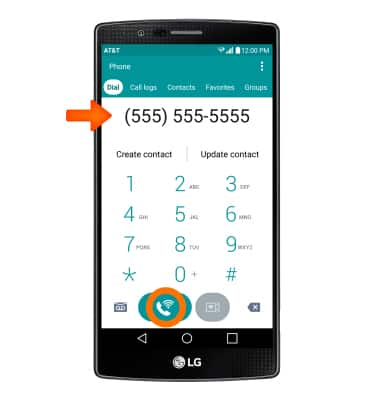
Wi-Fi Calling
LG G4 (H810)
Wi-Fi Calling
Use your Wi-Fi connection to talk and text when cellular coverage is limited or unavailable.
INSTRUCTIONS & INFO

Wi-Fi Calling is turned on as part of the activation process. To use Wi-Fi Calling, you'll need a Wi-Fi Internet connection and a postpaid AT&T wireless account provisioned with HD Voice. Certain restrictions, requirements or limitations may apply. Visit About Wi-Fi Calling or att.com/wificalling for more details.