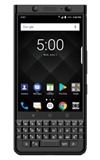
- ACCESS CALENDAR: From the home screen, select the Calendar app.
Note: Sign in with your Google account to sync calendar events with your device.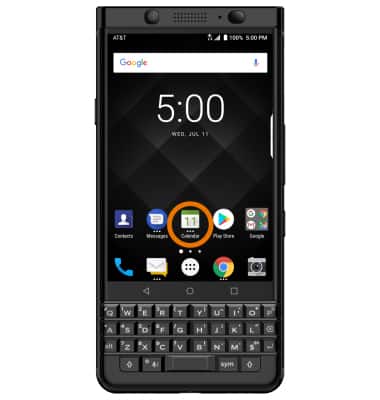
- CHANGE CALENDAR VIEW: Select the Menu icon, then select the desired calendar view.
Note: For this demonstration, Week was chosen.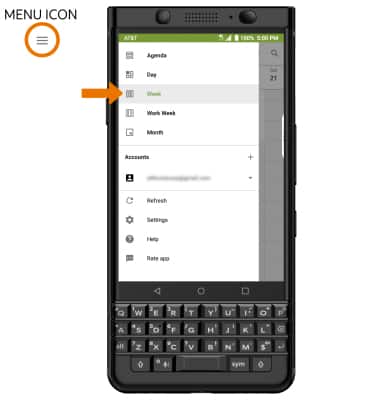
- CREATE AN EVENT: Select the Add icon.
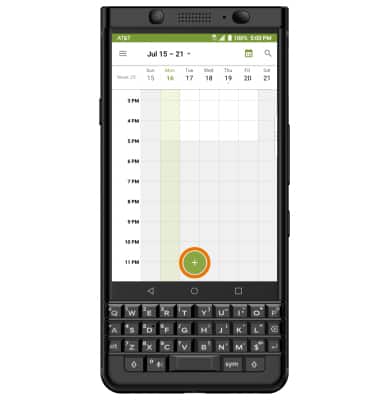
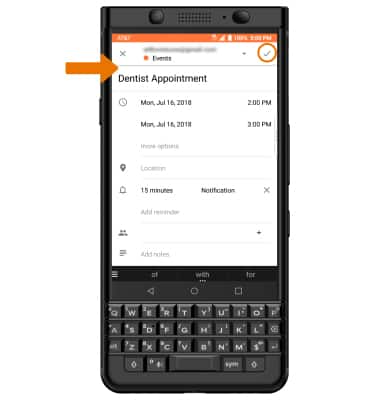
- Enter Event details and preferences as desired, then select the Checkmark icon.
- EDIT AN EVENT: Select the desired event > Edit icon > edit event as desired > Checkmark icon.
Note: You can only edit events that you created.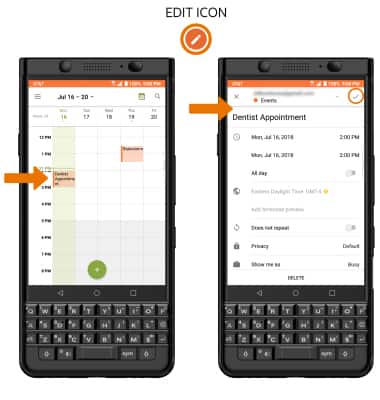
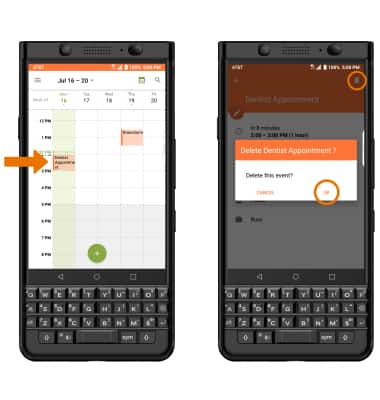
- DELETE AN EVENT: Select the desired event > Delete icon > OK.
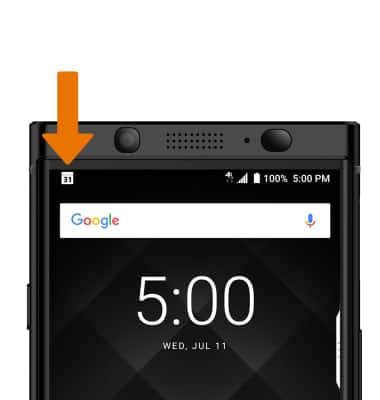
- At the time of the event, an Event icon will be displayed in the Notification bar.
Calendar
BlackBerry KEYone (BBB100-1)
Calendar
Access the calendar and manage events.
INSTRUCTIONS & INFO