
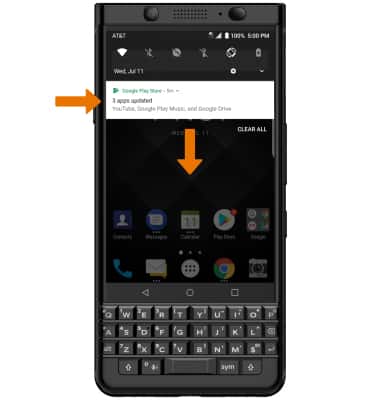
- ACCESS NOTIFICATIONS & QUICK SETTINGS: Swipe down from the Notification bar. Notifications will be displayed.
- ACCESS EXPANDED QUICK SETTINGS: Swipe down from the Notification bar with two fingers.
Note: Alternately, access expanded quick settings by swiping down twice from the notification bar.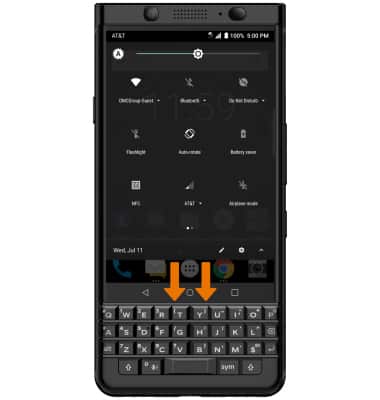
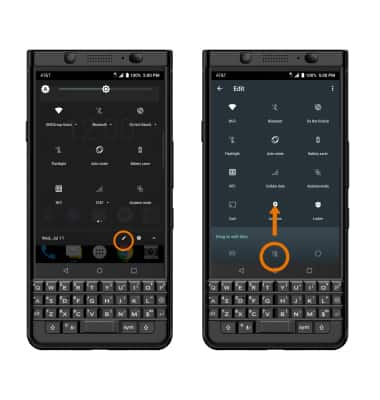
- EDIT QUICK SETTINGS MENU: Select the Edit icon, then select and drag the desired icon to the desired location.
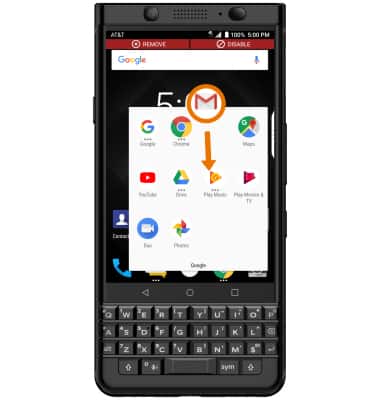
- MOVE AN APP OR WIDGET: Select and hold the desired app, then drag it to the desired location.
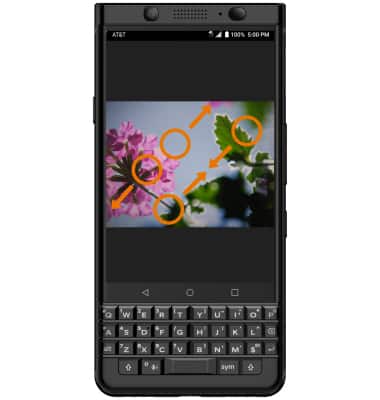
- ZOOM IN OR OUT: While viewing web pages or taking photos, with two fingers on the screen, move fingers apart to zoom in and pinch fingers together to zoom out.
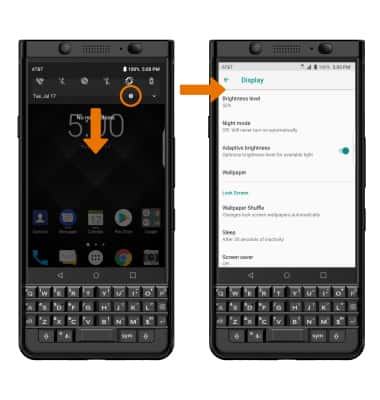
- ACCESS ADDITIONAL GESTURES: Swipe down from the Notification bar, then select the Settings icon > scroll to and select Display > edit the settings as desired.
Gestures & Navigation
BlackBerry KEYone (BBB100-1)
Gestures & Navigation
Control your device by making specific movements with your hand.
INSTRUCTIONS & INFO