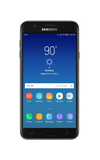

• Set a security lock
• Change lock type
• Change lock screen timeout
• Set Lockdown mode
• Lock the device
• Log in using the security lock
• Request your device be unlocked from the AT&T network
Set a security lock
1. Swipe down from the Notification bar, then select the  Settings icon.
2. Select Lock screen, then select Screen lock type.
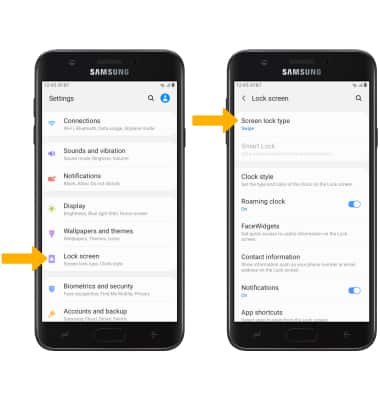
Settings icon. 2. Select Lock screen, then select Screen lock type.
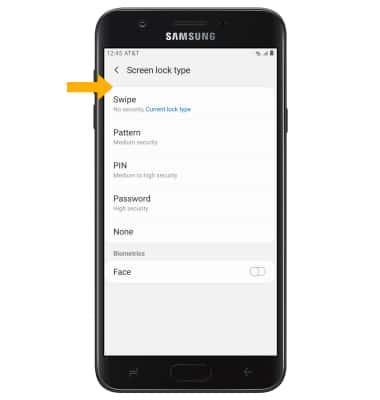
3. Select the desired screen lock type and follow the prompts to complete set up.
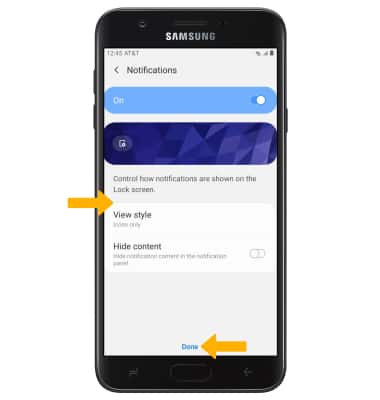
4. Edit Lock screen notification settings as desired, then select Done.
Change lock type
From the Lock screen screen, select Screen lock type > enter your current screen lock > select the new desired screen lock type and follow prompts to complete set up.Change lock screen timeout
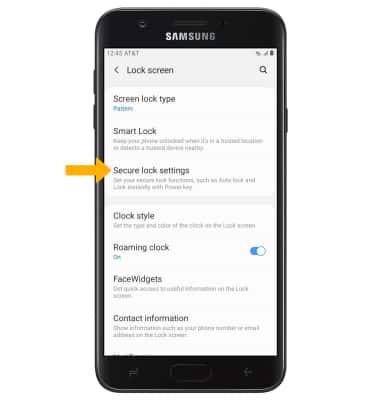
1. From the Lock screen screen, select Secure lock settings.
Note: If you have a screen lock set up, you will be prompted to enter your screen lock to continue.
Note: If you have a screen lock set up, you will be prompted to enter your screen lock to continue.
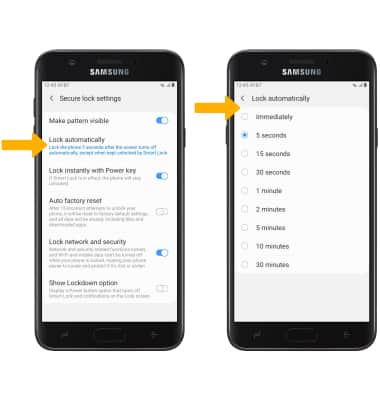
2. Select Lock automatically, then select the desired timer duration.
Lock and unlock device
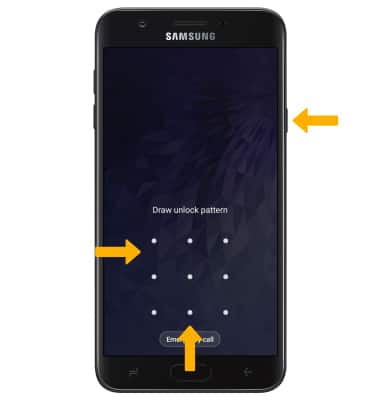
• LOG IN USING THE SECURITY LOCK: From the Lock screen, swipe up from the bottom of the screen then enter your current screen lock.
• LOCK DEVICE: Press the Power/Lock button located on the right side of the device.