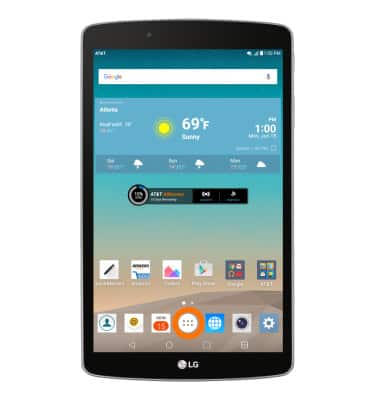
- From the home screen, tap the Apps icon.
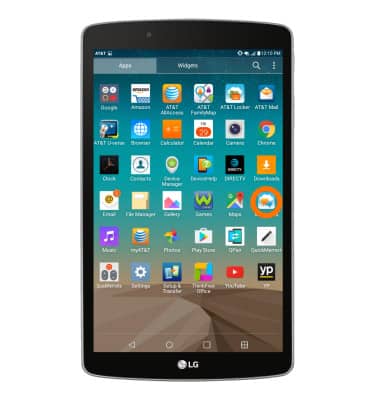
- Tap the AT&T messages icon.
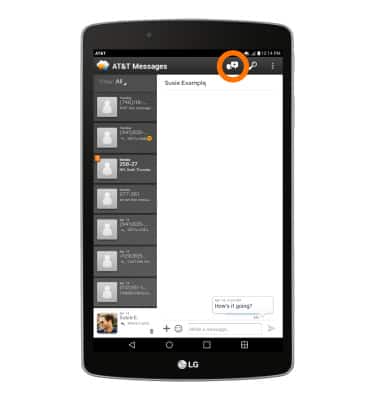
- To compose a new message, from the inbox, tap the New Message icon.
- Enter the contact, and then tap the Message field.
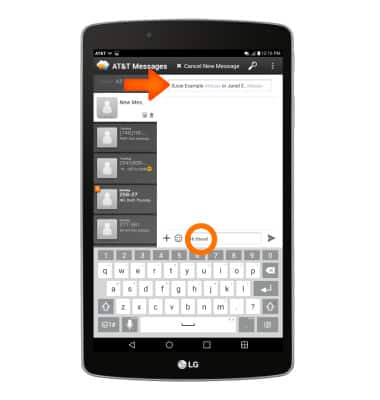
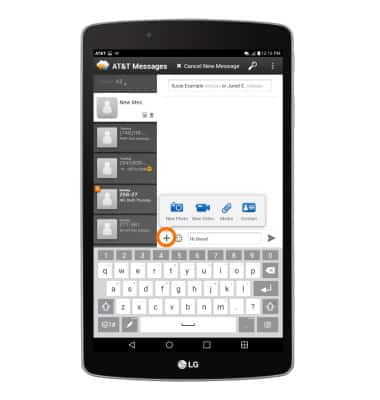
- Enter the desired message. To add an attachment, tap the Plus icon and follow the on-screen prompts to navigate to the desired file.
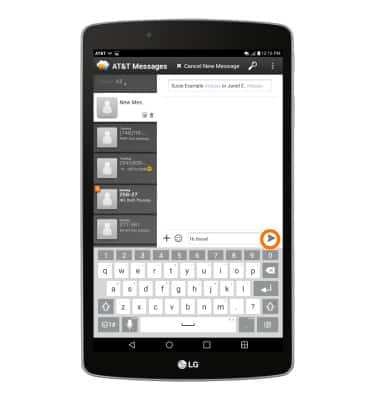
- Tap the Send icon.
- To read a new message, from the inbox, tap the Desired message thread.
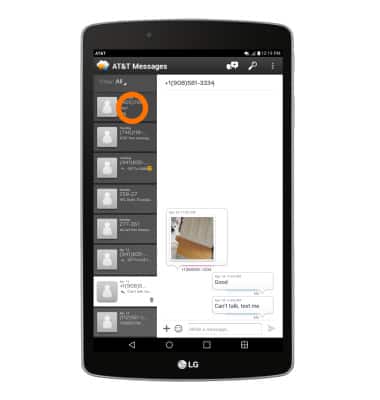
- To save an attachment, tap and hold on the desired attachment, then tap Download.
Note: To view the saved attachment, from the home screen tap Apps Icon > File Manager.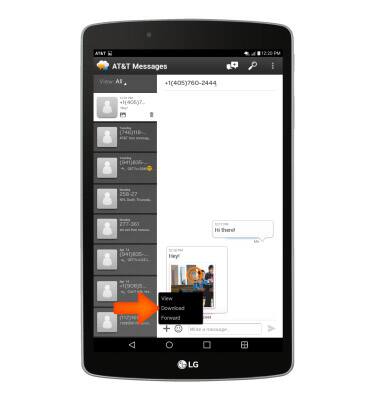
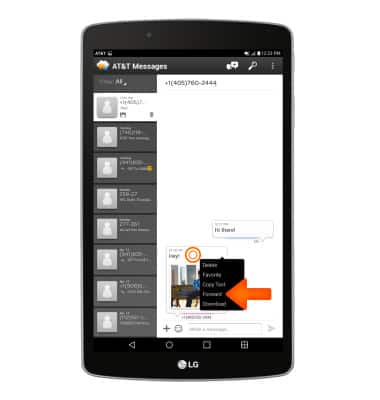
- To forward a message from the desired message thread, tap and hold the Desired message, then tap Forward.
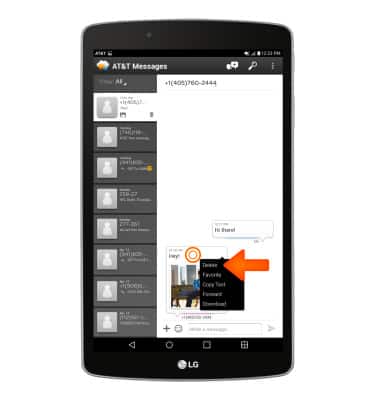
- To delete a message, tap and hold on the desired message. Then tap Delete.
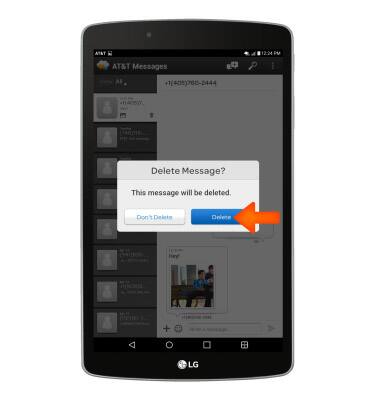
- To confirm, tap Delete again.
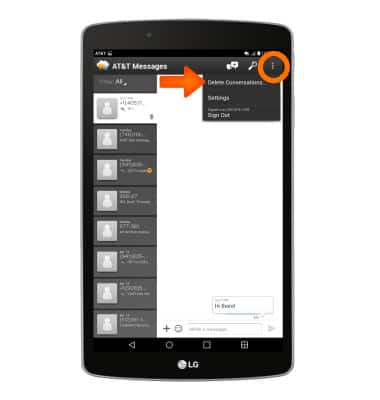
- To delete a message thread, from the messaging page, tap the Menu icon, then tap Delete Conversations...
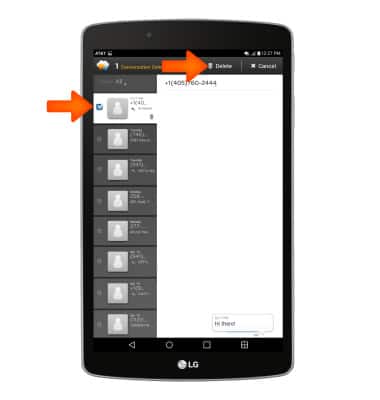
- Tap the desired conversations, then tap Delete.
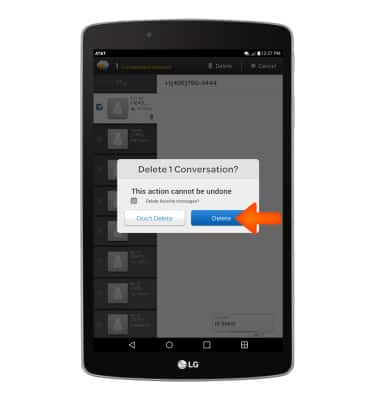
- To confirm, tap Delete again.
Send & Receive Messages
LG G Pad F 8.0 (V495)
Send & Receive Messages
Create and respond to text (SMS) or picture (MMS) messages, add, save, and view received attachments and more.
INSTRUCTIONS & INFO