- Find My Mobile allows you to manage your device in a secure way by tracking and controlling your device remotely.
Note: For more information, visit the Samsung Find My Mobile website.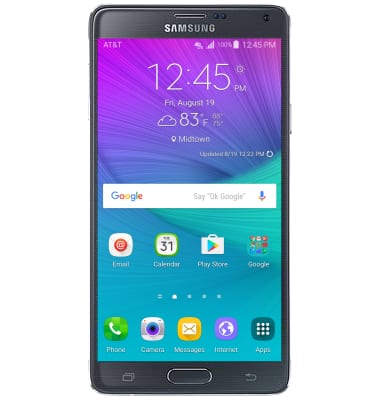
- From the quick settings menu, tap the Settings icon.
Note: To access quick settings, swipe down from the notification bar.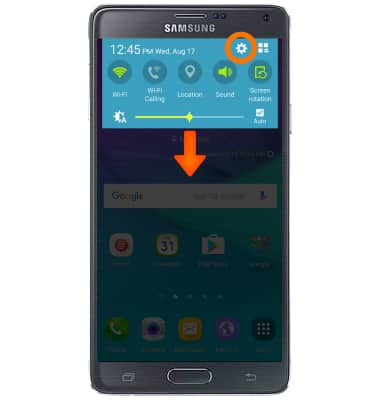
- Swipe to the GENERAL tab, then tap Security.
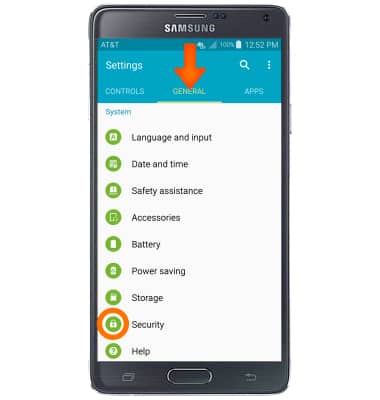
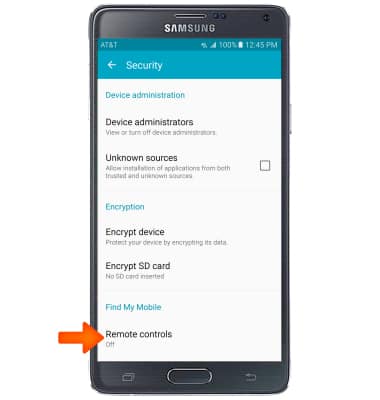
- Under Find my mobile, tap Remote Controls.
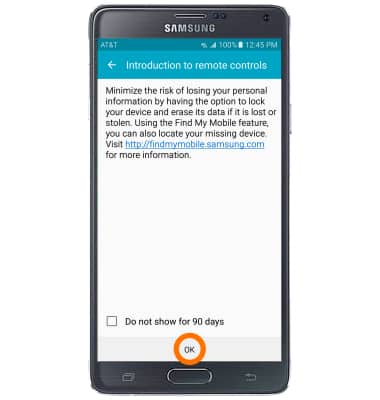
- Tap OK.
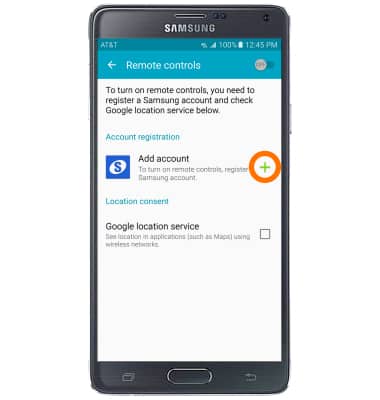
- Tap Add account.
- Tap SIGN IN.
Note: You must have a Samsung account to access this feature. If you don’t have a Samsung account, tap CREATE ACCOUNT WITH GOOGLE ID or CREATE ACCOUNT then follow the on-screen prompts to sign in.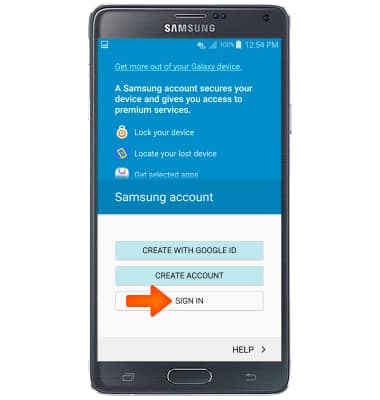
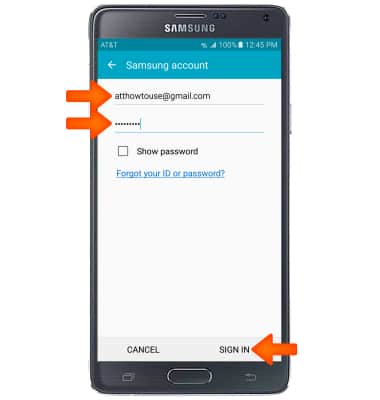
- Enter the Account information, then tap SIGN IN.
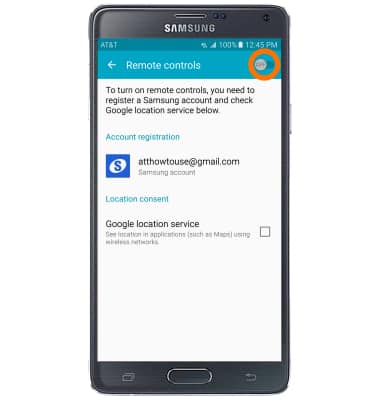
- Tap the Remote controls toggle to switch Find My Mobile features on.
- If your device is lost or stolen, you may be locating your device from another mobile phone or the web. To locate your device, from a computer or phone web browser, go to the Samsung Find My Mobile website. Tap Find.
Note: The Samsung Find My Mobile website is located at http://findmymobile.samsung.com/.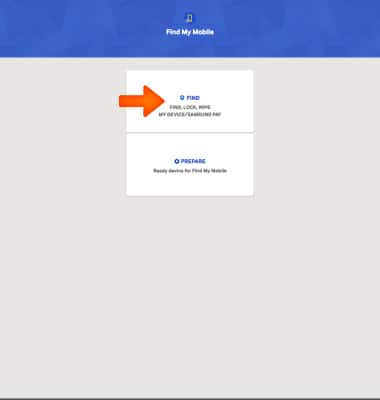
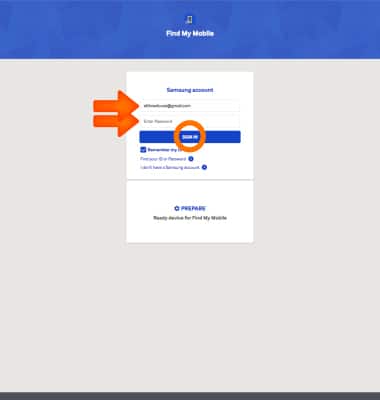
- Enter your Account information, then tap Sign In.
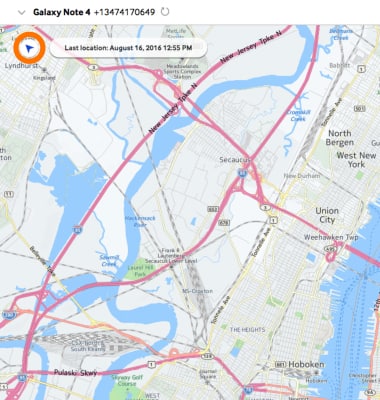
- Tap Locate my device to find your device and view the map for device location.
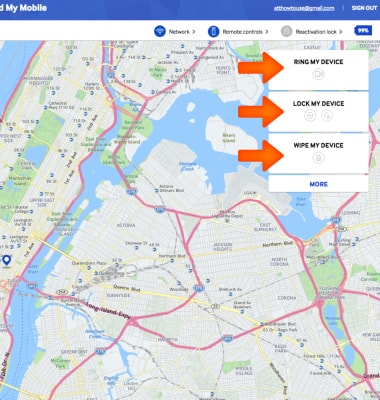
- To control the device, click the desired tool.
Find My Mobile
Samsung Galaxy S24 / Galaxy S24+ / Galaxy S24 Ultra (SM-S921U/SM-S926U/SM-S928U)
Find My Mobile
Remotely manage your device securely using Find My Mobile.

0:00
INSTRUCTIONS & INFO