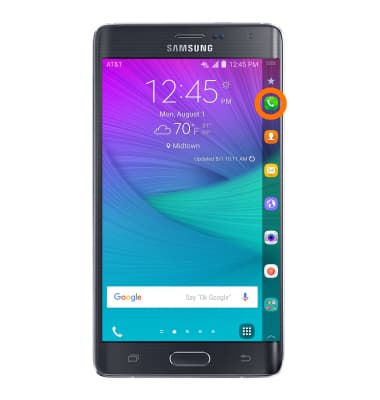
- To make a Video Call, from the home screen, tap the Phone icon.
- From the Dial pad, enter the desired number, then tap the Video Call icon.
Note: The Video Call icon displays in green if the person has the capability to receive a Video Call and grey if the person does not have the capability to receive a Video Call. If you make a call to someone on a different mobile operator that interoperates with AT&T, the button may not turn green until they set up HD Voice.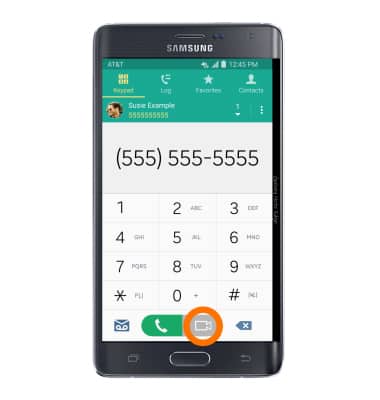
- To switch between front and rear cameras tap Switch camera icon.
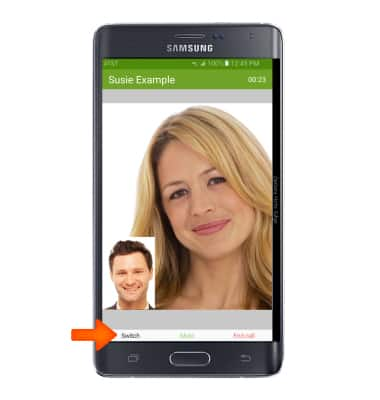
- To stop sharing your image, tap the screen, then tap the Hide me icon.
Note: To share your image, tap the screen, select Switch call type, then tap Show me.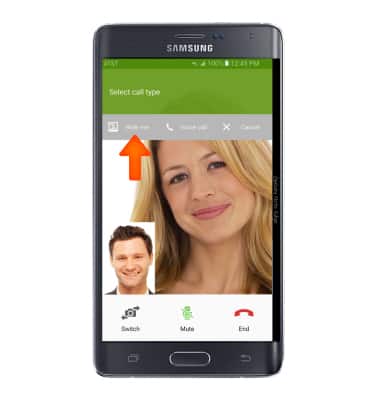
- To switch from a Video Call to a voice call, tap the screen, then tap Voice call icon.
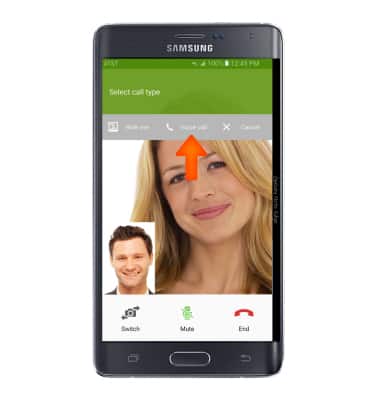
- To switch from a voice call to a Video Call, tap the Video Call icon.
Note: The person you are on the phone with will have the option to accept or reject the change from an HD Voice Call to a Video Call.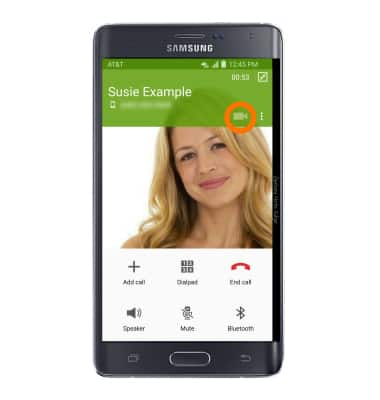
- To accept an incoming Video Call, touch and drag the Video Call icon to the right.

- To accept an incoming Video Call as a voice call, tap and drag the Voice Call icon in any direction.
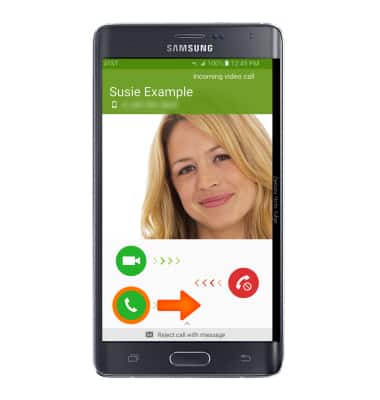
- To reject an incoming Video Call, touch and drag the Reject call icon to the left.
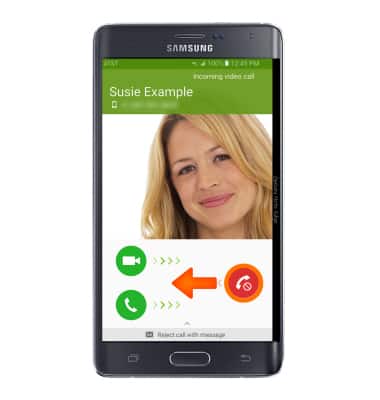
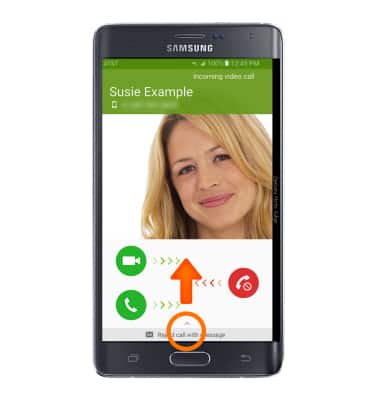
- To reject and respond with a text message, swipe up from the bottom of the screen, then tap the desired message.
- If you do not want to receive Video Calls, you can turn Video Call off from the phone key pad by tapping MORE > Settings > Video Call.
Note: Video Call is turned on by default. When Video Call is off, incoming Video Calls will appear as voice calls.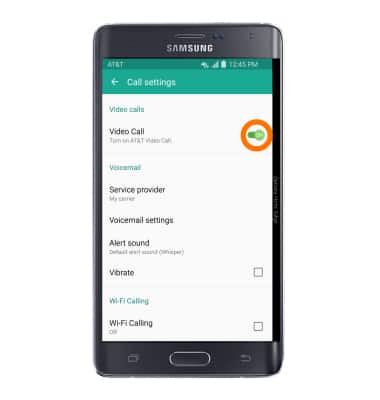
Make & receive an AT&T Video Call
Samsung Galaxy Note Edge (N915A)
Make & receive an AT&T Video Call
AT&T Video Call lets you make and receive HD Voice calls combined with real-time video.
INSTRUCTIONS & INFO

All AT&T Video Call participants need a video call capable device and a postpaid wireless account that is set up for AT&T HD Voice. At this time Video Call is available between AT&T customers within AT&T HD Voice coverage areas and with users on carriers that interoperate with AT&T. Each call uses both voice & data (HD Voice part of the call is billed as a regular voice call, while the video portion of the call incurs data usage charges). No voice or data charges apply once a Video Call hands over to Wi-Fi. Certain restrictions, requirements or limitations may apply. Visit AT&T Video Call for more details.