- MAKE A VIDEO CALL: From the home screen, select the Phone app.
To make or receive calls from your tablet, you must update your device to the most current software version and set up NumberSync™.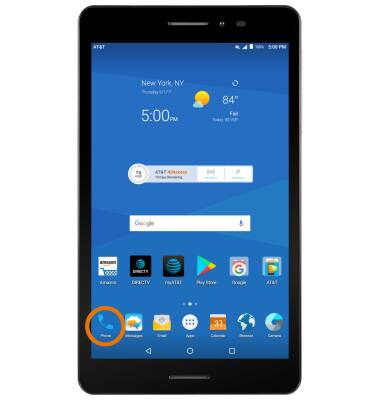
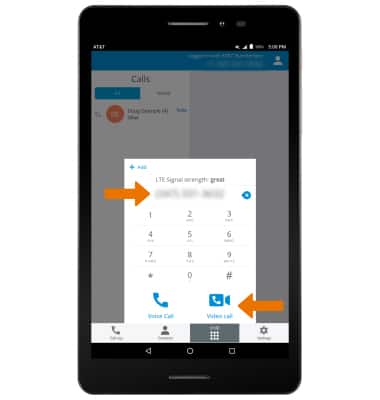
- From the Dialpad, enter the desired phone number then select the Video call icon.
Note: The Video Call icon displays in blue if the person has the capability to receive a Video Call and grey if the person does not have the capability to receive a Video Call. If you make a call to someone on a different mobile operator that interoperates with AT&T, the button may not turn green/blue until they set up HD Voice.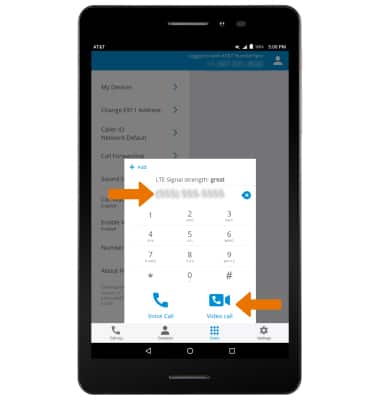
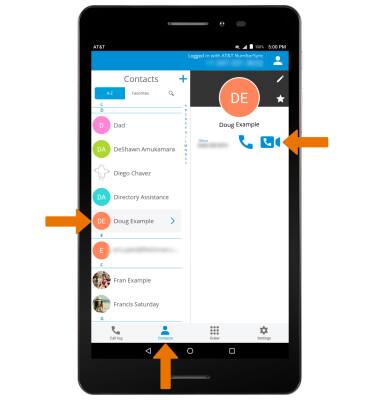
- MAKE A VIDEO CALL FROM THE CONTACTS LIST: From the Phone app, select the Contacts tab then select the desired contact. Select the Video call icon.
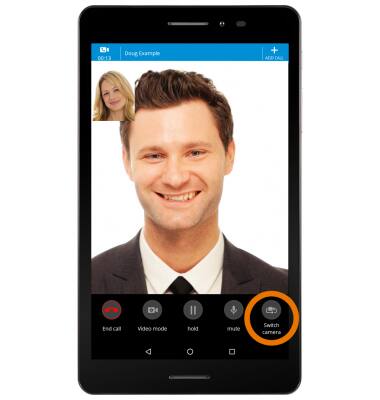
- SWITCH BETWEEN FRONT AND REAR CAMERAS: Select Switch camera.
- ADD A VIDEO CALL: Select Add call.
Note: You can add up to five people to the video call. The person talking is shown on screen at the time. Group video calling may not work for those using a different mobile operator.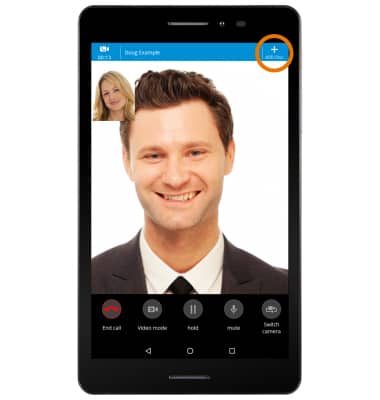
- Dial the desired phone number, then select the Video call icon.
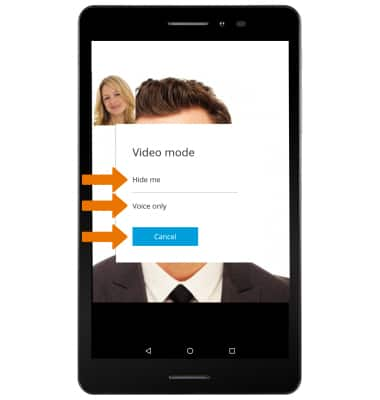
- SWITCH CALL TYPE: Select Video mode.
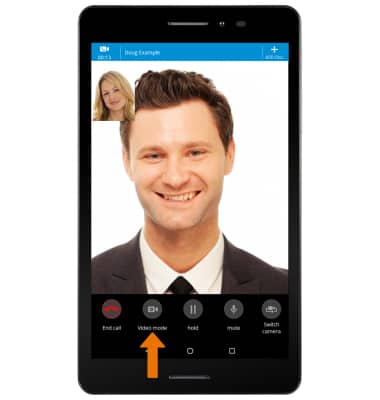
- Select Hide me to hide your video. Select Voice only to switch to a voice call. Select Cancel to cancel and resume your video call.
- SWITCH TO A VIDEO CALL: From a Voice only call, Select Video Call.
Note: The person you are on the phone with will have the option to accept or reject the change from an HD Voice Call to a Video Call.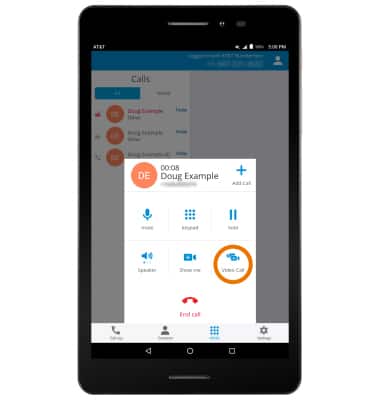
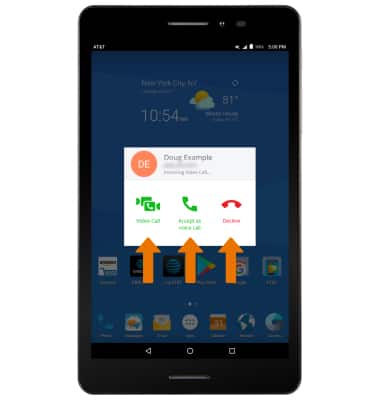
- RESPOND TO AN INCOMING VIDEO CALL: Select the Video Call icon to accept a video call. Select the Decline icon to decline a call. Select the Voice Call icon to accept the call as a voice call.
- TURN ON/OFF VIDEO CALLING: From the Phone app, select Settings then select the Enable Video Call switch.
Note: Video Call is turned on by default. When Video Call is off, incoming Video Calls will appear as voice calls.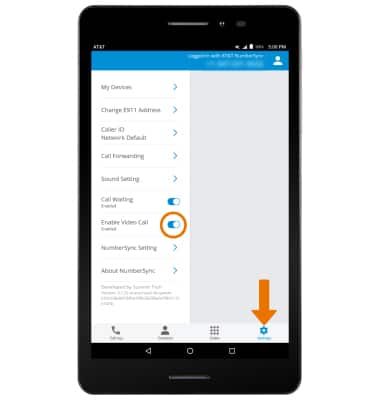
- AT&T Video Call: Not available in all areas. Usage/Charges: Each Video Call uses both voice and data (unless on Wi-Fi). The voice portion counts towards voice minutes & video portion counts as data usage under your existing wireless rate plan. Requirements: All parties to a Video Call must be AT&T postpaid wireless customers with Video Call-capable devices, be located within AT&T HD Voice coverage & have Video Call set up on their accounts. Device selection is limited at this time. Unless disabled, Video Call capability is displayed to other Video Call-capable customers.
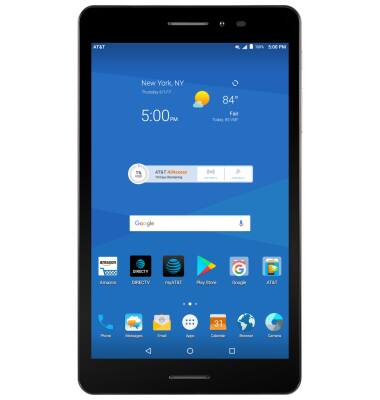
Make & Receive an AT&T Video Call
AT&T Trek 2 HD (K88)
Make & Receive an AT&T Video Call
AT&T Video Call lets you make and receive HD Voice calls combined with real-time video.
INSTRUCTIONS & INFO

All AT&T Video Call participants need a video call capable device and a postpaid wireless account that is set up for AT&T HD Voice. At this time, Video Call is available between AT&T customers within AT&T HD Voice coverage areas and with users on carriers that interoperate with AT&T. Each call uses both voice and data (HD Voice part of the call is billed as a regular voice call, while the video portion of the call incurs data usage charges). No voice or data charges apply once a Video Call hands over to Wi-Fi. Certain features (Smart Limits, Ringback Tones, OfficeDirect and OfficeReach) are incompatible with Video Call.