- To begin, select the desired language then select Yes.
Note: Learn how to activate service on your device or SIM.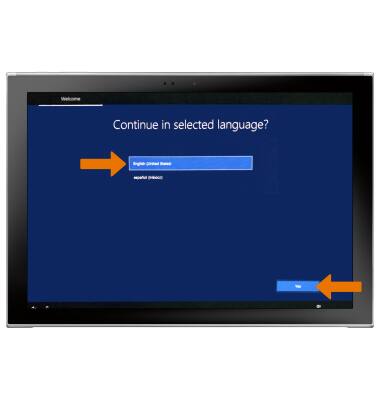
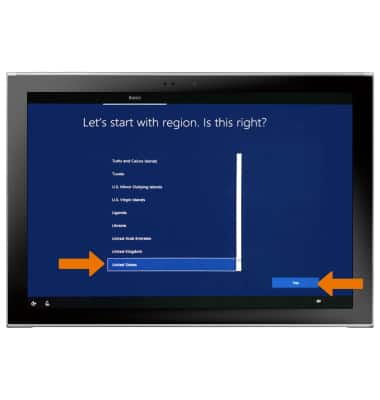
- Select the desired region, then select Yes
- Select the desired keyboard layout, then select Yes.
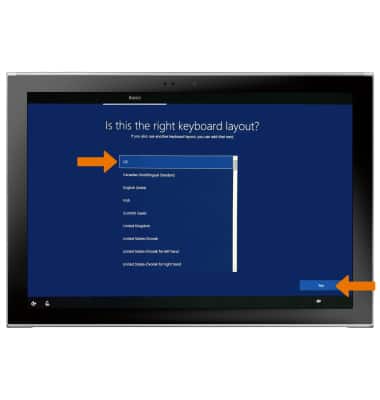
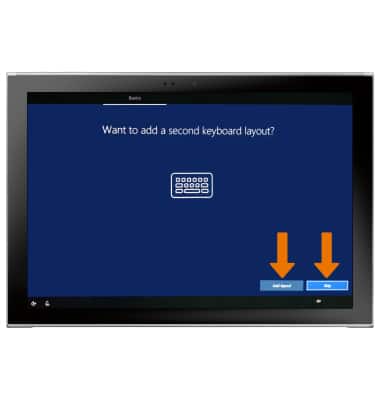
- To add a second keyboard layout, select Add layout. To continue without setting up a second keyboard layout, select Skip.
- If you would like to connect to a Wi-Fi network, select the desired network and follow the on screen prompts.
Note: Select Skip for now to proceed without connecting to Wi-Fi.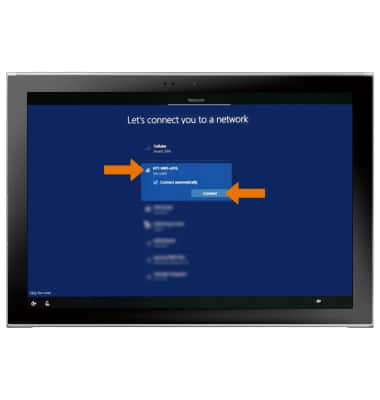
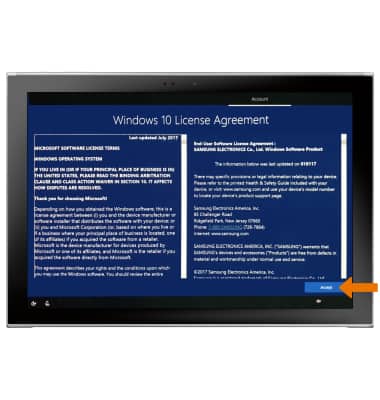
- Review the Windows 10 License Agreement, then select Accept.
- To add your Microsoft account, enter your Email and password then select Next.
Note: If you do not have an account but would like to add one, select Create account.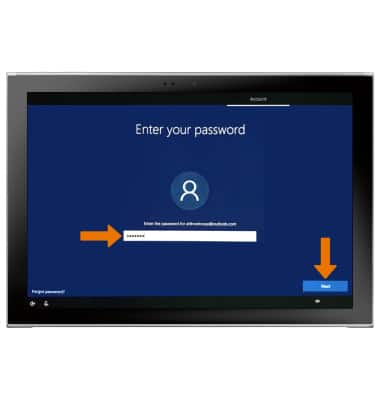
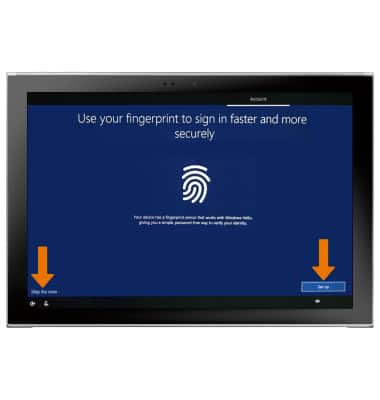
- If you would to add a fingerprint, select Set up and follow the on-screen prompts for setup. To proceed without setting up fingerprints, select Skip for now.
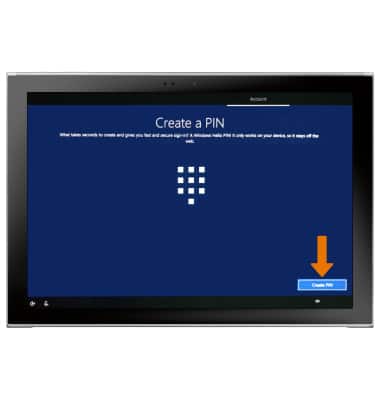
- In order to proceed, you must create a PIN on your device. To continue, select Create PIN.
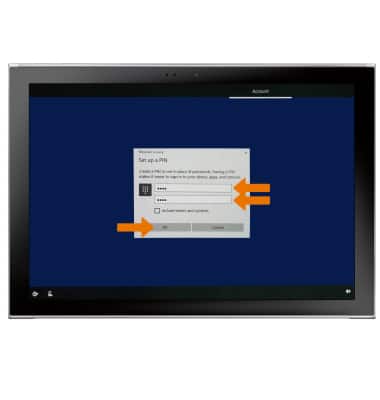
- Enter the desired PIN, then enter the PIN again to confirm. Select OK.
- To link the Samsung Galaxy Book2 and another device, enter your phone number then select Send. Follow the on-screen prompts to complete set up and select NEXT.
Note: If you would like to proceed without linking your PC and phone, select Do it later.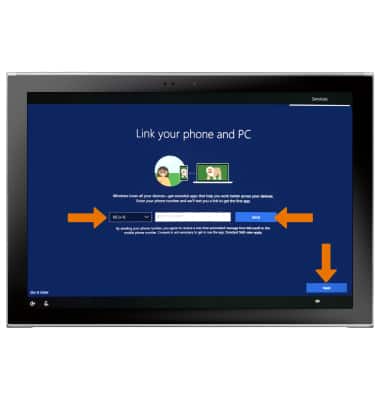
- Review the OneDrive prompt, then select Next.
Note: If you would like to proceed without using OneDrive, select Only save files to this PC.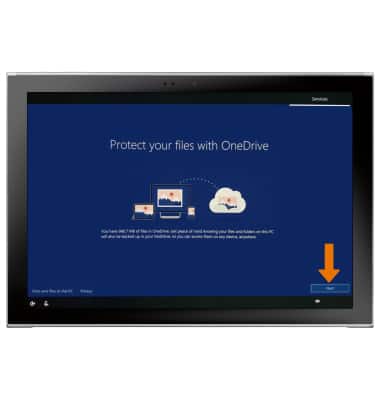
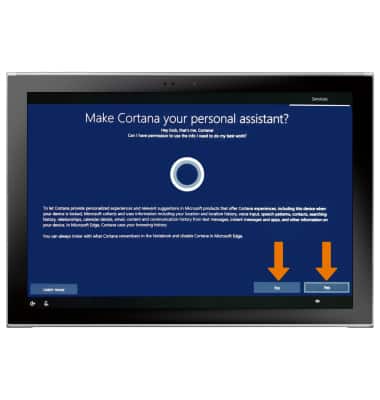
- Review the Cortana personal assistant prompt. If you would like to enable Cortana, select Yes. To proceed without enabling Cortana, select No.
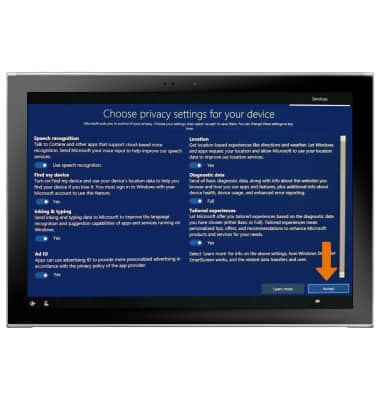
- Adjust the desired privacy settings, then select Accept.
Device Setup
Samsung Galaxy Book2 (W737A)
Device Setup
Set up your device for the first time or after having done a factory reset.
INSTRUCTIONS & INFO