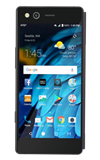
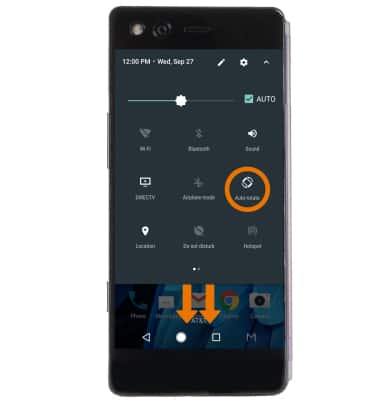
- ADJUST BRIGHTNESS: Swipe down from the Notification bar, then drag the Brightness slider left or right to adjust the brightness manually.
Note: Swipe down from the Notification bar, then select the AUTO checkbox to automatically adjust brightness.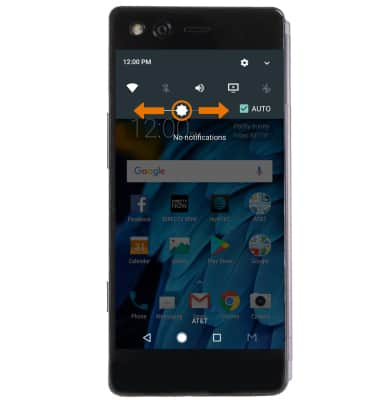
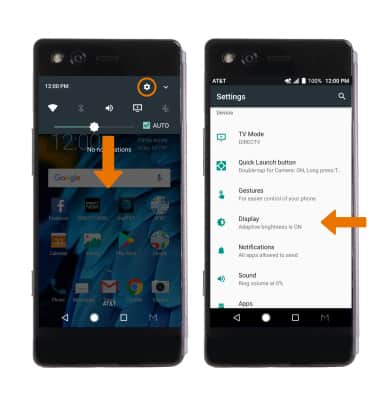
- ADJUST SCREEN TIMEOUT: Swipe down from the Notification bar, then select the Settings icon. Select Display.
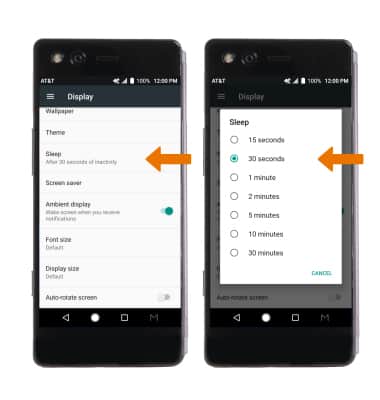
- Select Sleep, then select the desired timeout option.
- LOCK/UNLOCK SCREEN ROTATION: Swipe down from the Notification bar with two fingers, then select Auto-rotate or Portrait to lock or unlock the screen orientation.
- CHANGE DISPLAY MODES: Select the Mode key, then select the desired display mode.
Note: The device must be opened in order to access and select the Mode Key.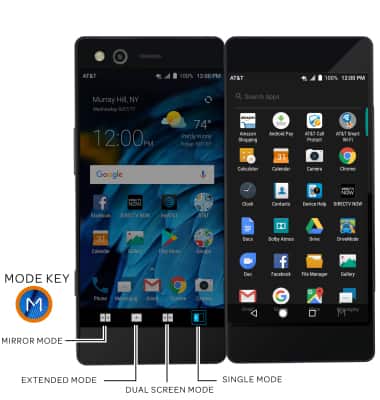
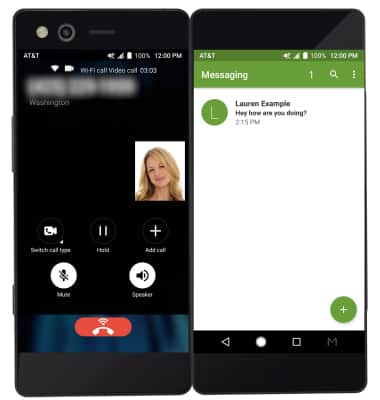
- ACCESS DUAL MODE PORTRAIT: Dual mode while in portrait view can be used to make a video call while using an app.
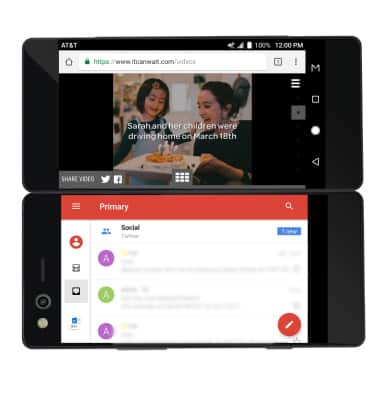
- DUAL MODE LANDSCAPE: Dual mode while in landscape view can be used to watch a video while using an app.
- EXTENDED MODE: Extended mode allows you to view the current screen or app across both screens on the device.
Note: The calendar app allows you to view your calendar on one screen, while highlighting the day's scheduled events on the other screen.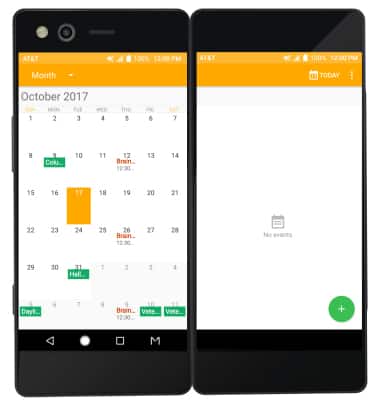
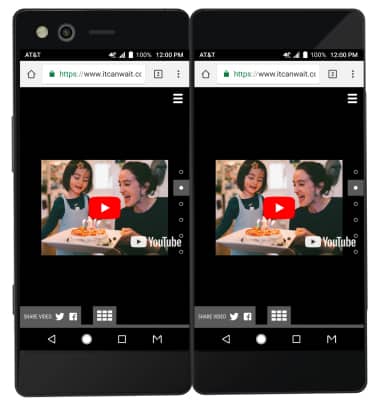
- MIRROR MODE: Mirror mode allows you to view the same content on both screens.
Display
ZTE Axon M (Z999)
Display
Change the display brightness, time out, and orientation.
INSTRUCTIONS & INFO