
In this tutorial, you will learn how to:
• Set a security lock
• Change passcode
• Change lock screen timeout
• Lock and unlock device
Set a security lock
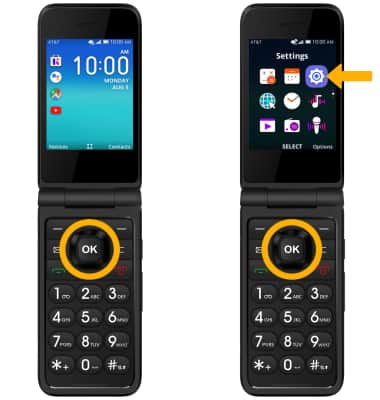
1. From the home screen, press the OK button. Press the navigational buttons to highlight the  Settings app, then press the OK button to select.
2. Press the left or right button to navigate to the Privacy & Security tab. Ensure that Screen Lock is highlighted, then press the OK button to select.
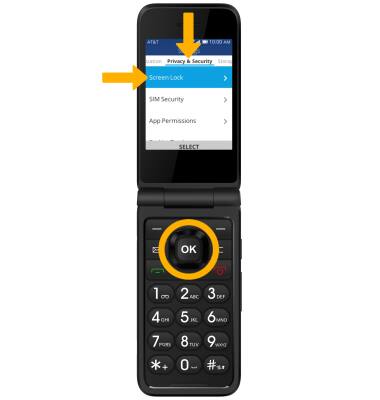
3. Ensure that Screen Lock is highlighted then press the OK button. Press the up button to highlight On, then press the OK button to select.

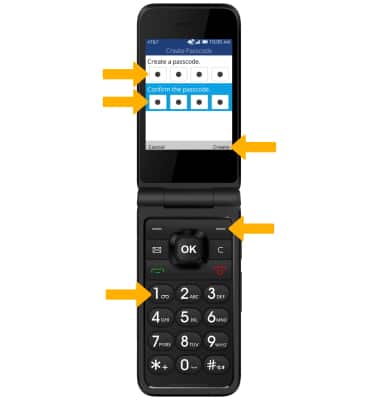
4. Use the keypad to enter the desired 4 digit passcode, then enter the passcode again to confirm. When finished, press the right menu button to select Create.
Note: To turn off screen lock, from the Screen Lock screen, ensure that Screen Lock is highlighted then press the OK button. Press the down button to highlight Off then press the OK button to select. Use the keypad to enter your current 4 digit passcode.
Settings app, then press the OK button to select. 2. Press the left or right button to navigate to the Privacy & Security tab. Ensure that Screen Lock is highlighted, then press the OK button to select.
3. Ensure that Screen Lock is highlighted then press the OK button. Press the up button to highlight On, then press the OK button to select.
4. Use the keypad to enter the desired 4 digit passcode, then enter the passcode again to confirm. When finished, press the right menu button to select Create.
Note: To turn off screen lock, from the Screen Lock screen, ensure that Screen Lock is highlighted then press the OK button. Press the down button to highlight Off then press the OK button to select. Use the keypad to enter your current 4 digit passcode.
Change passcode
1. From the Screen Lock screen, press the down button to highlight Change Passcode then press the OK button to select. 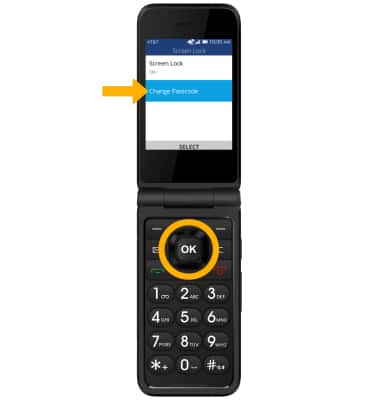
2. Use the keypad to enter your current passcode. Enter your new desired passcode, then enter the new passcode again to confirm. Press the right menu button to select Change.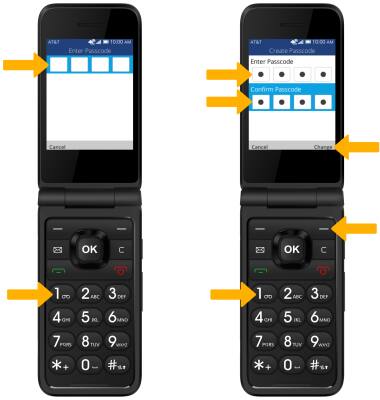
Change lock screen timeout
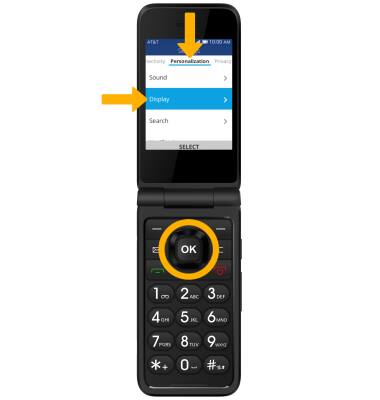
1. From the Settings screen, press the left or right button to navigate to the Personalization tab. Press the down button to highlight Display, then press the OK button to select.
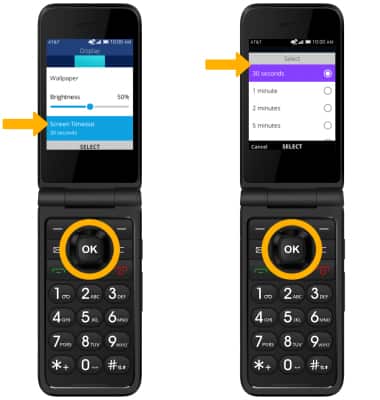
2. Press the up or down button to highlight Screen Timeout, then press the OK button. Highlight the desired option, then press the OK button to select.
2. Press the up or down button to highlight Screen Timeout, then press the OK button. Highlight the desired option, then press the OK button to select.
Lock and unlock device
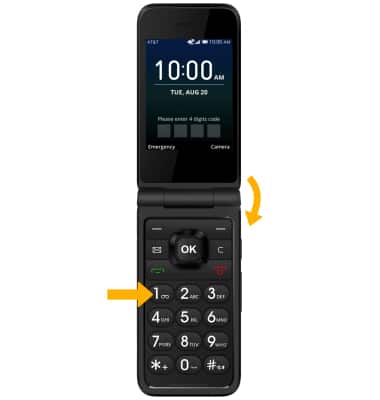
• LOG IN USING THE SECURITY LOCK: From the Lock screen, use the keypad to enter your current 4 digit passcode.
• LOCK DEVICE: Close the device.