QuickMemo+ allows you to create a memo or note on a blank screen with the ability to choose paper style, pencil size, color, add text, insert reminders, location information, images, videos, audio, and more.
In this tutorial, you will learn how to:
• Create a memo
• Add a reminder
• Add a location
Create a memo
1. From the home screen, swipe left then select the Essentials folder. Select the QuickMemo+ app.
Note: First-time users will be prompted to read Terms of Use for LG apps. Select Agree to continue. You can then select a Google account to sync with or select Cancel to continue without syncing.
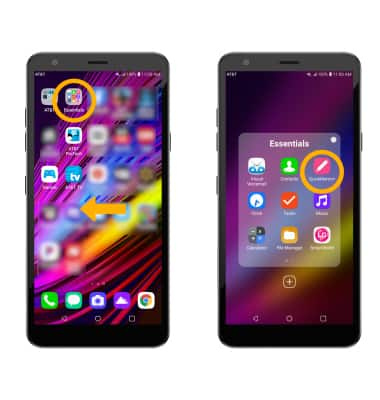
Note: First-time users will be prompted to read Terms of Use for LG apps. Select Agree to continue. You can then select a Google account to sync with or select Cancel to continue without syncing.
2. Select the  Add icon to create a new memo.
Note: Review the QuickMemo+ prompt, then select OK.
3. To change the paper style, select the Menu icon then select Paper style. Select the desired option, then select OK.
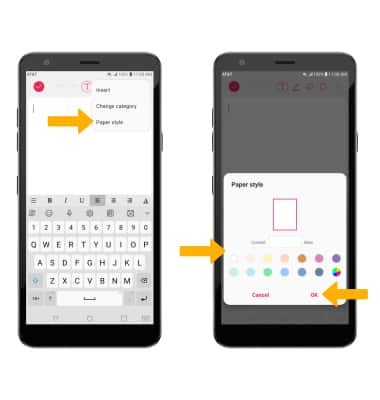
Add icon to create a new memo.Note: Review the QuickMemo+ prompt, then select OK.
3. To change the paper style, select the
Menu icon then select Paper style. Select the desired option, then select OK.4. Select the desired option.
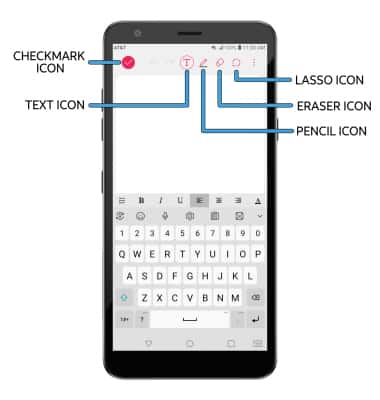
• ADD TEXT: Select the Text icon then enter the desired text.
• DRAW: To draw on the screen, select the Pencil icon. Double-tap the Pencil icon to customize the pencil.
• ERASE: To erase unwanted writing, select the Eraser icon. Double-tap the Eraser icon to customize the eraser.
• CROP: To move or change specific parts of the memo, select the Lasso icon.
• SAVE: To save the memo, select the Checkmark icon.
• DRAW: To draw on the screen, select the Pencil icon. Double-tap the Pencil icon to customize the pencil.
• ERASE: To erase unwanted writing, select the Eraser icon. Double-tap the Eraser icon to customize the eraser.
• CROP: To move or change specific parts of the memo, select the Lasso icon.
• SAVE: To save the memo, select the Checkmark icon.
Add a reminder
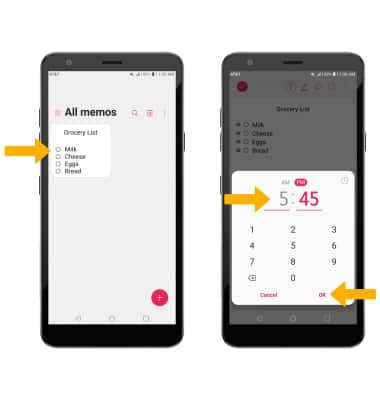
Select the desired memo > Add reminder > Time > enter the desired date > select OK > enter the desired time > select OK.
Note: To add a location-based reminder, from the desired memo select Add reminder > Location > enter the desired location > select the Done key > desired location.
Note: To add a location-based reminder, from the desired memo select Add reminder > Location > enter the desired location > select the Done key > desired location.
Add location
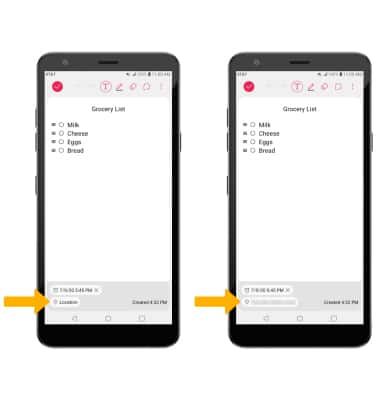
From the desired memo, select Location. The location will automatically be populated.
Note: To save the memo, select the Checkmark icon.
Note: To save the memo, select the Checkmark icon.