Device Setup

Microsoft Surface Go 2 (1927)
Device Setup
Set up your device for the first time or after having done a factory reset.
INSTRUCTIONS & INFO
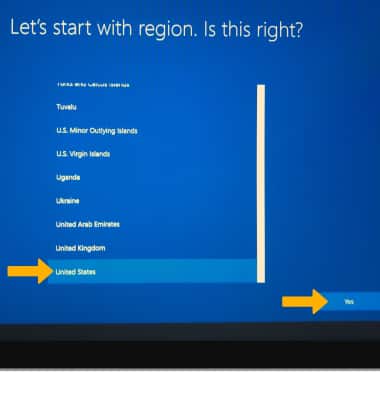
1. To begin, select the desired region then select Yes.
2. Select the desired keyboard layout, then select Yes.
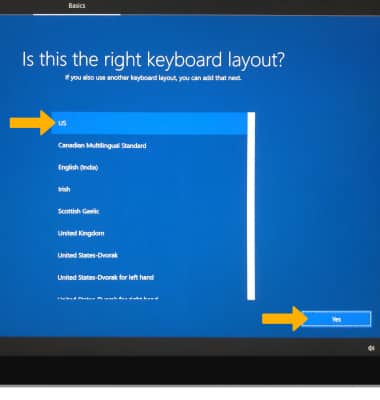
3. To add a second keyboard layout, select Add layout. To continue without setting up a second keyboard layout, select Skip.
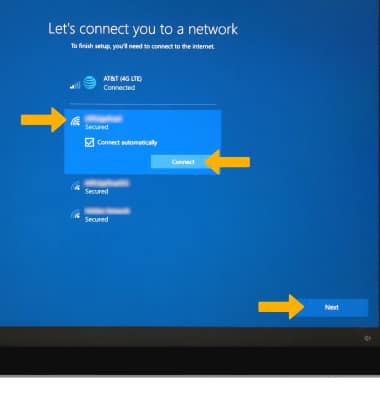
4. If you would like to connect to a Wi-Fi network, select the desired network then select Connect and follow the on screen prompts. When finished, select Next.
Note: To proceed without connecting to Wi-Fi, select Next.
Note: To proceed without connecting to Wi-Fi, select Next.
5. Review the Windows 10 License Agreement, then select Accept.
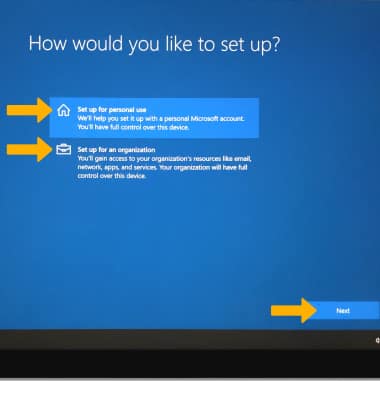
6. Select the desired set up option then select Next.
Note: Set up for personal use was selected for this tutorial.
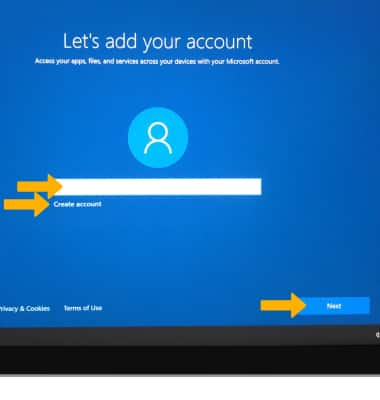
7. To add your Microsoft account, enter your Email address then select Next and follow the prompts. If you do not have an account but would like to add one, select Create account.
Note: Set up for personal use was selected for this tutorial.
7. To add your Microsoft account, enter your Email address then select Next and follow the prompts. If you do not have an account but would like to add one, select Create account.
8. If you would to add a facial recognition security lock, select Set up and follow the on-screen prompts for setup.
Note: To proceed without setting up facial recognition, select Skip for now.
Note: To proceed without setting up facial recognition, select Skip for now.
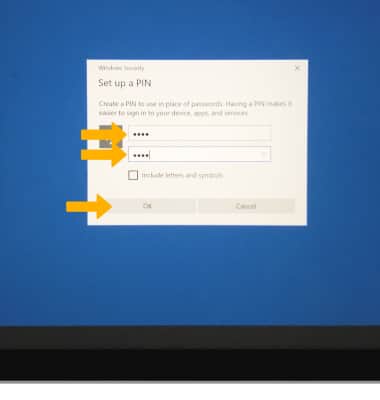
9. In order to proceed, you must create a PIN to secure your device. To continue, select Create PIN.
10. Enter the desired PIN, then enter the PIN again to confirm. Select OK.
11. Review the Do more across devices with activity history prompt then select the desired option.
Note: Select Learn more for more information.
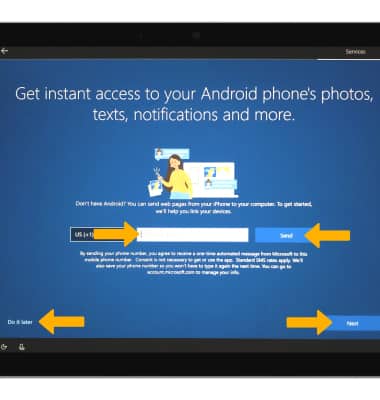
12. To link the Microsoft Surface Go2 and another Android device, enter your phone number then select Send. Follow the on-screen prompts to complete set up, then select Next. To proceed without linking your PC and phone, select Do it later.
13. Review the Back up you files with OneDrive prompt, then select Next.
Note: To proceed without setting up OneDrive, select Only save files to this PC.
14. Review the Microst 365 trial prompt then select the desired option.
Note: If you already have Microsoft 365 select I have a product key and follow the prompts to complete setup.
15. Review the Get help from you digital assistant prompt then select the desired option.
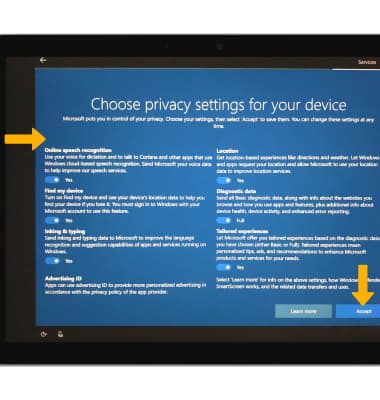
16. Adjust your privacy settings as desired, then select Accept.
What's in the box?
• Microsoft Surface Go2 charging block and power supply
• Quick Start Guide
• Warranty and compliance guide