 Before setting up your device, make sure you have completed the online activation process. Please visit
 1. From the home screen, select the  Play Store app.
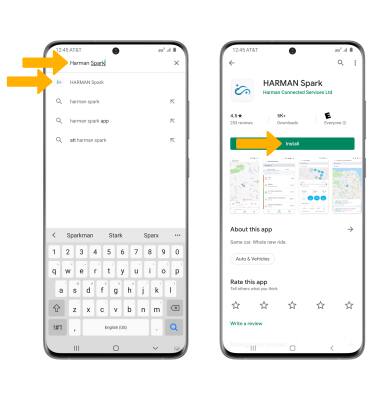
Play Store app.2. Search for and select the HARMAN Spark app, then select Install.
3. To access the app after it has downloaded and installed, select Open.
3. To access the app after it has downloaded and installed, select Open.
Note: Alternately, from the home screen, navigate to and select the
 HARMAN Spark app.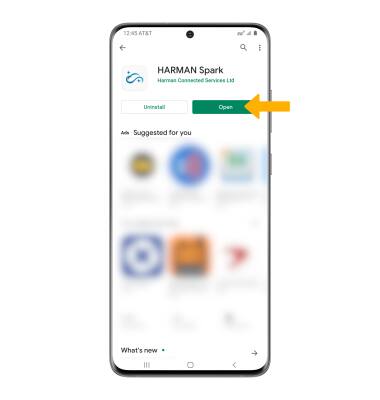
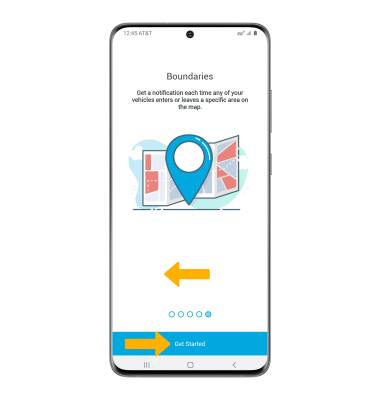
4. Swipe left to scroll through the app features, then select Get Started.
Note: Alternately, select SKIP to proceed without viewing the app features.
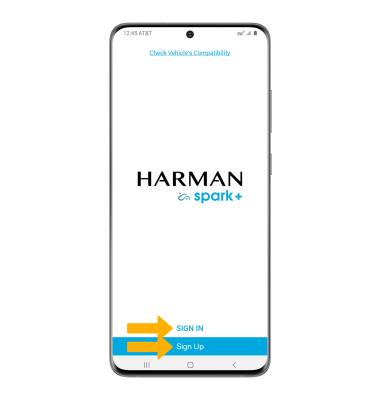
5. If you already have an existing account, select SIGN IN. If you do not already have an account, select Sign Up then follow the prompts to complete sign up.
Note: For this tutorial, SIGN IN was selected. Signing up requires a valid email adress. When you sign up you will recieve and email to vailidaite your account. Select Verify Email to continue. When you first open the app you will be prompted to review all permissions, select Allow to continue.
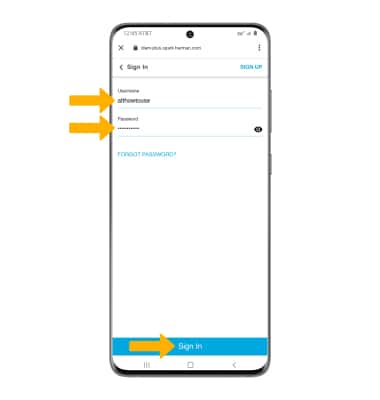
6. Enter your Username and Password then select Sign In.
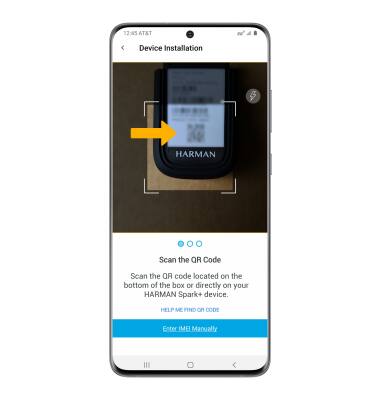
7. Scan the QR code located on the back of your HARMAN Spark device.
Note: For assistance finding the QR code, select HELP ME FIND THE QR CODE. To enter the device information manually, select Enter IMEI Manually then follow the prompts.
8. With your vehicle off, plug your HARMAN Spark device into the vehicle's OBD II port then start your vehicle but remain parked.
Note: If you have trouble finding the OBD II port, please see your driver's manual for more inofrmation or visit checker-plus.spark.harman.com and follow the prompts to view your ODB-II port location.
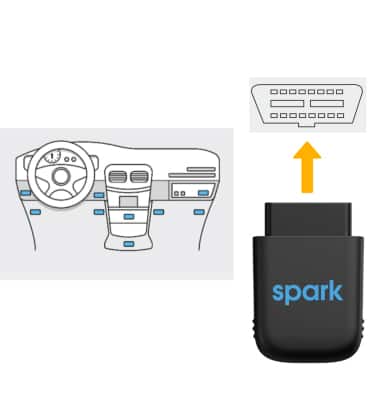
9. Once your Harman Spark is plugged in and your vehile is turned on, select Next on your cellular device then select DONE.
Note: It will take a few minutes for your vehicle's information to appear in the app. The HARMAN Spark can take up to 5 minutes for initial activation. If the device does not activate within 5 minutes, drive the vehicle for 15 minutes to complete activation. When your device is activated, you will get an app notificaiton indicating a successful activation and the 4G LTE/ 3G LTE light on the device will turn solid green.

8. With your vehicle off, plug your HARMAN Spark device into the vehicle's OBD II port then start your vehicle but remain parked.
Note: If you have trouble finding the OBD II port, please see your driver's manual for more inofrmation or visit checker-plus.spark.harman.com and follow the prompts to view your ODB-II port location.
9. Once your Harman Spark is plugged in and your vehile is turned on, select Next on your cellular device then select DONE.
Note: It will take a few minutes for your vehicle's information to appear in the app. The HARMAN Spark can take up to 5 minutes for initial activation. If the device does not activate within 5 minutes, drive the vehicle for 15 minutes to complete activation. When your device is activated, you will get an app notificaiton indicating a successful activation and the 4G LTE/ 3G LTE light on the device will turn solid green.
What's in the box?
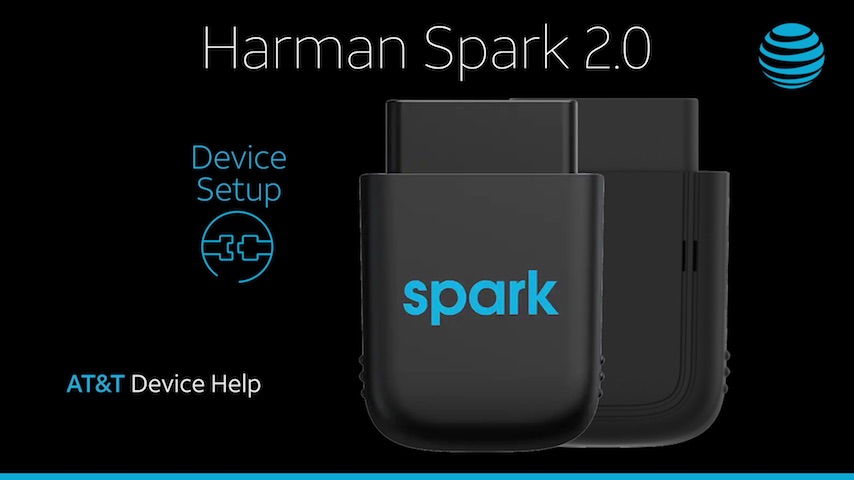
• Harman Spark device
• Quick Start Guide