In this tutorial, you will learn how to:
• Access notification settings
• Turn lock screen notifications on or off
• Turn on or off notification badges
• Turn notifications on or off on a per-app basis
• Adjust notification sounds
• Turn lock screen notifications on or off
• Turn on or off notification badges
• Turn notifications on or off on a per-app basis
• Adjust notification sounds
Access notification settings
1. Swipe down from the Notification bar with two fingers, then select the  Settings icon.
2. Select Notifications > edit settings as desired.
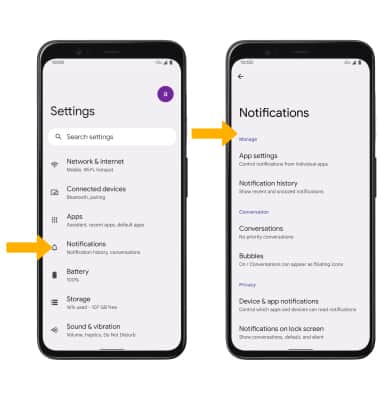
Settings icon.2. Select Notifications > edit settings as desired.
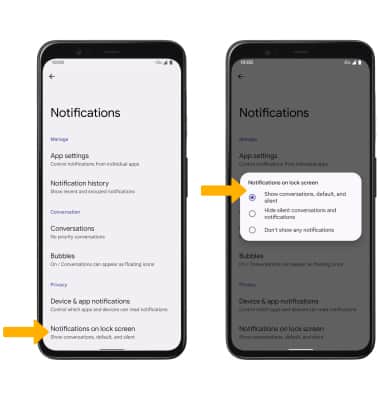
Turn lock screen notifications on or off
From the Notifications screen, scroll to and select Notifications on lock screen then select the desired option.
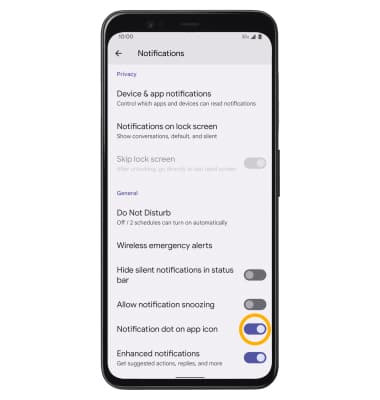
Turn on or off notification badges
From the Notifications screen, scroll to and select the Notification dot on app icon switch.
Turn notifications on or off on a per-app basis
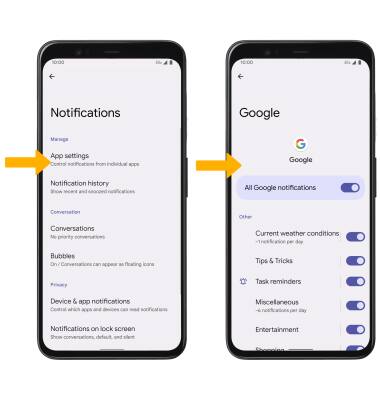
From the Notifications screen, select App settings select the desired app > adjust notification settings as desired.
Adjust notification sounds
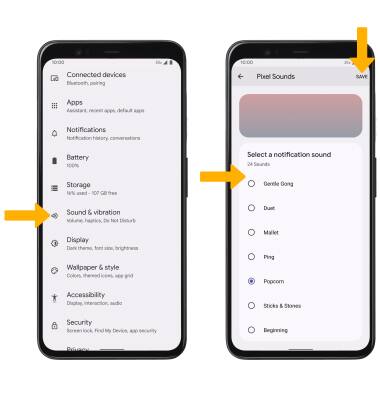
From the Settings screen, select Sound & vibration > scroll to and select Default notification sound > navigate to and select desired sound > select SAVE when finished.