
In this tutorial, you will learn how to:
• Access messaging settings
• Messaging settings options
• Enable/disable Emergency Alerts
Access messaging settings
1. From the home screen, select the  Messages app.
2. Select the Menu icon, then select Settings.
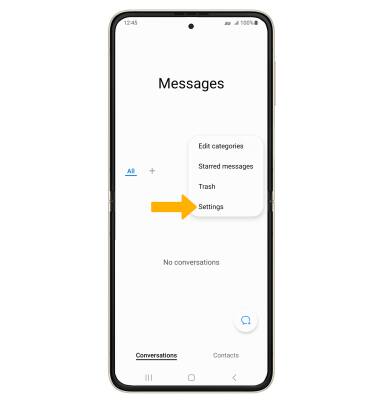
Messages app.2. Select the
Menu icon, then select Settings.Messaging settings options
Select the desired option to access the desired settings:
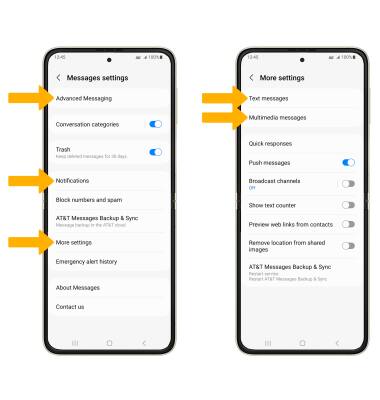
• TURN ON/OFF ADVANCED MESSAGING: Select Advanced Messaging > Advanced Messaging switch.
• TURN ON/OFF ADVANCED MESSAGING READ RECEIPTS: Select Advanced Messaging > Share read status switch.
• TURN ON/OFF ADVANCED MESSAGING READ RECEIPTS: Select Advanced Messaging > Share read status switch.
• ACCESS/EDIT MESSAGE NOTIFICATIONS: Select Notifications.
• ACCESS SMS SETTINGS/VIEW MESSAGE CENTER NUMBER: Select More settings > Text messages. The Message Center number will also be displayed on the Text messages settings screen.
• ACCESS MMS SETTINGS: Select More settings > Multimedia messages.
• ACCESS SMS SETTINGS/VIEW MESSAGE CENTER NUMBER: Select More settings > Text messages. The Message Center number will also be displayed on the Text messages settings screen.
• ACCESS MMS SETTINGS: Select More settings > Multimedia messages.
Note: If Advanced Messaging is turned on and you are messaging another device using the most recent version of Advanced Messaging (2019) from AT&T you can share files up to 100MB, get read receipts, and see when someone is replying. To learn more, view Advanced Messaging or visit att.com/advancedmessaging .
Enable/disable Emergency Alerts
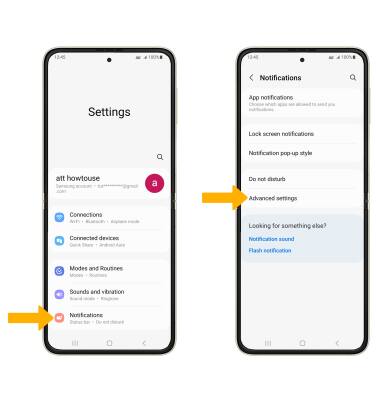
1. From the home screen, swipe down from the Notification bar then select the  Settings icon.
2. Select Notifications, then scroll to and select Advanced settings.
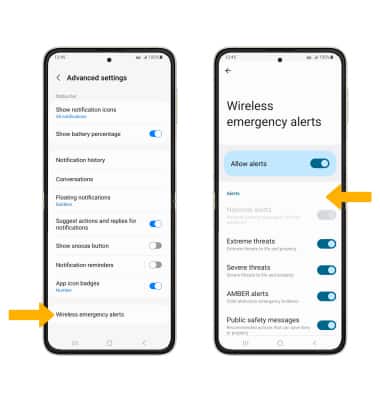
3. Select Wireless emergency alerts, then select the desired switches to enable or disable the desired alerts.
Settings icon.2. Select Notifications, then scroll to and select Advanced settings.
3. Select Wireless emergency alerts, then select the desired switches to enable or disable the desired alerts.