Deals
iPhone deals
Samsung Galaxy deals
Holiday deals
Business employee
55+
Military
Active first responders
Retired responders
Nurses & physicians
Teachers
Union
Credit card discount
&More Benefits
Explore wireless
Phone plans
New phones & devices
Upgrade
Bring your own phone
Add a Line
Switch and save
Trade in your device
International phone plans
Shop new iPhones
Shop Certified Pre-Owned
iPhone 17
Samsung Galaxy S25
Why AT&T Wireless
Wireless help
More resources
Explore home internet
Internet plans
Fiber internet
Home Wi-Fi
Check availability
AT&T Internet Air
Moving services
Bundles
Gaming
Home business
Internet help
Speed test
More resources
Access from AT&T
Explore AT&T PREPAID
Prepaid plans
Prepaid phones
Bring your own phone
Prepaid deals
Prepaid account
Activate your service
Lease-to-Own
Home Phone Services
AT&T Phone
AT&T Phone – Advanced
Landline Phone
Lifeline
Phones & accessories
Digital phone help
Landline phone help
Bundles
Internet + Wireless
Internet + Phone
Home office
Smart watches & devices
Smart home
In-car Wi-Fi
All accessories
Headphones
Phone & tablet cases
Chargers
Screen protectors
Speakers & smart home
Internet & TV equipment
PopSockets & more
Gadgets & gaming
Accessory deals

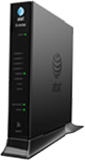
Learn about your Pace 5168

Get details on using your Pace 5168 to connect to the internet and find help for common issues.


The color and state of your lights let you know the status of your Pace 5168.

Power light

  • Green (solid): Power is on.
  • Red: The gateway may have a fault with its power supply.

Ethernet

  • Green (solid): A computer or other device is connected to an Ethernet port.
  • Green (flickering): There is activity from devices connected to an Ethernet port. The flickering of the light is synchronized to data traffic.

Wireless

  • Green (solid): A wireless computer or other device is connected to the gateway.
  • Green (flickering): There is inbound or outbound activity. The flickering of the light is synchronized to data traffic.

Home PNA

  • Green (solid): A set-top box or other device is connected to the coaxial port.
  • Green (flickering): There is activity from devices connected to the coaxial port. The flickering of the light is synchronized to data traffic.

Phone 1 & 2

  • Green (solid): A phone is connected.
  • Green (flashing): The associated phone line is active.

USB

  • Green (solid): A device is connected to the USB port.
  • Green (flashing): The USB device is active.

Broadband 1 & 2

  • Green (solid): The gateway is connected to the provider network.
  • Green (flashing): The gateway is trying to connect to the service provider network. The light might flash for a few moments while the gateway connects.
  • Green & red (flashing): The gateway has been trying to connect to the service provider network for more than three minutes.
  • Red (flashing): The gateway can’t connect to service provider network or there isn’t a DSL signal detected.
  • Off: The gateway is turned off or the associated line is not connected or not in use.

Service

  • Green (solid): The gateway is connected to the service provider network and has obtained a WAN IP address.
  • Green (fast flashing): The gateway is trying to obtain an IP address.
  • Red: The service provider network isn’t responding, the gateway has been configured incorrectly, or there was an authentication failure.

WPS

  • Green (solid): WPS (Wi-Fi Protected Setup) is configuring the gateway.

Find Wi-Fi details

Get your Wi-Fi® name and password to connect devices to your network:

  • Wi-Fi gateway: Look for a sticker with your Wi-Fi name and password.
  • Smart Home Manager: Open Smart Home Manager and look for My Wi-Fi.

Change Wi-fi name

  1. Sign in to Smart Home Manager.
  2. Scroll to the My Wi-Fi card and choose Change next to the name or password.
  3. Select X to clear existing info, then enter a new name or password.
  4. Select Save.

Once you finish making changes, reconnect your devices with the updated network info.

FYI: You can also update your Wi-Fi from your Wi-Fi gateway settings.

Manage Wi-Fi security

Your AT&T Wi-Fi gateway comes with the security ON and set to WEP (Wired Equivalent Privacy) by default.  If you have changed the security to OFF, follow these steps to turn it back on.

WEP is the default set up for your Wi-Fi network, but WPA (Custom) is a more secure option to provide better data protection and access control.

  1. Go to your gateway settings
  2. Select the Home Networks tab, then Wireless in Key Things to do Using Your Gateway.
  3. Scroll to the Security section and select WPA-PSK from the Authentication dropdown.
  4. Select Use custom Wireless Network Key, then enter a new Wi-Fi password in Key entry
    • For 64-bit encryption, enter a 10-digit password made up of numbers and letters a-f or A-F.
    • For 128-bit encryption, enter a 26-digit hexadecimal number made up of numbers and letters a-f or A-F.
  5. Select Save.

Once you have successfully enabled or updated your Wi-Fi network security, you’ll need to connect all your Wi-Fi devices with the new password information.

Hide Wi-Fi info

Important: Before following these steps, be sure to store your Wi-Fi network name and password in a safe location. You’ll have to manually enter them after your network name is hidden. Then, choose your equipment type to get detailed instructions.

  1. Go to your gateway settings.
  2. Select Wireless in Top Networking Features.
  3. Find the Network area and select Disabled from the SSID Broadcast drop-down.
  4. Select Save.

MAC address filtering

Set up your All-Fi Hub so that it only connects to devices by MAC address. This makes your connections more secure. When you turn on MAC address filtering, only devices that you select can connect to your network.

FYI: Make sure you have the MAC address for each device you want to access your Wi-Fi home network. Every device will have its own process to find its MAC address. Check your service documentation or manufacturer’s website for detailed instructions.

  1. Go to your gateway settings.
  2. Select Wireless in Top Networking Features.
  3. Select Enable under MAC Filtering, Edit Blocked/Allowed Device.
  4. Enter the MAC address for each device.
  5. Select Add to List, then Save.

Port forwarding

Important: Use port forwarding with caution. It may allow others to access devices in your home without your knowledge.

  1. Go to your gateway settings.
  2. Select Settings, then Firewall, then Applications, Pinholes and DMZ. If you get a warning message, restart your Wi-Fi gateway. Then, continue with these steps.
  3. Choose the device name or IP address in Select a computer for the device you wish to open a port for. If the IP address or device name isn’t listed, enter it in the Enter IP Address field and select Choose.
  4. Select Allow individual applications for Edit firewall settings for this computer.
  5. Choose the application from the list and then select Add to move it to Hosted Applications. If you don’t see your application in the list:
    • Select Add a new user-defined application.
    • Enter the name for the application or device in Application Profile Name.
    • Select the appropriate Protocol.
    • Enter the ports you wish to open for From and To. It's recommended to create a separate entry for each port as opposed to using a port range. In this case the port number should be the same in the From and To fields.
    • Choose the type of application you’re setting up for port forwarding from Application Type. If the device or application isn’t listed, leave it set at “-“ default.
    • Select Add to list. Repeat as needed for additional applications and devices.
    • When all applications or devices have been added, select Back. Your new applications will display in the Applications list.
  6. Select Done when your selections display in Hosted Applications.
Last updated: August 20, 2025

Browse topics

Did you get the help you needed?


Did you get the help you needed?