Navigating your iPhone with VoiceOver
iPhone XR
Navigating your iPhone with VoiceOver
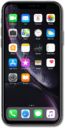
The gesture-based screen reader VoiceOver describes what's under your finger when you tap or drag it over your device.
1.
From within the Settings app, tap Accessibility.
2.
Tap VoiceOver.
Depending on your specific device, your options may vary.
3.
Tap or slide the VoiceOver switch to ON.
Your device will begin dictating the text within the black borders.
4.
To turn VoiceOver off, tap the VoiceOver switch to highlight it.
For more information on how to use VoiceOver, tap VoiceOver Tutorial.
5.
Double-tap anywhere on the screen to turn VoiceOver to OFF.
6.
You've completed the steps!
